NoCost-
Convert your files freely without hidden charges or usage fees.
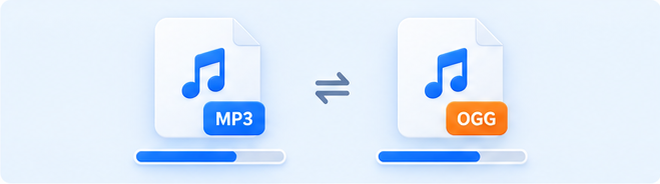
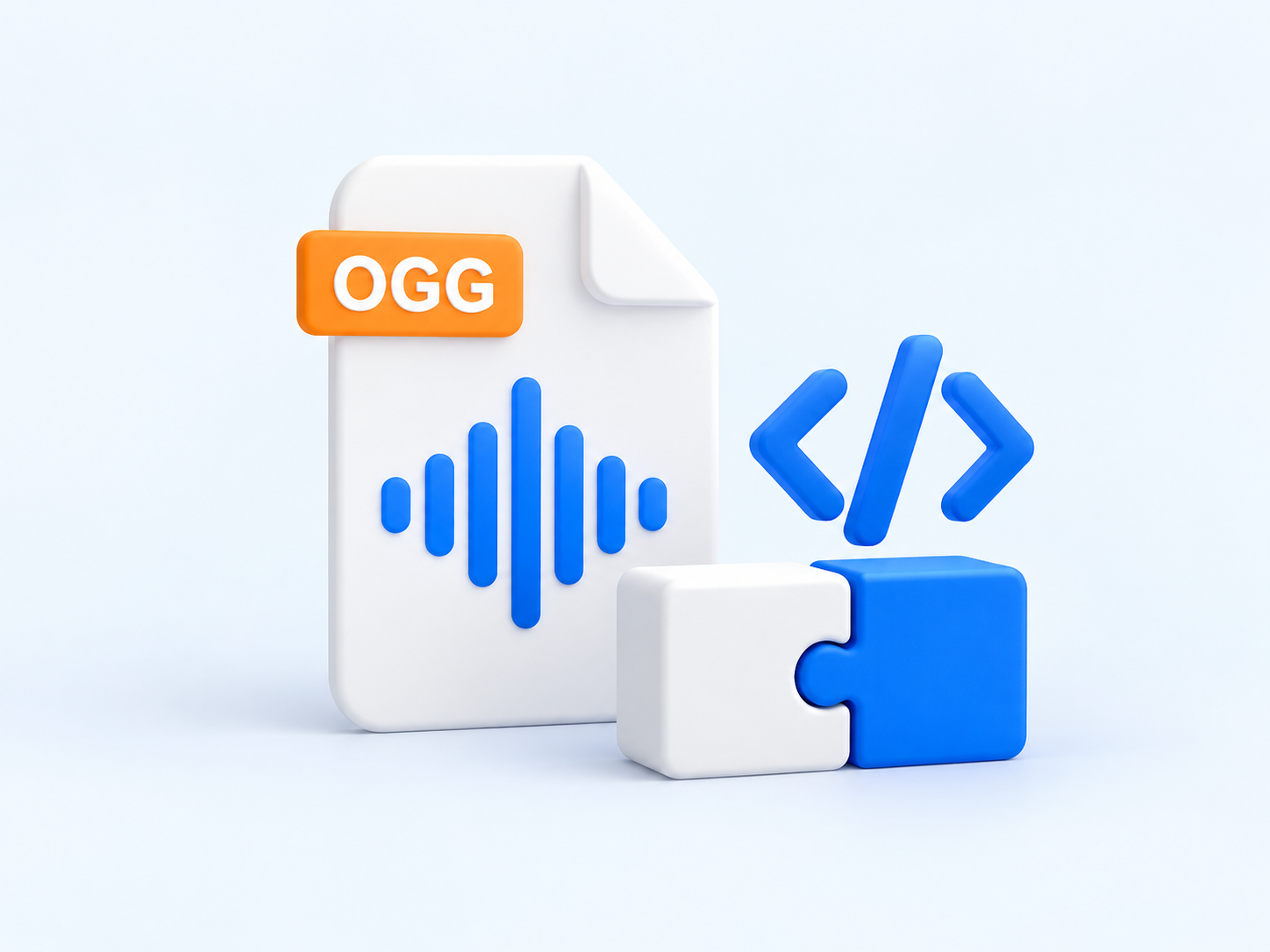
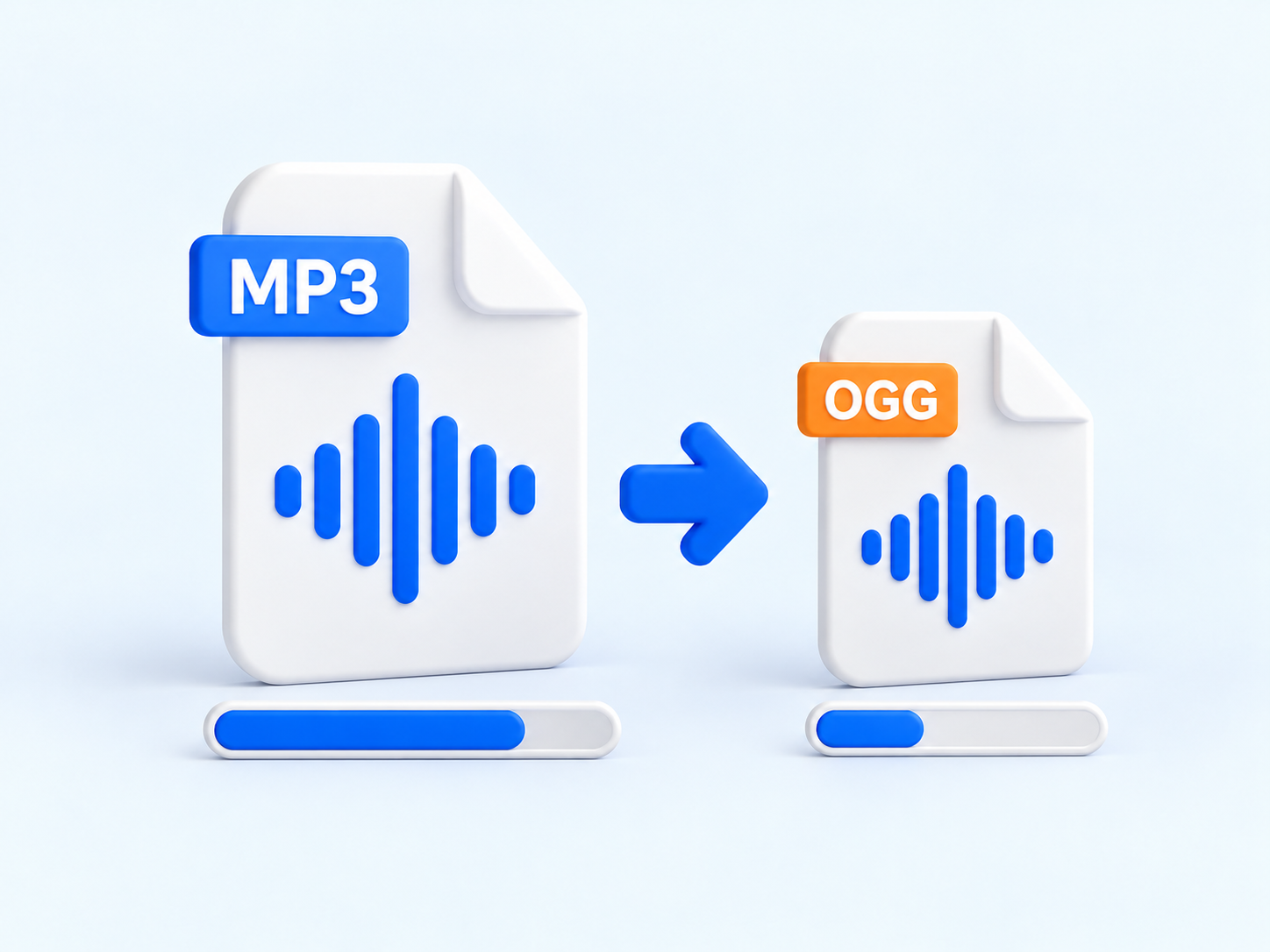
Easily turn your MP3 audio into OGG without complicated audio software or technical settings. Get a compatible OGG file for games, apps, websites, and other projects in just a few simple steps.
Get a straightforward MP3 to OGG conversion experience with practical features designed for everyday audio needs. No complicated setup or unnecessary steps—just a simple, accessible tool that makes format conversion easier.
Convert your files freely without hidden charges or usage fees.
Start converting immediately without creating an account first.
Enjoy a clean conversion experience without distracting advertisements.
Convert MP3 files directly in your browser without installing software.
Convert files on Windows, Mac, Android, or iPhone.
Convert multiple MP3 files to OGG in a single session.
Import MP3 media directly from your cloud storage accounts.
Create OGG audio for game engines and projects that support the format.
OGG files are usually smaller, saving storage and easing sharing.
Get Vorbis-encoded OGG files for apps and projects that require them.
Convert your audio in a few straightforward steps. Select an MP3 file, start the conversion, and save the resulting OGG file when the process is complete.
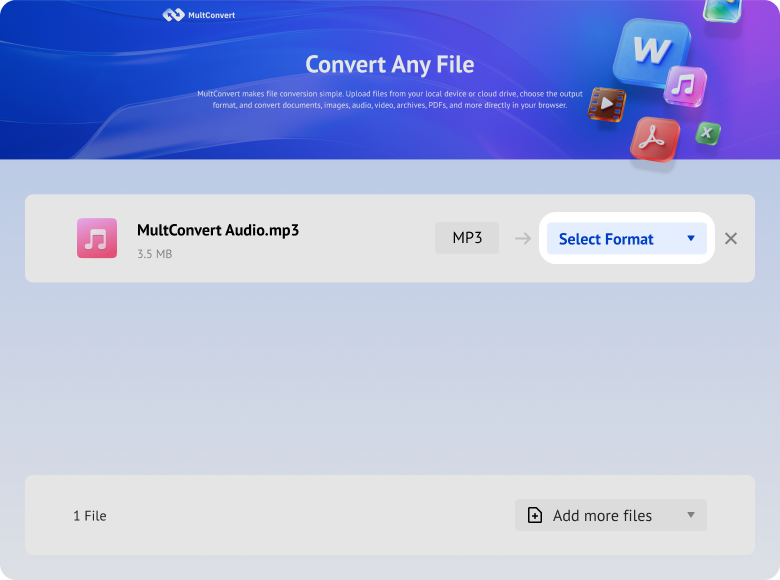
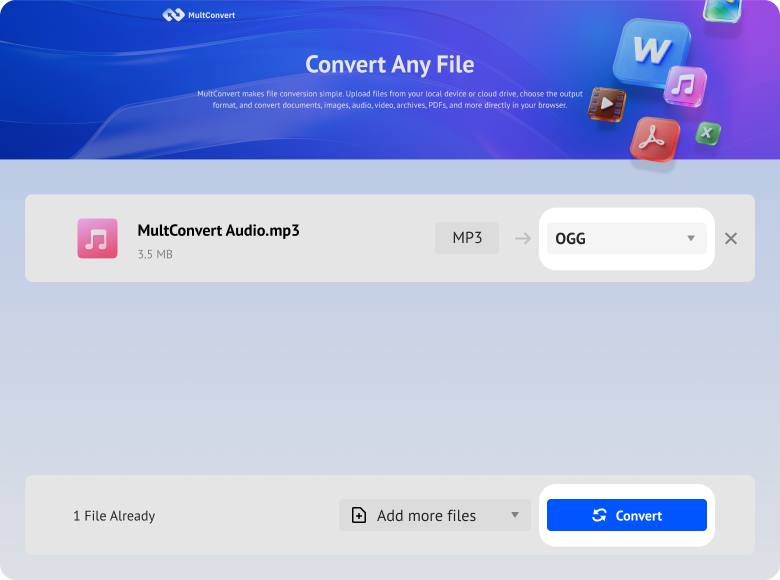
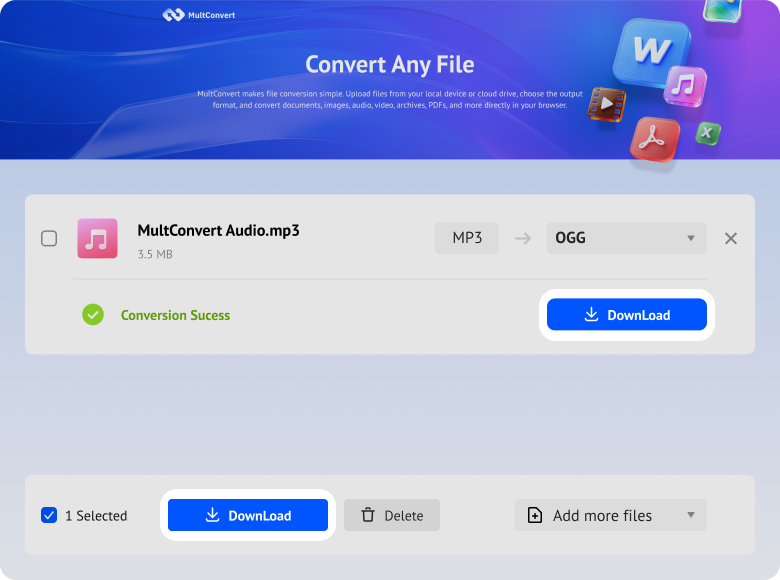
Upload MP3 files from local storage, external drives, or cloud storage and convert to OGG in just a few clicks.
Files saved on a hard drive are ready to convert directly from your device.
Work with files stored on an SSD without moving them first.
Plug in a USB flash drive and convert your files on the spot.
Convert recording files straight from an SD card when you need them.
Access files from Google Drive and start converting without an extra download step.
Pull files from Box and move straight into conversion.
Convert files stored in Dropbox without downloading them first.
Use OneDrive files directly for a faster conversion flow.
Your files are encrypted during upload and download, processed automatically, and removed after conversion. We never read, share, or store your media files longer than needed to complete the conversion.
Every file is protected with HTTPS/TLS encryption while it's uploaded and downloaded.
Temporary files are automatically removed 10 hours after processing to help protect your privacy.
Your files are processed automatically and aren't manually viewed or accessed by our team.
Built with modern privacy practices in mind, including data handling principles aligned with GDPR expectations.
Whether you’re preparing game assets, meeting specific format requirements, or organizing an audio library, converting MP3 to OGG helps you adapt existing recordings for your project while keeping file sizes manageable.
OGG’s open, non-proprietary format supports software and development projects that value open standards and flexible integration into existing workflows.
OGG files are usually smaller after conversion, helping reduce storage needs and the amount of audio data users download.
Turn MP3 music, dialogue, and sound effects into OGG assets for game projects that support the output codec.
Convert existing MP3 recordings to OGG when your target application or delivery guidelines require it—without recording the audio again.
Keep your MP3 if it already works with your devices and applications. You can continue listening and sharing without an extra conversion step.
Choose OGG when your project accepts its audio codec and calls for OGG delivery, or when the converted file offers a useful size reduction for your needs.
| Aspect | MP3 | OGG |
|---|---|---|
| Compression | Lossy | Lossy |
| File Size | Depends on bitrate and duration | Can offer smaller files, depending on the codec and encoding settings |
| Audio Quality | Depends on the source and encoding settings | Depends on the source and encoding settings |
| Compatibility | Excellent across devices and platforms | Support depends on the application and the audio codec inside |
| Open Format |  |  |
| Best For | Everyday listening, general sharing, and existing MP3 workflows | Compatible game projects, open-format workflows, and OGG-specific delivery requirements |
Converting MP3 to OGG does not improve the original audio quality. Because both formats use lossy compression, the MP3 must be decoded and re-encoded as OGG, which may introduce additional quality loss.
Ogg Vorbis cannot recreate audio information already removed during MP3 compression. The conversion changes the encoding format but does not add genuine detail to the source.
MP3 to OGG is a lossy-to-lossy conversion. Re-encoding may introduce further artifacts, although the difference may be difficult to hear at suitable quality settings.
A well-preserved MP3 provides a better starting point than a low-bitrate, repeatedly re-encoded, or already degraded source. A higher displayed bitrate alone does not guarantee better source quality.
A smaller Ogg file is not automatically worse, and a larger file is not necessarily better. File size also depends on duration, codec settings, bitrate, sample rate, and channel count.
| Test File | Source MP3 | Converted OGG | Size Change | Duration | Processing Time | Playback Check |
|---|---|---|---|---|---|---|
| Music Stereo Track320 kbps | 9.36 MB | 3.01 MB | ↓ 68% | 04:05 | 23 sec | Opened successfully and played fully with no audible dropouts |
| Speech Voice Recording128 kbps | 26.3 MB | 13.6 MB | ↓ 48% | 28:45 | 30 sec | Speech played at the expected speed with no unexpected silence |
| Game Audio Soundtrack320 kbps | 7.4 MB | 2.68 MB | ↓ 64% | 03:15 | 19 sec | Played from beginning to end without interruption |
| Podcast - Long-form Episode128 kbps | 22.4 MB | 12.1 MB | ↓ 46% | 24:15 | 35 sec | Full episode played normally with speech and music sections intact |
| Sound Effects Short Clip128 kbps | 157 KB | 142 KB | ↓ 9.5% | 00:10 | 3 sec | Short effects played completely with no missing or cut-off audio |
A successful conversion is more than getting an .ogg file. Check the output before using it to make sure the format, playback, and audio content are as expected.
Quick Check: Confirm that the downloaded OGG file opens and plays correctly, retains the expected audio and approximate duration, and works in the software or platform where you intend to use it.
Make sure the downloaded file uses the .ogg extension and opens in a media player that supports Ogg Vorbis. Changing an MP3 file’s extension to .ogg does not convert its underlying audio.
Play the beginning, middle, and end of the converted file. Confirm that it starts normally, contains no new silence or interruptions, plays at the expected speed, and has approximately the same duration as the source.
The converted OGG file may be smaller or larger than the original MP3, depending on the source and encoding settings. File size alone does not indicate better or worse audio quality.
If you plan to use the OGG file in a game, app, website, editor, or media player, test it in that environment before replacing or deleting the original MP3.
OGG is commonly used for game audio, especially when a game engine or project specifically supports or requires OGG files. If your existing audio assets are in MP3 format, conversion can help you prepare them for a compatible game project.
Long menu themes, level music, and battle tracks benefit from Vorbis compression because it uses substantially less storage than uncompressed audio while remaining practical for extended playback.
Games containing many character conversations, tutorials, quest instructions, or localized voice lines can use OGG to keep large spoken-audio libraries compressed and easier to distribute.
Rain, wind, crowds, machinery, traffic, and room tone often play for extended periods, making a compressed format useful for limiting the storage required by long environmental recordings.
OGG works well for repeating music and ambience because supported game engines can play the compressed track continuously and apply engine-defined loop points or offsets.
Many modding workflows specify .ogg for replacement music, custom dialogue, radio stations, or sound packs, allowing new audio to follow the format expected by the game.
Ogg Vorbis is supported by many desktop game engines and modern browser environments, making it a practical option when the project’s runtime and target browsers accept .ogg audio.
Several popular game engines support Ogg Vorbis either natively or through import. Here is how these engines handle converted OGG audio.
Supports OGG music and sound effects, including LOOPSTART and LOOPLENGTH metadata.
Imports OGG as an AudioClip and may transcode it for the selected build platform.
Supports OGG for music, speech, and longer sounds; MP3 and WAV are also supported.
Processes imported OGG as an internal audio asset; final encoding depends on the target platform.
Explore more MultConvert tools for converting audio and video files into formats suited to playback, editing, sharing, and your next project.
Prepare MP3 audio for editing, mixing, transcription, or production by converting it to a widely supported WAV file for your preferred audio software.
Start Converting for FreeExtract dialogue, interviews, music, or ambient sound from iPhone, camera, and QuickTime MOV footage for editing or use in other audio projects.
Need video audio for editing or transcription? Convert an MP4 into WAV and use the extracted track without retaining the original video content.
Start Converting for FreeKeep the sound from lectures, recordings, music videos, or interviews while creating a compact MP3 that is easier to store, play, and share.
Start Converting for FreeTurn MOV footage into portable MP3 audio for offline listening, meeting notes, interview review, podcast preparation, or sharing without the accompanying video.
Movies, screen recordings, and downloaded MKV videos can be converted into MP3 files when you only need the soundtrack, dialogue, or spoken content.
Start Converting for FreeNo. Converting an MP3 to OGG cannot restore audio details already removed during MP3 compression. Since the conversion involves lossy re-encoding, the OGG file may also contain additional compression loss.
Convert your MP3 audio to OGG online and get your files ready for playback, apps, or game projects.




 MP3
 OGG