100%Free-
No credit card, no trial, and no paid export screen.
Easily change your JPG photos into standard, ready-to-use PDF files for job applications, visa uploads, expense reports, and professional printing. Preserve full image resolution and correct layout formatting so your documents display and print perfectly every time.
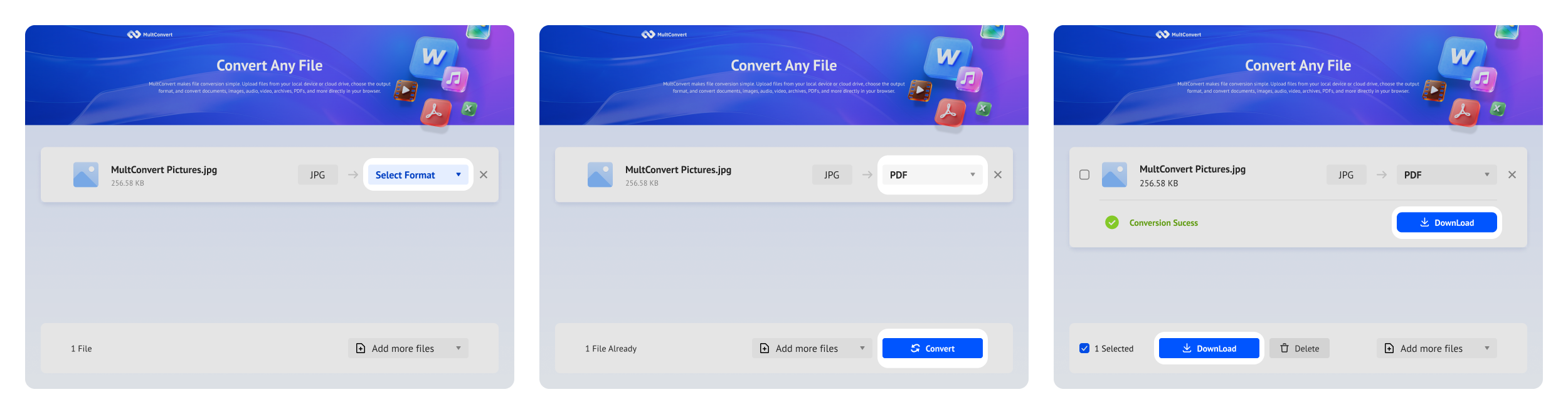
Easily convert your JPG photos into professional, ready-to-use PDFs. Upload your files, convert instantly, and download the results with no signup required.
No credit card, no trial, and no paid export screen.
Start converting instantly without creating an account first.
Your JPGs stay clean, simple, and ready to use.
No install Use it directly in your browser. No downloads, no setup.
Automatically fit each JPG into the PDF page size.
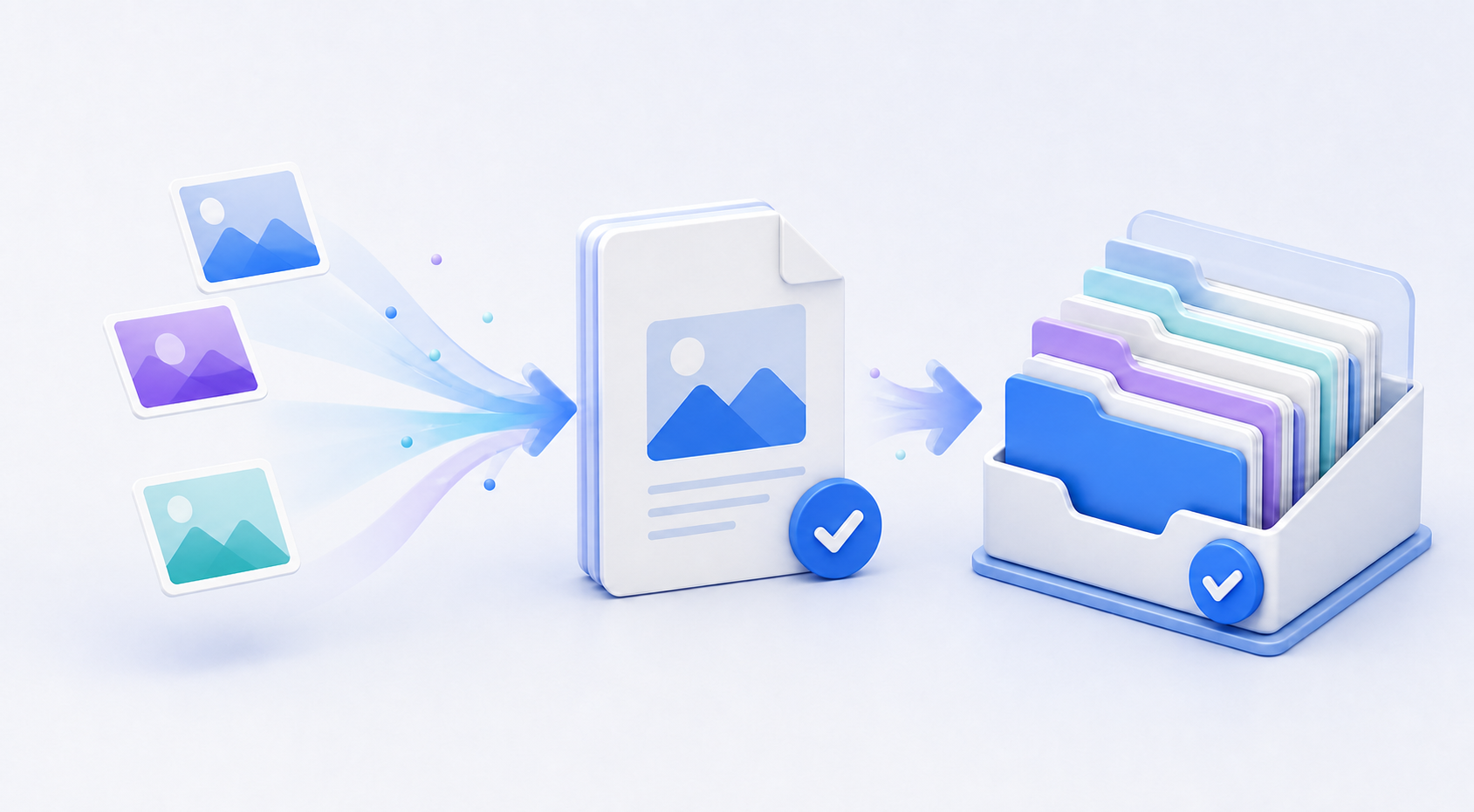
Convert multiple JPG images to PDFs in one go, then download in a zip.
Keep your photos clear and readable in the exported PDF.
Files are transferred securely during upload with SSL encryption.
Import JPGs directly from Google Drive, Dropbox, or OneDrive.
Uploaded files are automatically deleted from our servers after conversion.
Converted 20 high-resolution JPGs (80 MB total) directly from Google Photos to PDF in just 3m 12s. Local data usage: 0 MB.
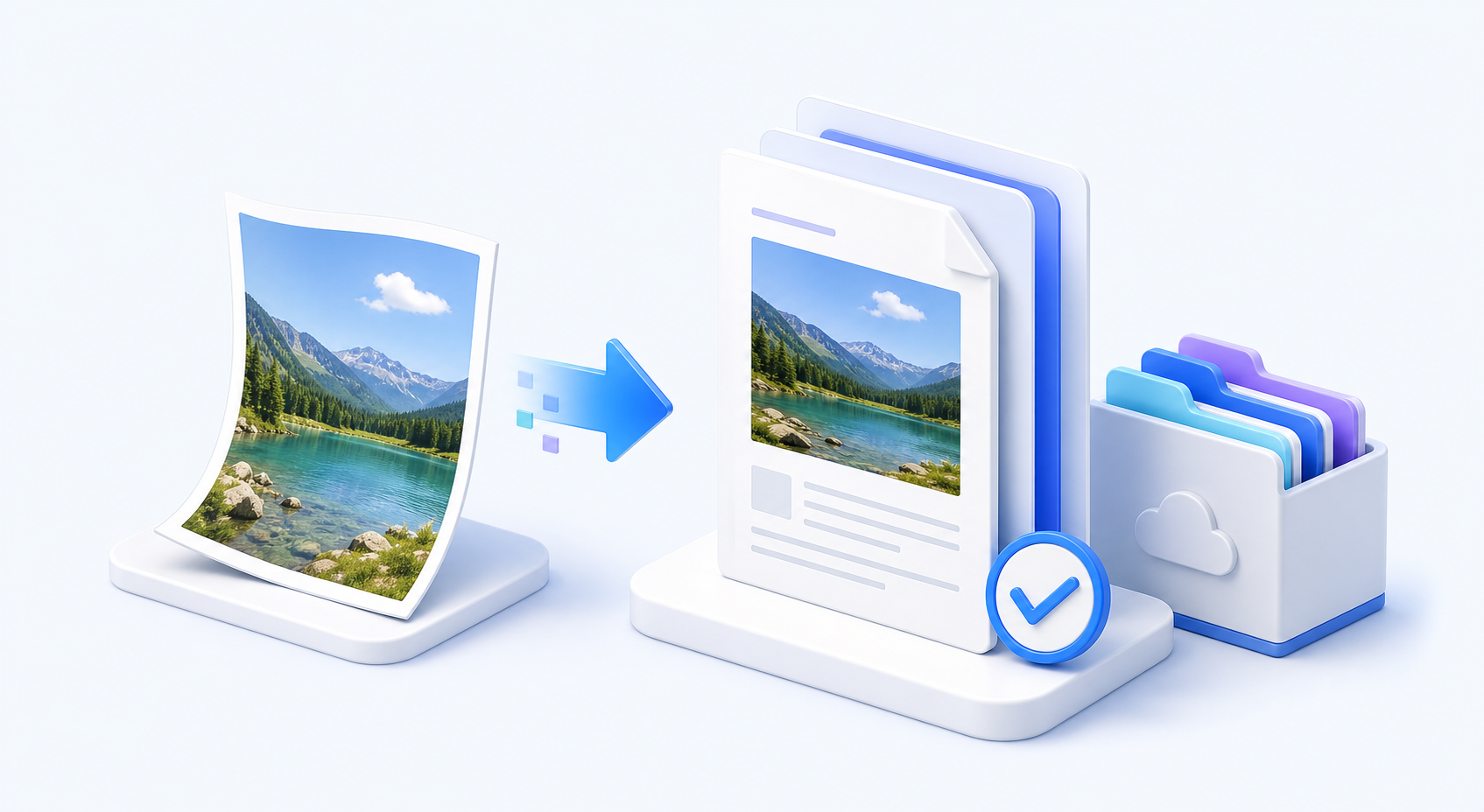
Whether your photos are on your laptop, an external hard drive, or a cloud account, just upload JPGs from any source and convert to PDF instantly. No file transfers needed.
Protect your ID photos, passport images, receipts, job applications, and school assignments from unnecessary exposure. MultConvert is designed to keep your files protected from upload to download.
Your JPG files are protected during upload and download with encrypted connections.
Files are used only for conversion and are removed after the process is complete.
The conversion runs automatically, without manual review from our side.
JPG is ideal for viewing images, but PDF is often the better format when the file needs to behave more like a document. It gives you a more structured output, a fixed page layout, and a format that is widely accepted across offices, portals, and review systems.
JPG works well as a standalone image, but PDF gives the file a more document-like structure. That makes it easier to treat the image as part of a formal record instead of just a picture. It is a better fit when the file needs to be reviewed, stored, or submitted as a complete item.
PDF keeps the layout stable, so the file looks the same across different devices and apps. That helps avoid unexpected cropping, shifting, or display differences. When presentation matters, a fixed page format gives you more control.
PDF is one of the most commonly supported formats for forms, submissions, and formal file exchanges. Many systems are built to handle PDF smoothly because it is easy to review and process. Using PDF can reduce friction when you need a file that works across different workflows.
When you want an image to behave like a document, PDF gives you a neater format for storing, sending, and reviewing the file later. It keeps the content in a more polished structure than a loose image file. That makes it easier to manage when the file needs to be kept or shared again.
Application portals (ATS) often reject loose images or alter margins. Converting portfolios, certificates, or scan sheets to PDF ensures clean layout retention. Keep total file size under 5 MB to pass automated portal upload limits seamlessly.
Payment records and purchase screenshots are easier to store when they are placed in a document-style format. PDF makes it simpler to resend, archive, or organize those files later.
Government, visa, and KYC portals strictly require standardized documents without auto-cropping issues. Ensure 300 DPI image clarity, keep file size strictly under 2 MB so official edges aren't cut off.
Students often need to submit worksheets, handwritten pages, or photo-based homework in a format that is simple for teachers to open.
Direct image printing often suffers from unexpected scaling or clipped borders at print shops. Convert to a standardized A4 or US Letter PDF layout to lock in exact print dimensions before handing off to a printer.
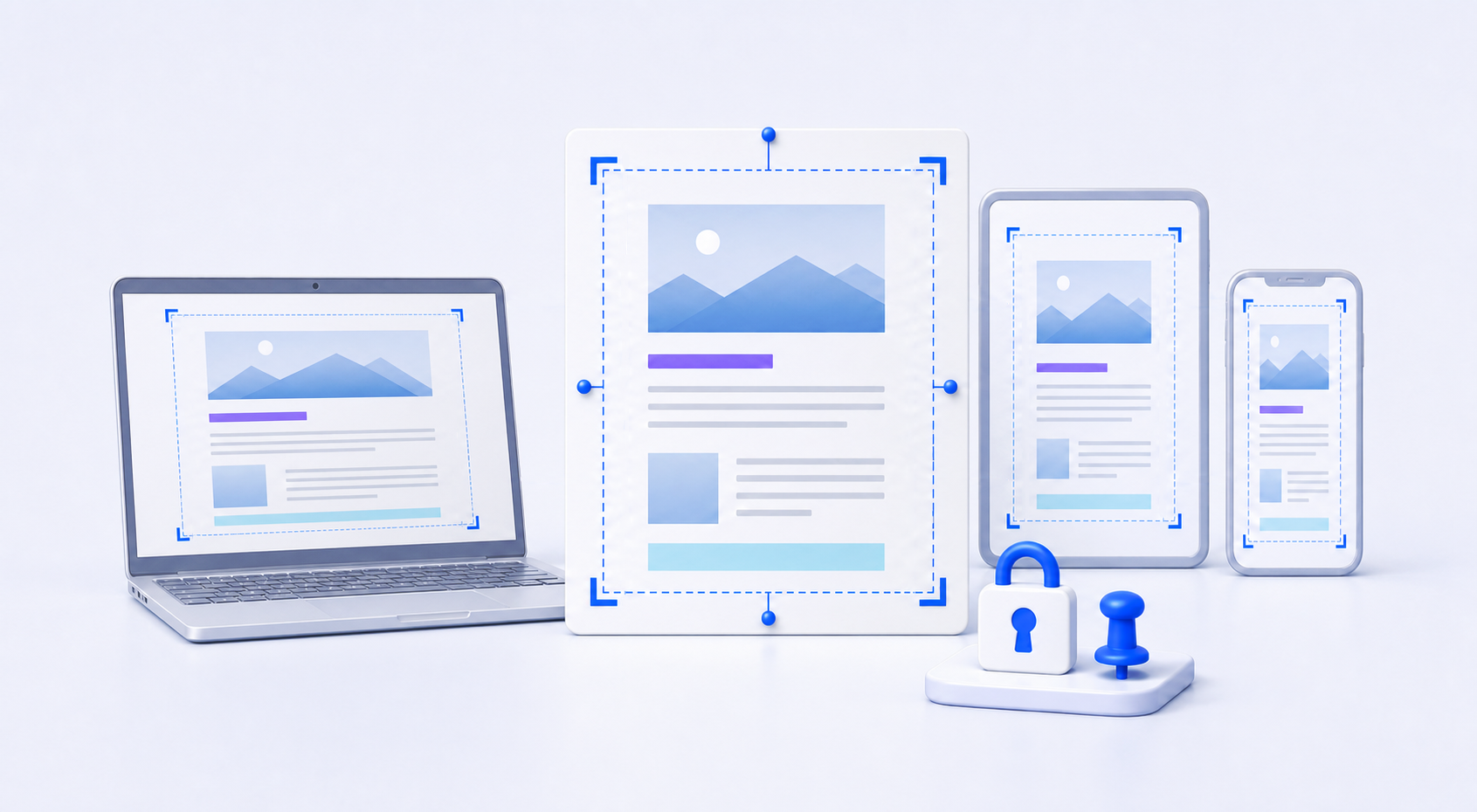
For the best JPG to PDF output, focus on file quality, page setup, and final layout before you convert.
Prefer working locally or don't want to use any third-party tools? Here are a few built-in methods I’ve personally used and found convenient to save an image as a PDF.
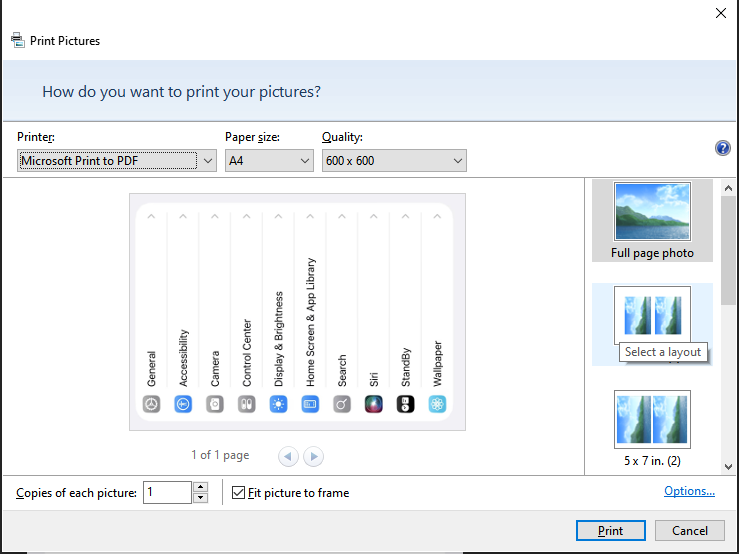
Built-in methods may crop the outer edges of the image to fit the page. For full JPG retention and cleaner PDFs, instead.
Simple fixes for some most common JPG to PDF conversion problems.
Try cropping or resizing the JPG first so the full image can fit before conversion. If needed, use a source image that is already framed more cleanly.
Rotate the JPG to the correct direction before converting. This is especially important for portrait photos and scanned images, since the PDF usually keeps the source orientation as it is.
Start with a JPG that is reasonably sized for the final use case. If the source image is extremely large, you can losslessly compress the JPG first to make the final PDF easier to share, email, or submit.
Saving or resizing before conversion can affect sharpness. Use high-quality images and the best quality setting for crisp, professional results.
More tools to help convert between images, animated GIFs, and PDFs with tools made for quick, simple file changes.
Need a cleaner file for editing, layering, or design work? PNG keeps the image sharp and gives you more flexibility when transparency or detail matters.
Some sites still treat WEBP like the odd one out. JPG gets the image into a format that opens, uploads, and shares with fewer surprises.
Take pages out of a PDF and turn them into images you can open, reuse, or drop into other projects. It is a simple way to move content out of a document and into a picture format.
When file size starts to matter, JPG makes the image lighter and easier to move around. It is a cleaner fit for sharing, uploading, and everyday use.
iPhone photos become much easier to open once they are in JPG. That small format change removes a lot of friction on Windows, websites, and older apps.
PDF makes ebook files easier to manage across different devices. The layout stays more predictable, which makes the file simpler to read and distribute.
Your files are transferred using encrypted connections and processed automatically. Temporary files are removed after conversion, so your images are not kept longer than needed.
Get a ready-to-use PDF in seconds for forms, printing, archiving, and everyday sharing.




 What to Do
 What to Avoid