
NoCost-
Convert DOCX to PDF completely free, with no hidden charges.
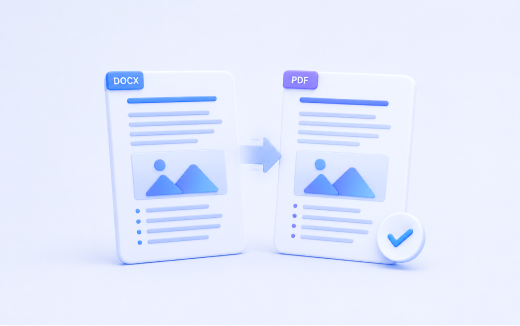
Turn your DOCX documents into professional PDF files in just a few clicks. Keep the original formatting intact for easy sharing, printing, and archiving.
MultConvert makes DOCX to PDF conversion fast, secure, and hassle-free. Whether you're converting a single document or multiple files, your formatting stays intact and your files are processed quickly with no unnecessary steps.
Convert DOCX to PDF completely free, with no hidden charges.
Start converting instantly without creating an account.
Convert files directly in your browser without installing software.
Enjoy a clean, distraction-free conversion experience every time.
Convert multiple DOCX files to PDF in a single session.
Import DOCX files directly from your cloud storage accounts.
Keep fonts, images, tables, and formatting exactly as intended.
Preserve page layout, spacing, and document structure after conversion.
Generate PDFs ready for printing, sharing, or document submission.
Download PDFs with no added logos, stamps, or watermarks.
Convert your DOCX files to high-quality PDFs in just a few simple steps. MultConvert preserves your document's original formatting while delivering fast, secure, and hassle-free online conversion.
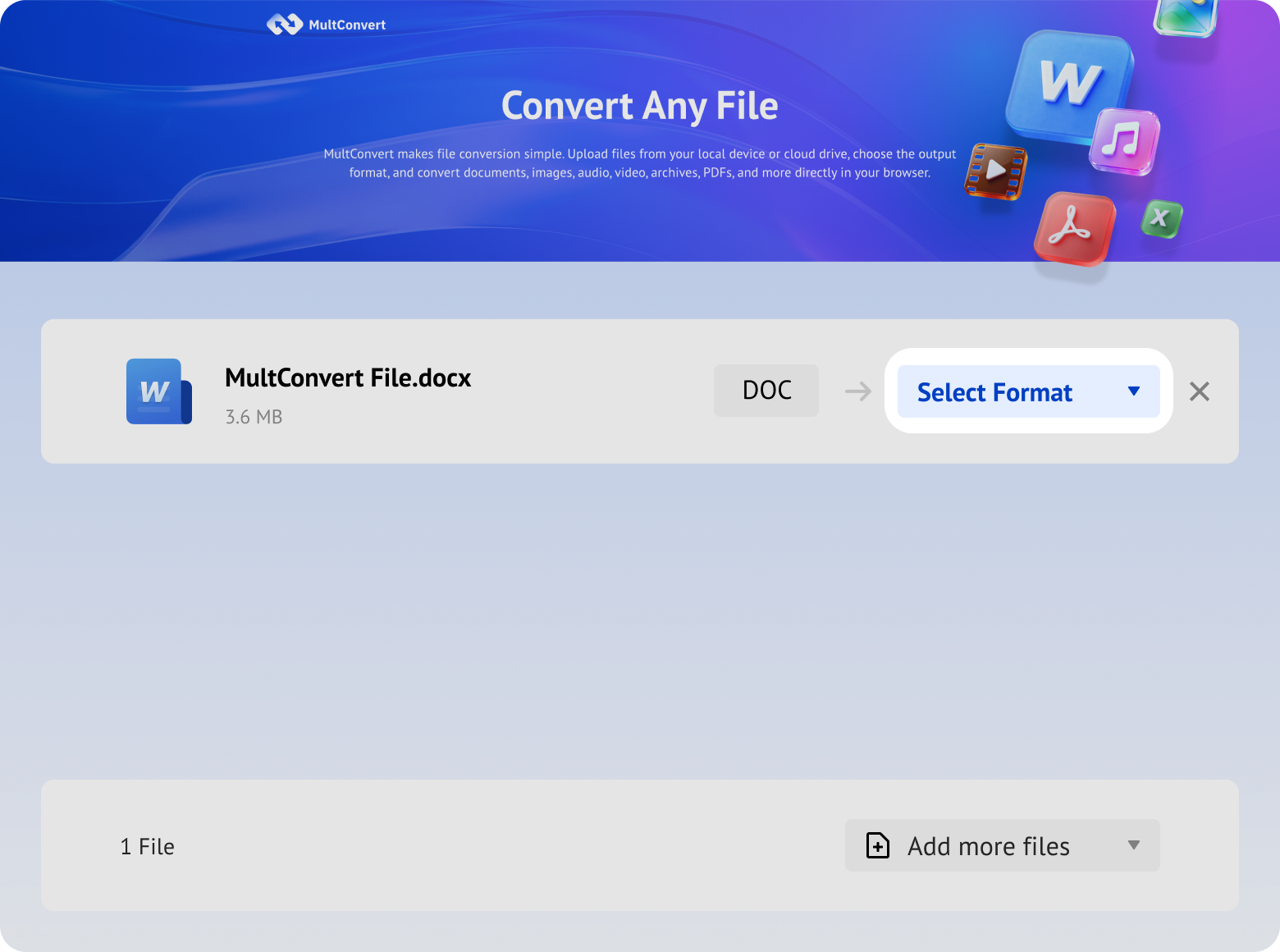
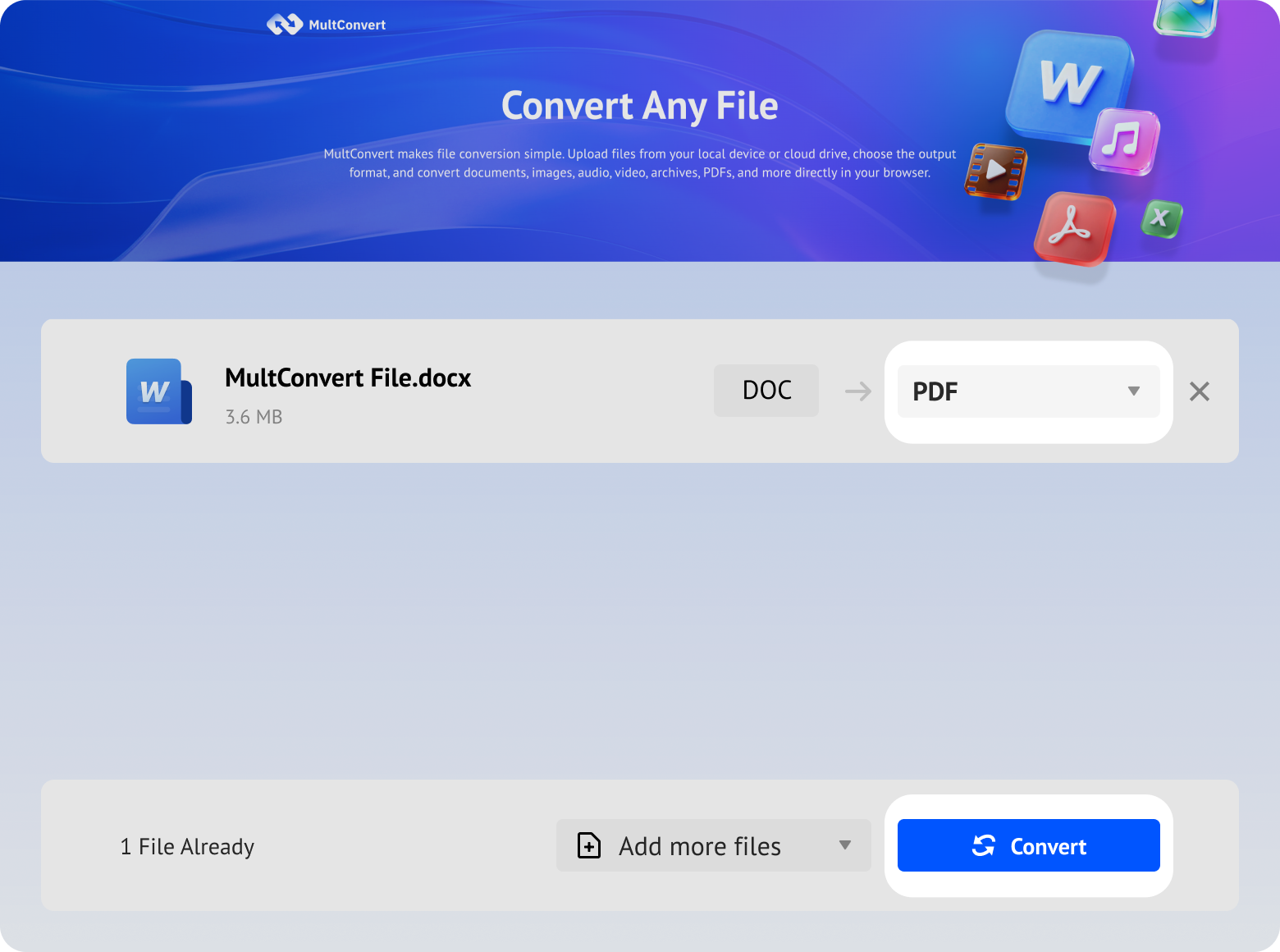
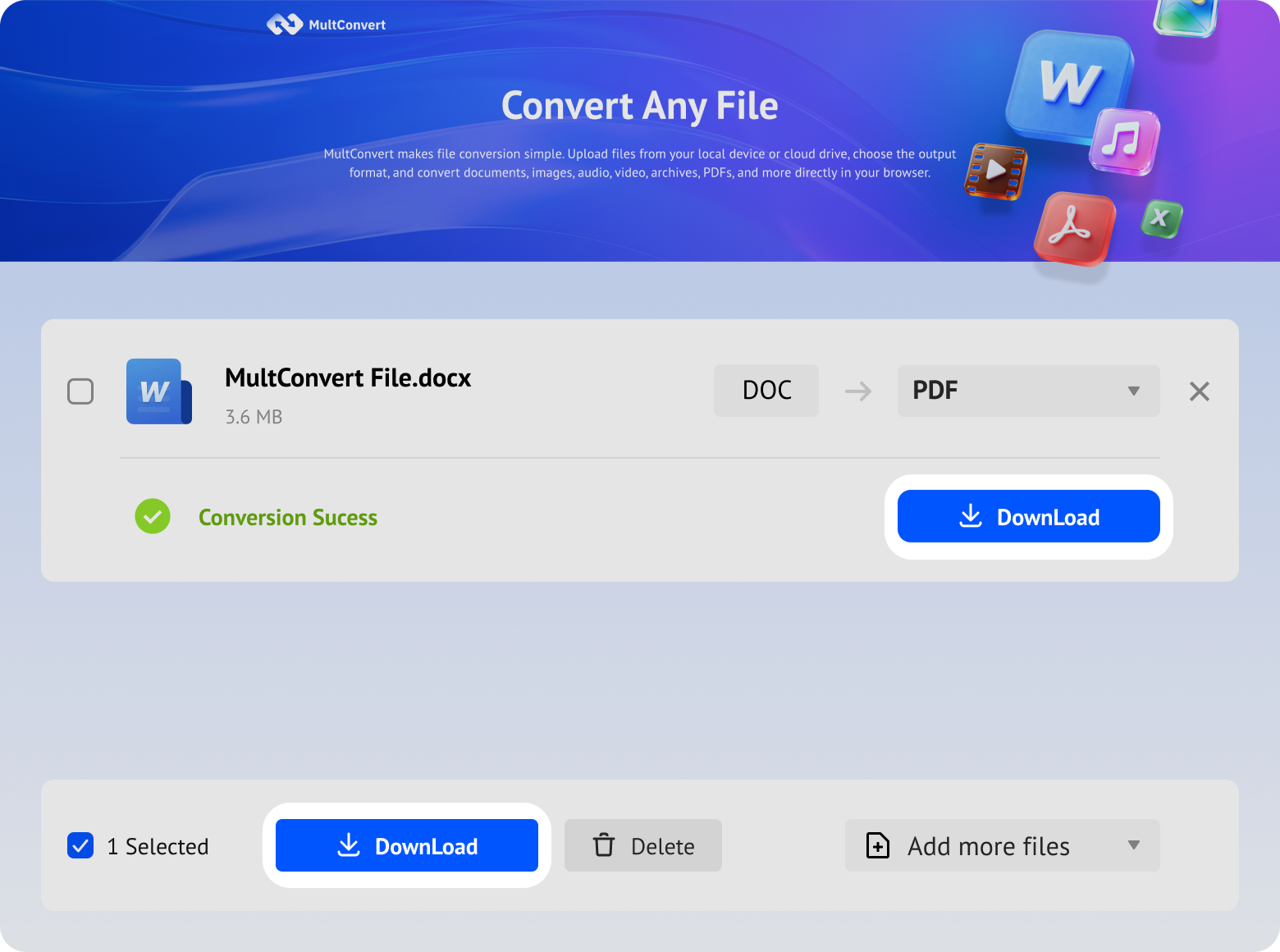
Upload DOCX files from local storage, external drives, or cloud storage and convert to PDF in just a few clicks.
Files saved on a hard drive are ready to convert directly from your device.
Work with files stored on an SSD without moving them first.
Plug in a USB flash drive and convert your files on the spot.
Convert camera files straight from an SD card when you need them.
Access files from Google Drive and start converting without an extra download step.
Pull files from Box and move straight into conversion.
Convert files stored in Dropbox without downloading them first.
Use OneDrive files directly for a faster conversion flow.
Your files are encrypted during upload and download, processed automatically, and removed after conversion. We never read, share, or store your documents longer than needed to complete the conversion.
Every file is protected with HTTPS/TLS encryption while it's uploaded and downloaded.
Temporary files are automatically removed 10 hours after processing to help protect your privacy.
Your files are processed automatically and aren't manually viewed or accessed by our team.
Built with modern privacy practices in mind, including data handling principles aligned with GDPR expectations.
DOCX and PDF are designed for different purposes. DOCX is ideal for creating and editing documents, while PDF preserves the original appearance for sharing, printing, and long-term storage. Compare the differences below to decide when converting to PDF makes the most sense.
Your converted PDF keeps the key elements of your original DOCX document, making it suitable for sharing, printing, and archiving.
Tip: Some advanced Word-specific features may vary depending on the original document and available fonts.
We tested a variety of real-world DOCX documents featuring different layouts, text, images, tables, charts, and other common document elements. Across all test files, 100% of pages were preserved, 100% of images were retained, and no images were missing after conversion.
| Document | Pages | Size | Output File Size | Conversion Time | Conversion Result |
|---|---|---|---|---|---|
| Resume | 1 | 100 KB | 159 KB | 5 sec | Clean typography and consistent page layout |
| Research Paper | 7 | 45 KB | 265 KB | 3 sec | References, headings, and pagination preserved |
| Contract | 30 | 232 KB | 631 KB | 4 sec | Tables, signatures, and formatting remained intact |
| Product Catalog | 32 | 65.8 KB | 935 KB | 5 sec | Product images, captions, and page layout stayed sharp |
| User Manual | 11 | 1.9 MB | 1.1 MB | 7 sec | Text, diagrams, and step-by-step illustrations remained clear |
| Business Proposal | 6 | 825 KB | 237 KB | 6 sec | Charts, cover design, and branding elements preserved |
| Academic Thesis | 16 | 2 MB | 1.7 MB | 8 sec | Table of contents, footnotes, and page numbering retained |
While the main content and layout are typically preserved, a few Word-specific features may behave differently after conversion. This is expected when turning a DOCX document into PDF format.
Review comments aren't included in the final PDF because they are intended for document collaboration rather than document distribution.
Word macros can't run after conversion since PDF doesn't support executable document automation.
Fields such as dates, references, and formulas are converted into their current displayed values because PDFs store fixed rather than dynamic content.
WordArt, shadows, and other editable visual effects may appear slightly different after conversion as they are rendered into a fixed PDF format.
Fonts that aren't embedded or installed on the viewing device may be replaced with similar fonts, which can slightly affect the document appearance.
Embedded Excel worksheets, Visio drawings, and other Office objects are typically converted into static content for viewing in PDF.
Although some Word-specific features behave differently in PDF by design, a few simple preparation steps can help minimize those differences and produce a PDF that more closely matches your original DOCX document.
Embed custom fonts or use widely available fonts to reduce the chance of font substitution.
Refresh the table of contents, page numbers, dates, and references before converting.
Accept or reject revisions and save the latest version before exporting your PDF.
Replace macros, embedded objects, and complex effects with standard content whenever possible for more consistent PDF output.
Use standard formatting, styles, and fonts to improve compatibility and preserve your document's appearance.
Who Benefits from DOCX to PDF Conversion?
Submit assignments, research papers, and dissertations in PDF format so instructors receive documents with consistent formatting and professional presentation.
Share reports, proposals, and meeting documents with colleagues or clients while maintaining a polished, print-ready appearance.
Present proposals, project reports, quotations, and invoices in a professional format that's easy for clients to review, download, and archive for future reference.
Upload resumes and cover letters to recruitment platforms or send them by email with a polished presentation that looks the same for every hiring manager.
Distribute lesson plans, worksheets, exams, and study guides to students in a format that's easy to open, print, and view consistently across different devices.
Prepare contracts, agreements, forms, and policy documents for approval, record keeping, or external distribution without worrying about unexpected formatting changes.
DOCX files can be converted to PDF in several ways, from online converters to desktop applications. Each method has its own advantages and limitations, so the comparison below can help you choose the best option for your workflow.
Best for: Quick online conversion
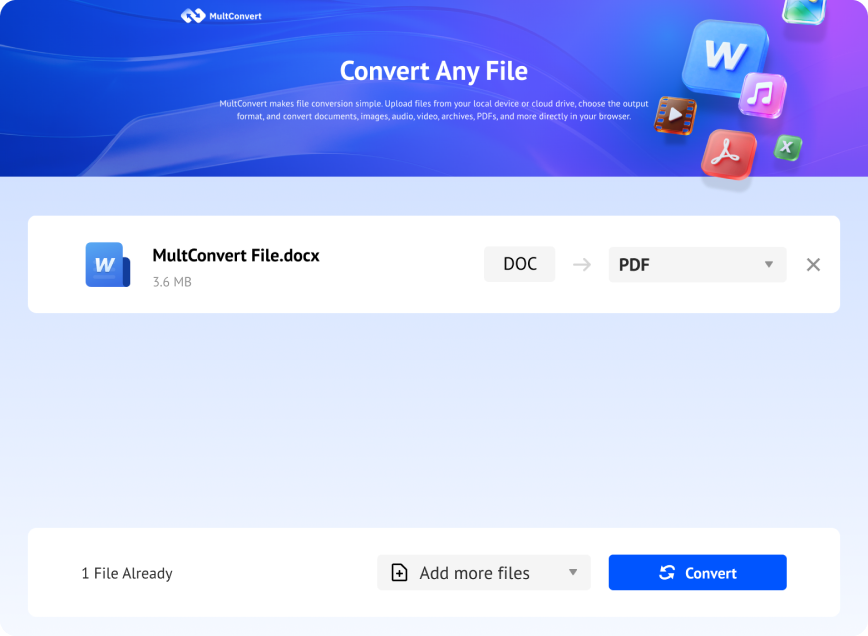
Convert DOCX to PDF online in seconds with no software installation, making it a fast and convenient choice for everyday document conversion.
Need to convert your files in a different way? Explore more document conversion tools to switch between Word, PDF, videos, audios, images, and other popular file formats—all in your browser.



Yes. MultConvert lets you convert DOCX to PDF completely free of charge. You can process up to 20 files per day, with support for documents up to 1 GB each—enough for everyday tasks such as assignments, resumes, reports, contracts, and other commonly used documents.
Ready to turn your DOCX into a polished PDF? Upload your file now and convert it in seconds—free, fast, and without installing any software.














 Preferred
