NoCost
Convert files freely without paying any fees.
Turn MP4 videos into WAV audio in just a few clicks without adding another lossy encoding step. Remove the video track and save the extracted audio in a flexible format for your next project.
Convert MP4 files to WAV with no signup or software installation. MultConvert supports batch conversion, cloud imports, automatic first-track extraction, and secure file handling in one streamlined workflow.
Convert files freely without paying any fees.
No software to download, install, update, or maintain.
Start converting instantly without creating an account.
Get clean WAV files without added watermarks.
Convert multiple media files in a single task.
Works smoothly across all devices and operating systems.
Access files directly from your cloud storage.
Keep your files private and automatically remove them after conversion.
Automatically extract the first audio track from MP4 and save as WAV.
Save extracted audio as uncompressed WAV without additional lossy compression.
Convert MP4 to WAV with MultConvert's simple, secure, and browser-based workflow. Just upload your file, let the conversion run, and download your WAV audio.
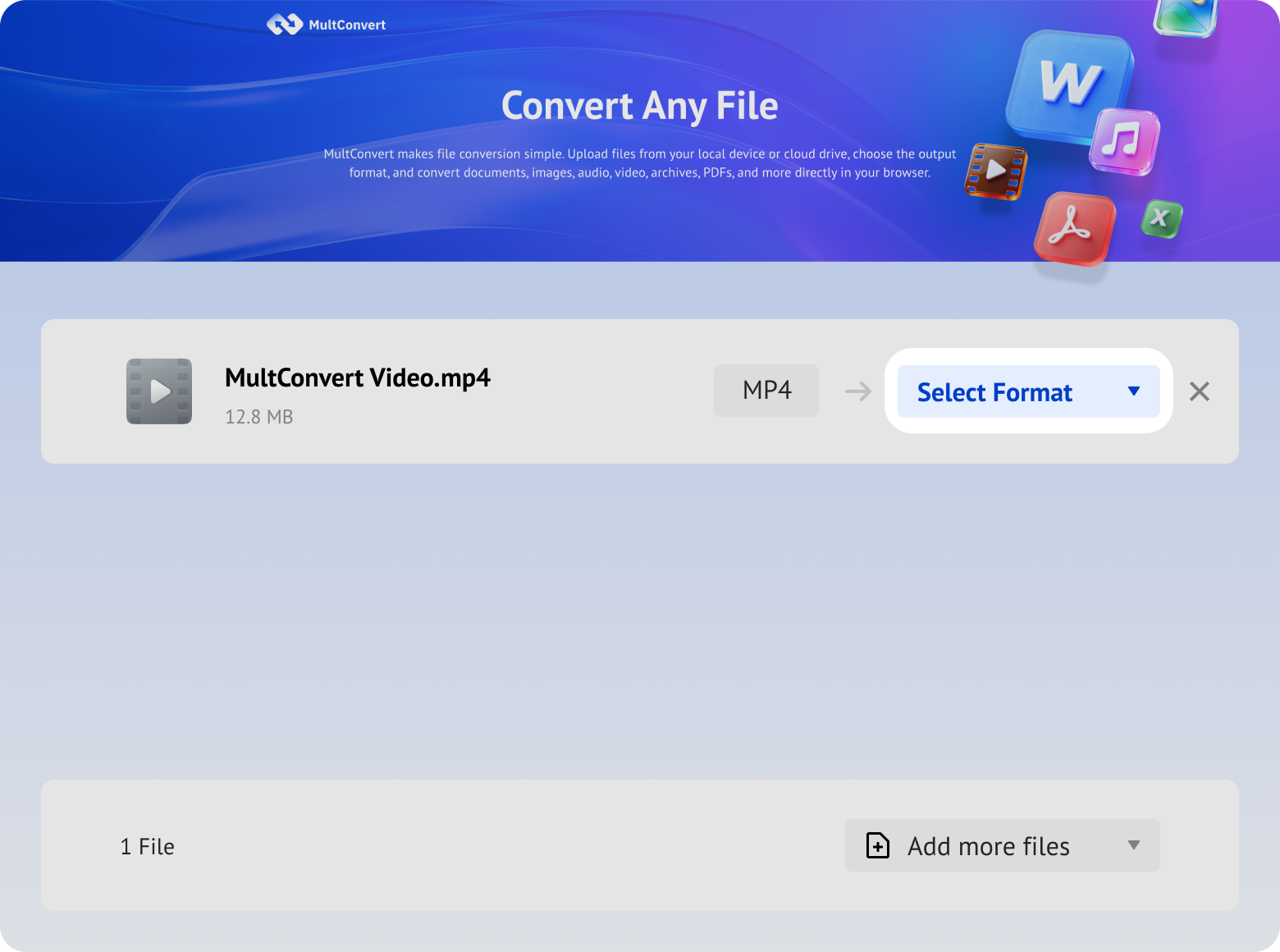
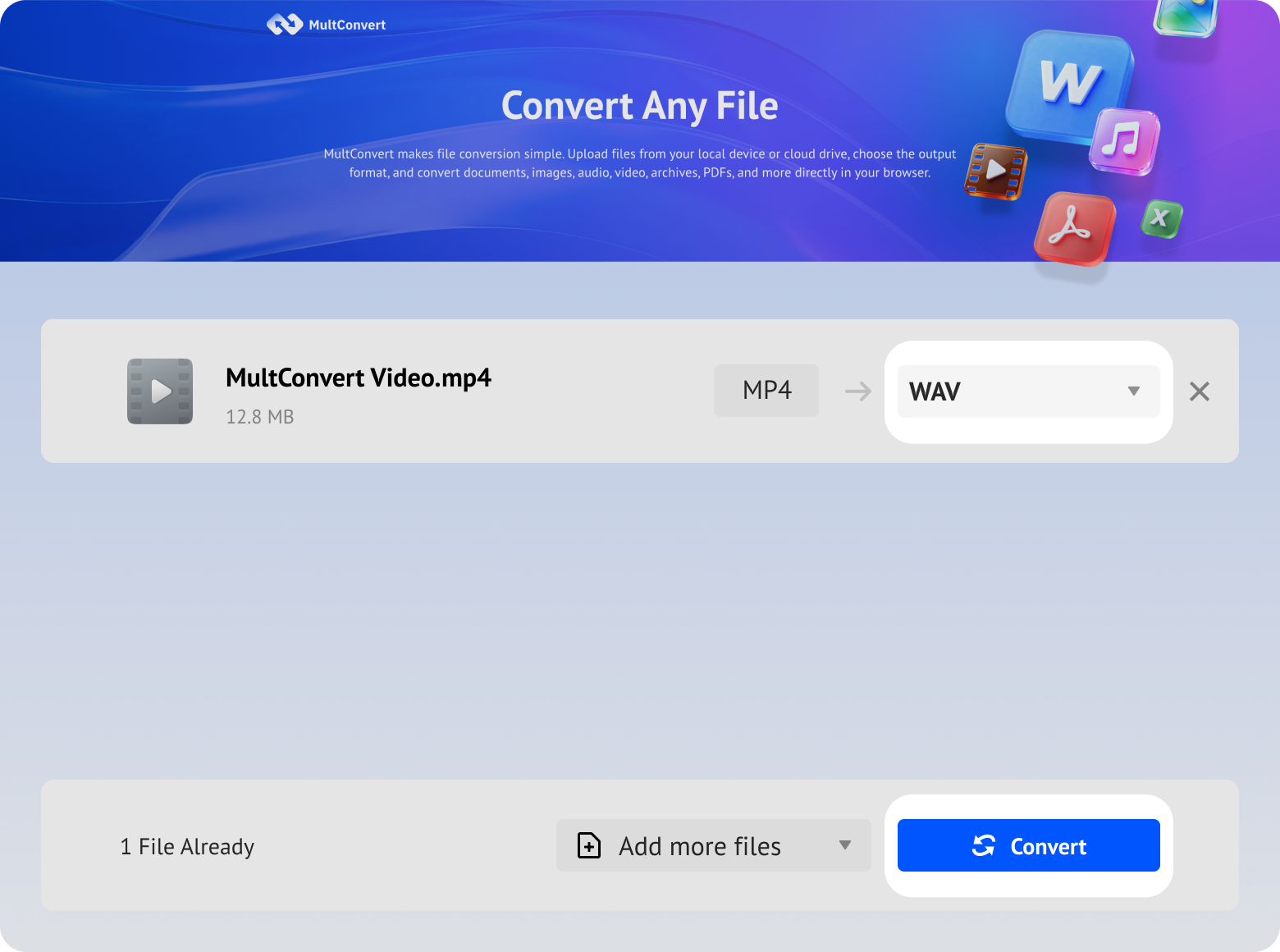
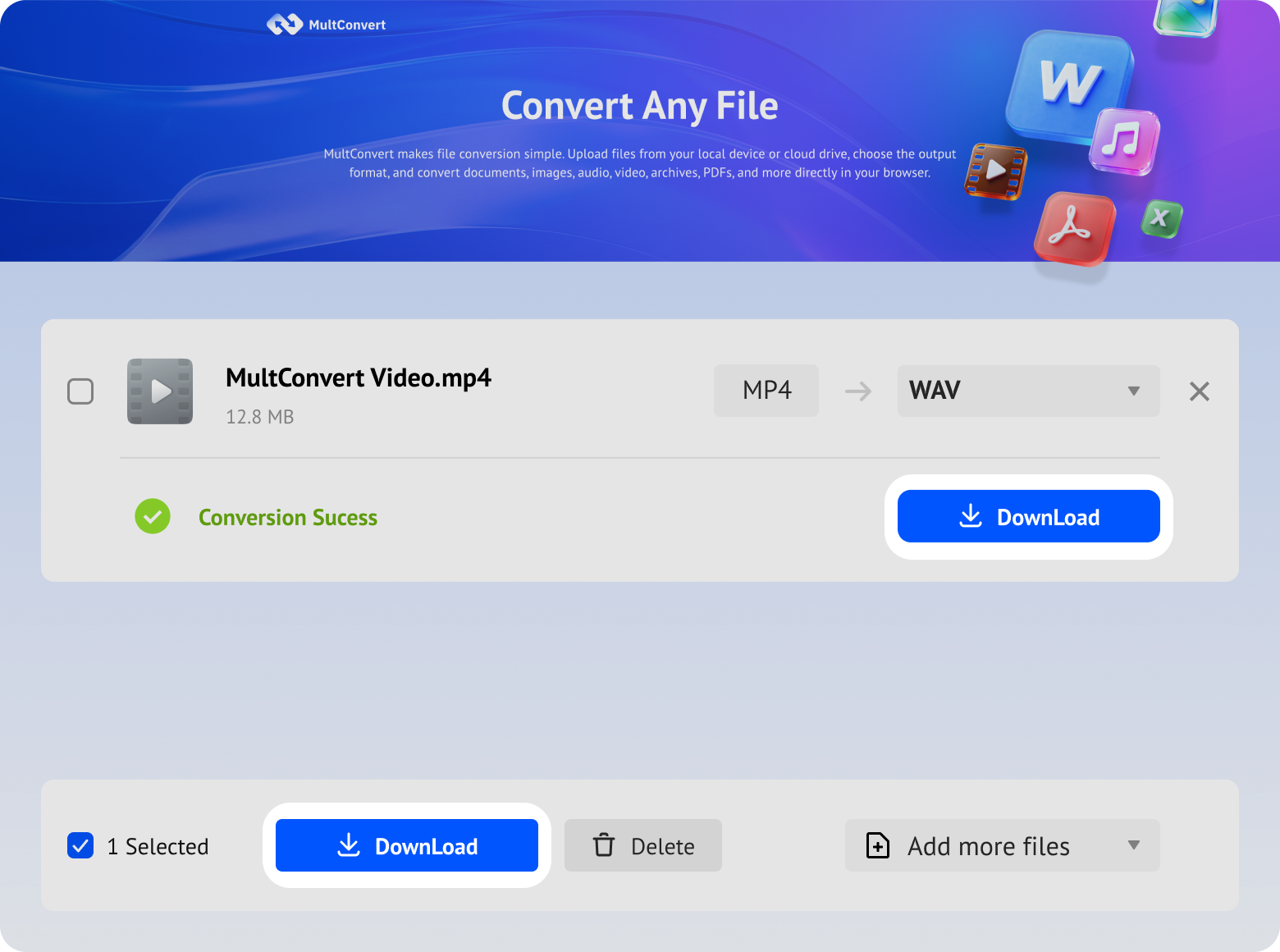
Upload medias from local storage, external drives, or cloud storage and convert to WAV in just a few clicks.
Files saved on a hard drive are ready to convert directly from your device.
Work with files stored on an SSD without moving them first.
Plug in a USB flash drive and convert your files on the spot.
Convert camera files straight from an SD card when you need them.
Access files from Google Drive and start converting without an extra download step.
Pull files from Box and move straight into conversion.
Convert files stored in Dropbox without downloading them first.
Use OneDrive files directly for a faster conversion flow.
Your files are encrypted during upload and download, processed automatically, and removed after conversion. We never read, share, or store your files longer than needed to complete the conversion.
Every file is protected with HTTPS/TLS encryption while it's uploaded and downloaded.
Temporary files are automatically removed 10 hours after processing to help protect your privacy.
Your files are processed automatically and aren't manually viewed or accessed by our team.
Built with modern privacy practices in mind, including data handling principles aligned with GDPR expectations.
WAV offers several advantages when you need the extracted audio in a flexible, uncompressed format. Its uncompressed audio structure makes it a practical choice for further processing and everyday audio workflows.
WAV works smoothly with most audio editors, video editors, and digital audio workstations, making it easier to edit dialogue, music, interviews, and recordings.
Converting MP4 to WAV does not restore lost audio data, but it avoids adding another lossy compression step to the extracted audio.
Uncompressed WAV audio provides a clean starting point when the file needs to be processed or adjusted later.
WAV is a widely supported audio format, making the extracted audio easier to use across different audio tools and workflows.
Converting MP4 to WAV changes how the audio is stored while separating it from the original video. Some properties remain largely the same, while others change as part of the conversion.

Properties retained during the conversion process.
The audio from the selected source track is retained in the converted WAV file.
The WAV file generally keeps the same playback duration as the extracted audio in the original MP4.
Properties that are altered or removed during the conversion.
The video track and video-related properties, such as resolution and frame rate, are removed from the WAV file.
If the MP4 contains multiple audio tracks, only the first audio track is extracted for the WAV output.
The extracted audio is saved in WAV format, commonly using uncompressed PCM rather than the original MP4 audio encoding.
The bitrate and file size may change because the extracted audio is stored differently in the WAV format.
| Aspect | Original MP4 | Converted WAV | Observed Changes |
|---|---|---|---|
| File Size | 82.9 MB | 66 MB | Decreased 20% |
| Duration | 06: 00 | 06: 00 | Remained unchanged |
| Audio Bitrate | 127kbps | 1536kbps | Increased due to uncompressed PCM output; no additional audio detail was created |
| Audio Track | Multiple tracks | 1 track | Only the first audio track was extracted |
| Video Track | Included | Not included | Video track was removed |
| Playback | Video and audio play normally | Audio plays normally | Audio remained clear and played normally after conversion |
MP4 to WAV conversion does not make the original audio sound better or worse. While bitrate and file size may change, these differences reflect the WAV storage format rather than a change in the actual audio quality.
The WAV may be larger because it stores uncompressed audio or smaller because the MP4's video and other data are removed. Either way, file size alone does not indicate better or worse audio quality.
If the MP4 uses lossy audio such as AAC, some information has already been removed. Converting it to WAV cannot recreate that missing detail, even if the bitrate increases.
WAV stores the extracted audio without adding another lossy compression step. This makes it suitable for editing and processing, although effects, resampling, or other modifications can still change the audio.
Once your MP4 audio is converted to WAV, you can use the file across a wide range of editing, production, and content creation workflows.
Trim, split, clean up, or rearrange the extracted WAV audio in your preferred editing software.
Turn meetings, interviews, lectures, and recordings into searchable text, subtitles, notes, or written records.
Repurpose extracted dialogue and recordings for podcast episodes, interview clips, voiceovers, and other spoken-content projects.
Import the WAV file into audio or video editing software to mix soundtracks, combine it with other audio, or replace an existing video track.
WAV, MP3, and FLAC each offer different advantages in terms of compression, file size, and audio handling. The right choice depends on how you plan to use the extracted audio.
Uncompressed · Large file size
Audio editing, recording, and production
Lossy · Small file size
Sharing, streaming, and everyday playback
Lossless · Medium file size
Lossless storage and archiving
See how WAV, MP3, and FLAC differ across key features.
| Feature | WAV | MP3 | FLAC |
|---|---|---|---|
| Compression | Uncompressed | Lossy | Lossless |
| File Size | Large | Small | Medium |
| Editing | PCM audio can be edited directly | Must be decoded before editing | Must be losslessly decoded before editing |
| Audio Preservation | No additional lossy compression | Lossy compression | No additional lossy compression |
| Best For | Audio editing, recording, and production | Sharing, streaming, and everyday playback | Lossless storage and archiving |
Need a different output format or have another media file to convert? Explore more MultConvert tools to continue your workflow with the video or audio format that best fits your next task.
Keep the sound and leave the video behind—ideal for saving interviews, lectures, music, or recordings as compact audio for listening and sharing.
Create a looping GIF from a memorable video moment, product demonstration, tutorial step, or reaction for use in messages, presentations, and social posts.
Preparing video for a website or browser-based project? WebM provides a web-focused output format suited to online publishing, applications, and digital presentations.
Make footage captured on an iPhone, camera, or QuickTime easier to play, edit, share, and upload by converting the MOV file to MP4.
For platforms that work better with video, converting an animated GIF to MP4 makes the content easier to upload, publish, and reuse.
Movies, screen recordings, and downloaded MKV videos can be converted to MP4 for wider device compatibility, simpler editing, online uploading, and everyday playback.
No. Converting MP4 to WAV does not improve the original audio quality. WAV is typically uncompressed, so it can preserve the decoded audio without adding another lossy compression step, but it cannot restore quality already lost in the MP4.
Ready to extract audio from your video? Upload your MP4 now and convert it to WAV with MultConvert in just a few clicks.