
100%Free-
No credit card, no trial, and no paid export screen.
WebP image rejected? Turn unopenable WebP files into universally accepted JPGs instantly. Drag, drop, and download crisp JPGs from any device or cloud storage.
Convert WebP images to universally accepted JPGs in seconds, with no signup, installation, plugins, or watermarks.
No credit card, no trial, and no paid export screen.
Use it directly in your browser—no downloads or setup.
Everything works online without browser add-ons.
Your JPGs stay clean and ready to use.
Optimal compression keeps photos crisp, clear, and ready to use.
Convert many WebP images at once and download all JPG results together.
Fetch WebP files from Google Drive, Dropbox, OneDrive, and Box.
Convert WebP to JPG in seconds with a simple browser workflow.
Convert up to 20 files per day for free, ample limit to handle batch image tasks.
Uploaded files and JPGs are erased from our servers after 10 hours.
Upload WebP files from your computer, external drives, or cloud storage and convert them to JPG in just a few clicks.
Convert WebP files saved on a hard drive directly from your device.
Work with WebP files stored on an SSD without moving them first.
Plug in a USB flash drive and convert WebP images right away.
Convert photos from an SD card quickly when you need JPG copies.
Access WebP files in Google Drive and convert them without an extra download step.
Pull WebP files from Box and move straight into conversion.
Convert WebP files stored in Dropbox without downloading them first.
Use WebP files from OneDrive for a faster, more convenient conversion flow.
JPG is a permanent, static photo format. Before you click convert, take a quick look at your WebP images to make sure they won't lose important features.
JPG cannot handle transparency. If your WebP is a clear logo or a cut-out product shot, that clear background will instantly turn into a solid white color after conversion.
Is your WebP a moving image or a short clip? JPG doesn't support movement. Converting an animated WebP to JPG will permanently freeze it on the very first frame. If it has to move, keep it as WebP or convert it to a GIF instead.
JPG is built for real photos, not computer screenshots or charts with small text. Because of how JPG shrinks files, sharp edges around text or digital lines can get a little soft and blurry after conversion.
If the website or app you are uploading to already accepts WebP, you might as well keep your original file to save space. Only switch to JPG when a form or email system explicitly tells you that WebP is not supported.
Upload WebP files from your device or cloud storage, choose JPG, and download the results individually or together in one ZIP.
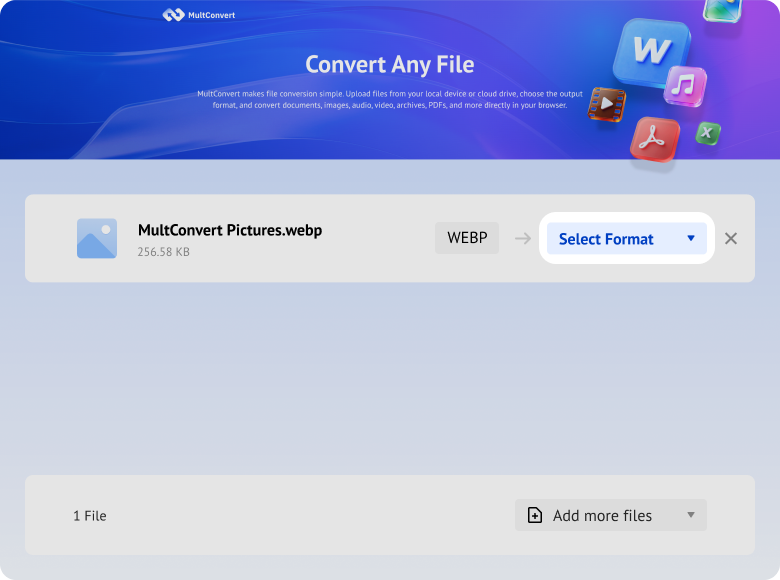
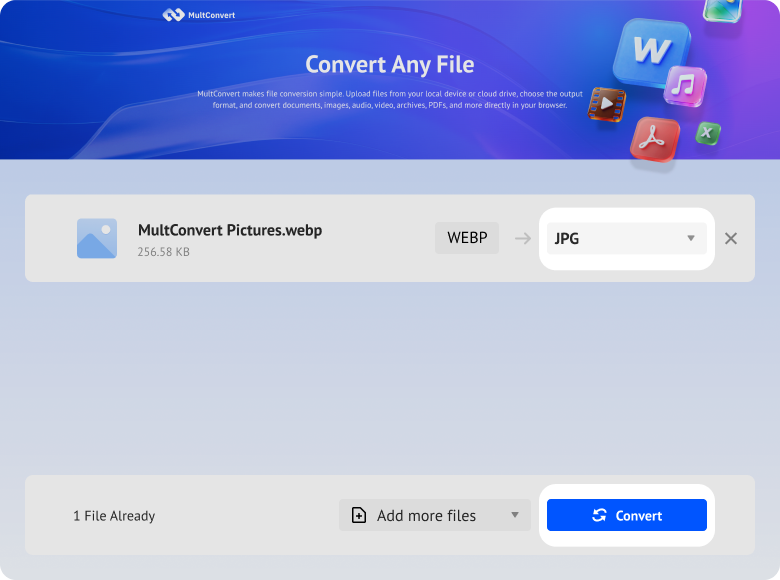
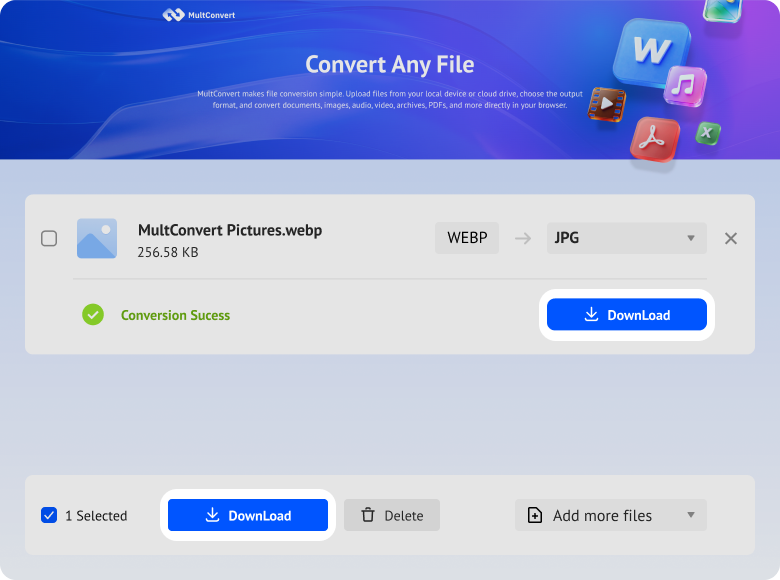
From upload to download, your files are processed automatically and kept private. We do not read, share, or store them after conversion.
All file transfers are protected with HTTPS/TLS encryption during transmission.
Files are processed automatically, and our team does not manually view your content.
Built with modern privacy practices aligned with GDPR data-handling principles.
| Comparison Item | WebP | JPG |
|---|---|---|
| File Size | Extremely Small25%~35% smaller than JPG at equivalent visual quality. | LargerLower compression efficiency, resulting in larger disk footprint. |
| Visual Quality | ExcellentSupports both lossy and lossless compression with fewer edge artifacts under lossy settings. | GoodSupports lossy compression only; prone to blockiness (pixelation) with high compression or repeated saves. |
| Alpha Transparency | SupportedSupports transparent backgrounds, serving as a lightweight PNG alternative. | Not SupportedTransparent areas are automatically filled with a solid background (white/black). |
| Animation Support | SupportedCapable of storing animated imagery at a fraction of the file size of traditional GIFs. | Not SupportedStores static single-frame images only. |
| Compatibility | Good (97%+)Supported across all modern browsers; legacy desktop software or outdated systems may lack native viewing. | Universal (100%)Natively supported by every OS, hardware platform, browser, and printer worldwide. |
| Editing & Post-Processing | ModerateOlder image editors or legacy Photoshop builds may require additional plugins/patches. | Native & UniversalFully supported across all image editing software (Photoshop, Lightroom, Canva, etc.). |
| SEO Performance | OutstandingAligns directly with Google PageSpeed recommendations, boosting overall site speed scores. | StandardLarge images can noticeably degrade page loading performance and Core Web Vitals. |
You download an image from the web, but your local image viewer, older Photoshop builds, or desktop software can't support the format or refuses to open the WebP file entirely.
Online job portals, government submission forms, or office suites (like older Word/PowerPoint versions) strictly require .jpg or .jpeg attachments and reject .webp uploads outright.
Photo printing kiosks, professional print shops, or legacy hardware (like digital photo frames) cannot decode WebP files, requiring standard JPG inputs for physical rendering.
Sending files to non-tech-savvy clients or partners can lead to confusion if their default system settings cannot open WebP files natively without downloading third-party software.
Use built-in tools on your device, or choose MultConvert for faster batch conversion without installing software.
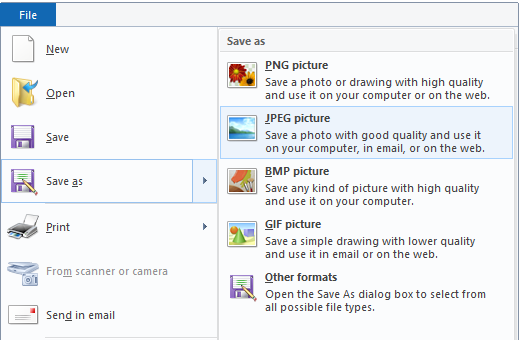
| Category | Input Description | File Size Change | Color Accuracy | Conversion Time | Quality Retention |
|---|---|---|---|---|---|
| Screenshot | Browser screenshot in WebP, ≈ 1.2 MB | Increased to ≈ 2.3 MB | Colors remain nearly identical | ≈ 1.3 sec | Text edges stay sharp with good detail retention |
| E-commerce Image | High-resolution product photo, ≈ 6.8 MB | Increased to ≈ 7.0 MB | White backgrounds and product colors look natural | ≈ 2.4 sec | Product edges remain clear with no obvious detail loss |
| Photo | Mobile photo in WebP, ≈ 5.1 MB | Increased to ≈ 5.2 MB | Skin tones and sky colors stay consistent | ≈ 4 sec | Image stays clear with good shadow detail |
| Transparent Graphic | WebP icon with transparency, ≈ 25.4 KB | Increased to ≈ 55 KB | Transparent areas become white; main colors stay stable | ≈ 1 sec | Clean edges with no noticeable jaggedness |
| Batch Files | 10 WebP images, total size, ≈ 60 MB | Increased to ≈ 70 MB | Overall color output is stable | ≈ 2 min 36 sec | Most images retain good quality |
| Large Image | 4000 × 3000 WebP image, ≈ 10.4 MB | Increased to ≈ 12.7 MB | Highlights remain stable | ≈ 5 sec | Detail remains acceptable; slight sharpness loss |
Convert images across popular formats while preserving the visual detail, transparency, or compatibility your next workflow needs.
Switch to PNG to keep a clear, transparent background for logos or graphics. This locks in original quality so you can edit the image later without losing any crisp details.
Convert WebP files to standard JPEGs instantly while maintaining crystal-clear quality. Perfect for sharing, printing, or using your images anywhere without software limitations.
Change your WebP to GIF to keep your images moving. This creates a standard animated file that plays perfectly across all chat apps and social media platforms.
Shrink bulky PNG files into lightweight, crisp JPEGs in seconds. The ideal choice for speeding up website loading, saving storage space, and sharing photos effortlessly without quality loss.
Convert obscure JFIF images into standard JPEGs that open everywhere. Get rid of upload errors and make your downloaded photos viewable, editable, and shareable on all software.
Turn animated GIFs into sharp, static JPEG photos with a single click. Perfect for capturing key frames, reducing file size, and using meme visuals as clean, stationary graphics.
No. JPG does not support transparency, so a transparent WebP will become a flat image after conversion. That is fine for photo-style delivery, but it means logos, overlays, and cut-outs lose the alpha channel that may have been important for design or compositing. If the transparency still matters, keep WebP or choose PNG instead of JPG. This is the key trade-off, because the output is meant for compatibility rather than layered editing.
Start converting your WebP image now and get a JPG that's ready for sharing, uploads, email, and everyday use in just a few clicks.











 App won't open image


