NoCost
Convert MKV to MP3 completely free, with no hidden charges.
Extract audio from your MKV video and convert it to MP3 in just a few clicks. No installation, registration, or complicated settings required.
Designed for effortless browser-based conversion, MultConvert delivers a simple, secure, and reliable experience with fast processing, consistent MP3 output, and convenient access across virtually any internet-connected device.
Convert MKV to MP3 completely free, with no hidden charges.
Start converting instantly without creating an account.
Download clean output files without branding or unwanted watermarks.
Convert MKV files without downloading software, plugins, or browser extensions.
Convert files on Windows, Mac, Android, or iPhone.
Convert multiple MKV files to MP3 in a single session.
Import MKV media directly from your cloud storage accounts.
Remove video automatically and receive a compact MP3 audio file.
Get consistent MP3 output without adjusting complicated audio settings.
Automatically extract the first audio track contained in your MKV file.
Turn your MKV video into an MP3 audio file with a straightforward three-step process, from selecting the source file to downloading the completed result.
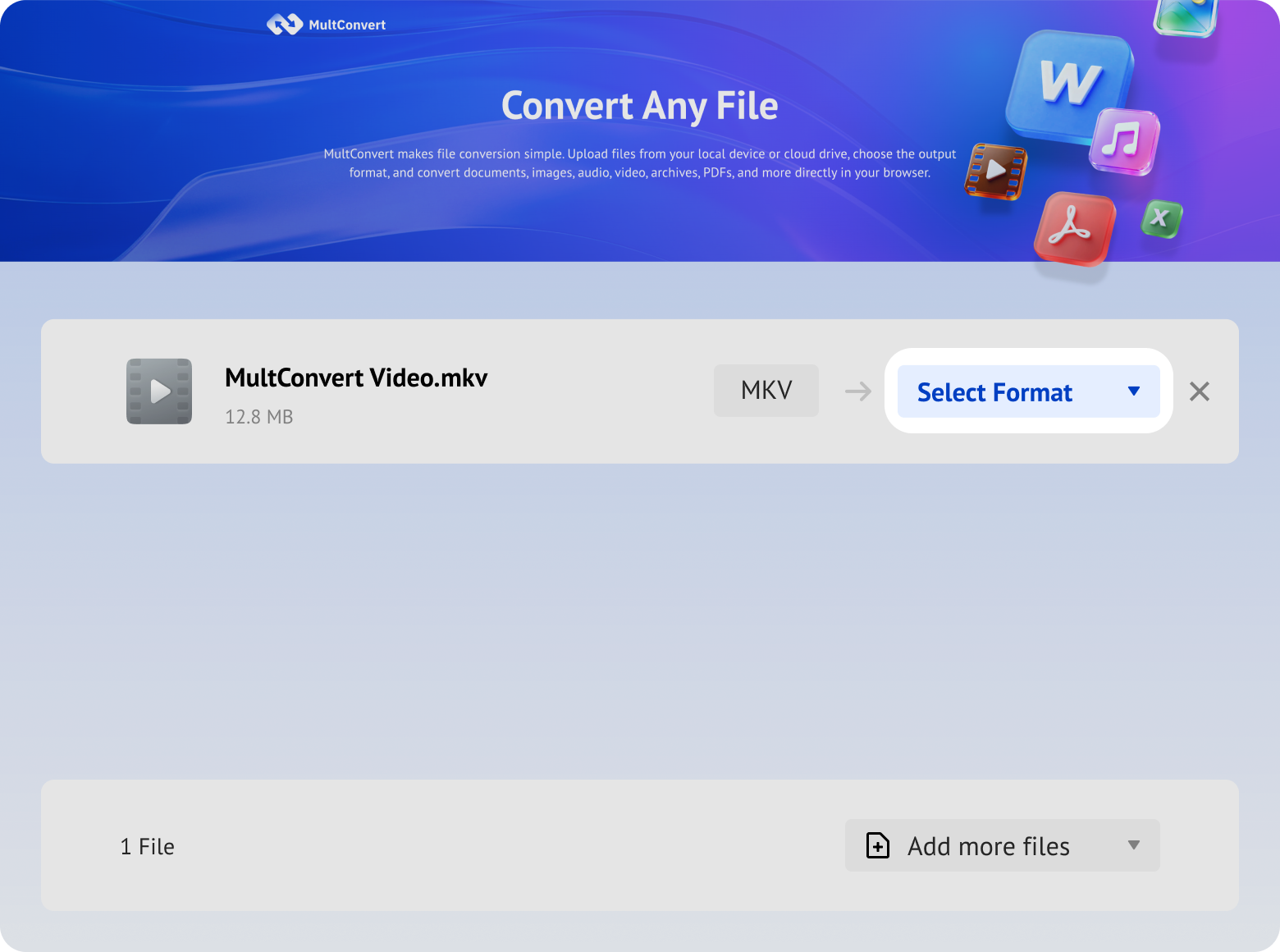
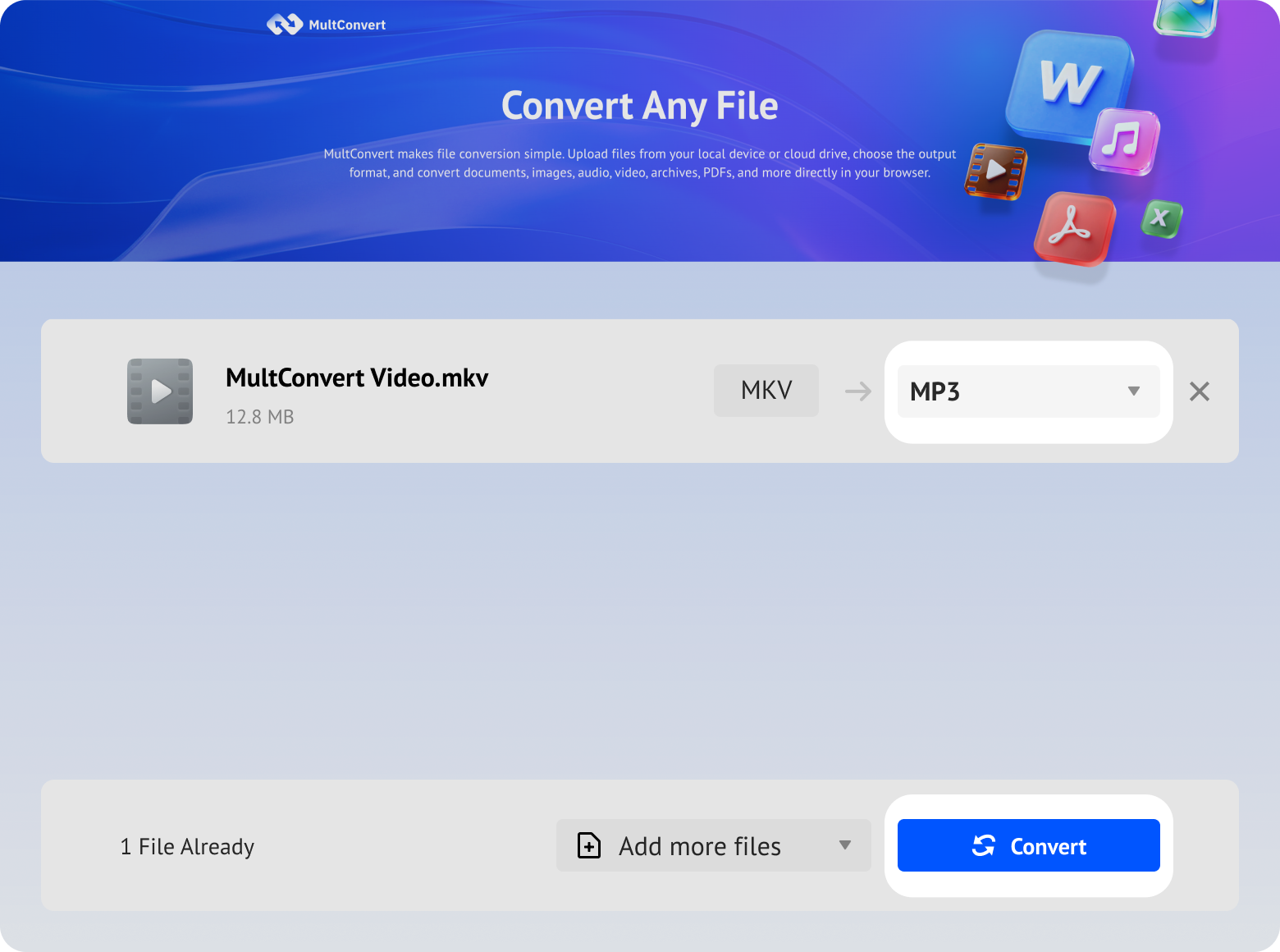
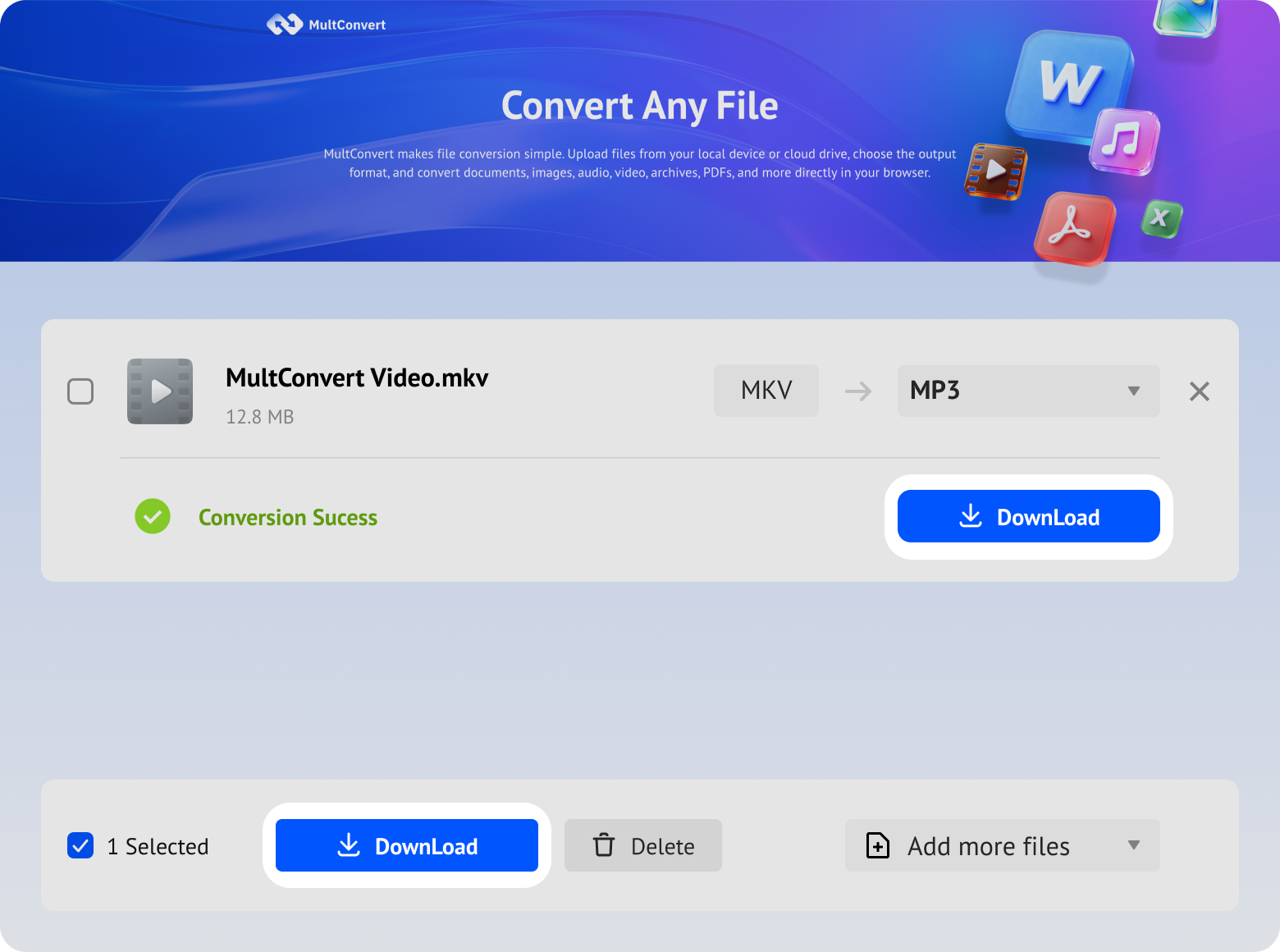
Upload MKV files from local storage, external drives, or cloud storage and convert to MP3 in just a few clicks.
Files saved on a hard drive are ready to convert directly from your device.
Work with files stored on an SSD without moving them first.
Plug in a USB flash drive and convert your files on the spot.
Convert camera files straight from an SD card when you need them.
Access files from Google Drive and start converting without an extra download step.
Pull files from Box and move straight into conversion.
Convert files stored in Dropbox without downloading them first.
Use OneDrive files directly for a faster conversion flow.
Your files are encrypted during upload and download, processed automatically, and removed after conversion. We never read, share, or store your media files longer than needed to complete the conversion.
Every file is protected with HTTPS/TLS encryption while it's uploaded and downloaded.
Temporary files are automatically removed 10 hours after processing to help protect your privacy.
Your files are processed automatically and aren't manually viewed or accessed by our team.
Built with modern privacy practices in mind, including data handling principles aligned with GDPR expectations.
MKV files can contain video, audio, subtitles, and other media data. When you only need the soundtrack, converting to MP3 creates a more convenient audio file for listening, storing, sharing, and editing.
Convert webinars, lessons, and recorded presentations into audio you can listen to while commuting, exercising, traveling, or working away from a screen.
Listen to lectures, interviews, performances, and other recordings without keeping the video open or watching the original MKV file.
Use the converted MP3 in presentations, podcasts, audio editors, transcription services, or other workflows that accept standard audio files.
Keep the soundtrack while removing the video content you no longer need, producing an audio file that is generally much smaller than the original MKV.
A standalone MP3 is easier to upload, send, and share when recipients only need the audio rather than the complete video file.
MP3 works with a broad range of phones, computers, car audio systems, media players, and other devices commonly used for everyday listening.
MKV and MP3 serve different purposes, so comparing them helps explain what changes when a video container becomes an audio file.
| Feature | MKV | MP3 |
|---|---|---|
| Format Type | Multimedia container | Compressed audio format |
| Stored Content | Video, multiple audio tracks, subtitles, chapters, and metadata | Compressed audio, tags, and optional cover artwork |
| Video Support | Contain one or more video streams | — |
| Audio Tracks | Contain one or multiple audio tracks and languages | Typically contains one audio stream |
| Subtitle Support | Can store multiple subtitle tracks | — |
| Audio Compression | Depends on the audio codec stored inside the container | Uses lossy MP3 audio compression |
| Typical File Size | Usually larger when video is included | Usually smaller because it contains audio only |
| Compatibility | Requires software or devices with MKV support | Works with a broad range of audio players and devices |
| Best Used For | Movies, recordings, and complete multimedia content | Portable listening, audio sharing, and everyday playback |
In short: MKV is designed to keep complete multimedia content together, while MP3 is designed to make audio easier to store, share, and play.
An MKV container can bundle video, multiple audio tracks, subtitles, and chapters. MultConvert selects the first audio track in file order, encodes it as MP3 using preset settings, and leaves the other media content out of the output.
The source container carries several synchronized media streams in one flexible file.
A visual stream stored inside the MKV container.
The first audio stream listed in the MKV file.
An additional audio stream stored after the first track.
Timed text stored alongside the video and audio streams.
Navigation markers used to divide the MKV into sections.
The output is a focused audio file: only the first track continues into the MP3.
Removed to create an audio-only MP3 file.
MultConvert keeps the first audio track and encodes using preset MP3 settings.
Excluded, as only the first audio track is processed.
Not included in the standalone MP3 audio output.
Not transferred from the MKV container to the generated MP3.
| Test File | MKV Size | Duration | MP3 Size | Conversion Time | Playback Result |
|---|---|---|---|---|---|
| Music Video | 173 MB | 05: 08 | 4.59 MB | 1 min 2 sec | Clear, complete playback |
| Public Speech | 155 MB | 32: 19 | 22.2 MB | 1 min 15 sec | Speech remained clear |
| Tutorial Presentation | 91.3 MB | 29: 04 | 26.6 MB | 58 sec | Audio played normally |
| Long-Form Interview | 410 MB | 41: 59 | 37.4 MB | 3 min 27 sec | No audible interruptions |
A small difference in duration after converting MKV to MP3 can be normal. MP3 encoding may add a small amount of padding at the beginning or end of the audio, and media players may also report duration slightly differently.

Encoder padding and player reporting can cause a small difference. The audio itself is intact — no action needed.
Check the file in another player first — VBR MP3s often display different durations. Then play it through: no cut-off audio or long silence means nothing is lost.
Usually caused by timestamp gaps or non-standard muxing in the source MKV. Play the original all the way through to confirm its audio is complete, then run the conversion again.
Long silences or cut-off sections most often trace back to a damaged or incompletely downloaded MKV. Re-download the file and play it from start to finish to confirm it is intact.
MultConvert gives users a simple online way to turn MKV files into MP3 without complex audio settings, perfect for those working with video recordings who need MP3 copies for content production, education, research, documentation, or internal communication.
Recorded lectures, lessons, seminars, and classroom presentations can be converted into MP3 files for study, lesson preparation, academic reference, and convenient audio review.
Creators can repurpose the audio from recorded videos for content planning, transcription, voice-track review, social media production, and other creative workflows.
Interviews, field recordings, focus groups, and research sessions become easier to review, transcribe, annotate, and organize when available as standalone MP3 audio.
Video-recorded conversations and podcast sessions can be converted into MP3 working copies for reviewing dialogue, preparing edits, and managing audio-focused production tasks.
Editors can create separate MP3 reference tracks from MKV footage for reviewing dialogue, planning cuts, checking timing, or sharing audio with collaborators.
Collectors can create convenient audio copies from legally owned concerts, performances, documentaries, and personal video archives for listening, organization, and private media management.
Discover a broader collection of online conversion tools designed to handle popular video and audio formats for playback, sharing, editing, storage, and other everyday media needs.
Extract audio from MP4 videos and create convenient MP3 files for listening to music, interviews, lectures, presentations, and other recordings without keeping the video.
Turn MOV footage into portable MP3 audio that is easier to play, share, store, or use in podcasts, presentations, and audio editing projects.
Save the soundtrack from a WebM video as an MP3 for broader audio playback, convenient offline listening, simpler sharing, and easier use across different devices.
Make MOV videos easier to play and share by converting them to the widely supported MP4 format for browsers, mobile devices, media players, and online platforms.
Convert MKV containers into MP4 video files for more convenient playback, sharing, uploading, and use with devices or applications that may not support MKV.
Modernize older AVI videos by converting them to MP4, making the files easier to open, transfer, upload, and use with current software, devices, and services.
Yes. MultConvert lets you convert MKV videos to MP3 audio online without installing additional software or creating an account, with a generous daily allowance of up to 20 files and a maximum size of 1 GB per file.
Turn your MKV into MP3 in just a few clicks—upload your file and start converting now.











 Before conversion


 After conversion


 Clear, complete playback
 100%
100% 100%
100% Avg. 86%
 Avg. 1 min 41 sec