NoCost-
Convert PDF to DOCX completely free, with no hidden charges.
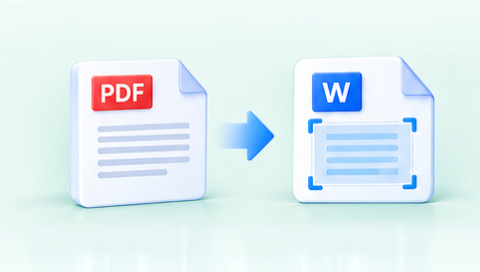
Turn PDFs into editable DOCX files right in your browser. MultConvert supports batch conversion with no signup or installation, making it easy to get Word files ready for editing.
MultConvert focuses on what matters after conversion—making PDF content easier to reuse in Word while handling documents efficiently and keeping the process simple from upload to download.
Convert PDF to DOCX completely free, with no hidden charges.
Start converting instantly without creating an account.
Enjoy a clean conversion experience without distracting advertisements.
Get clean converted DOCX files without added watermarks or branding.
Your files are securely processed and automatically deleted.
Convert multiple PDF files to DOCX in a single session.
Import PDF files directly from your cloud storage accounts.
Turn PDF text into content you can modify in Word.
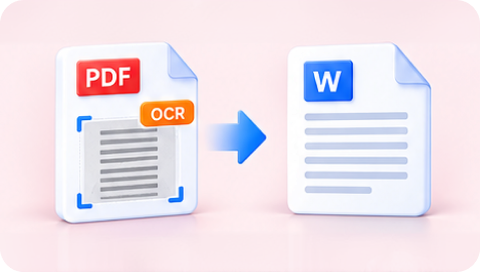
Recognize text in scanned PDFs and turn it into editable DOCX content.
Retain paragraphs, headings, lists, and other supported formatting.
No complicated settings are needed to change PDF into DOCX. Just add your PDF and let MultConvert prepare an editable DOCX version for you.
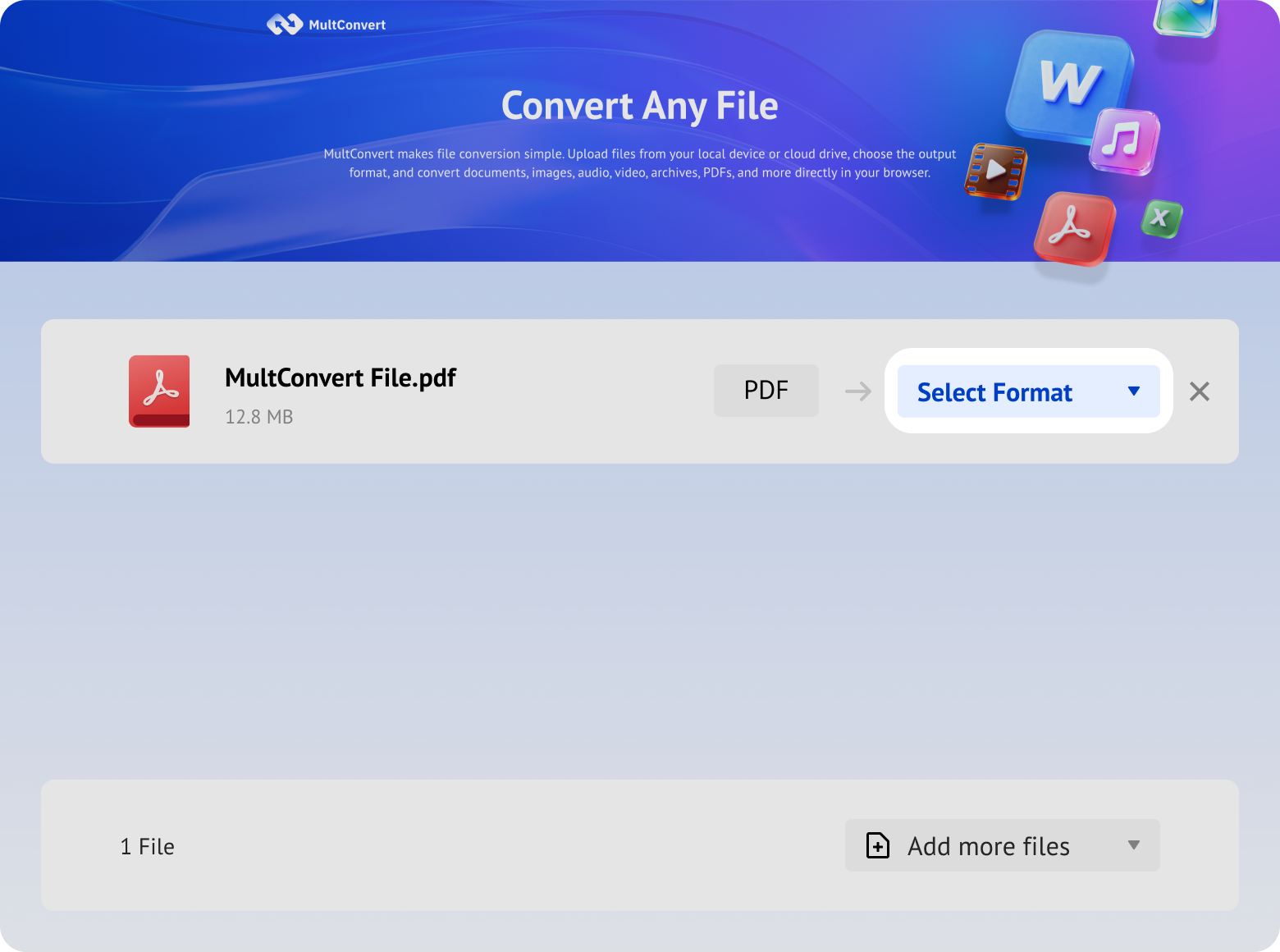
Upload PDF files from local storage, external drives, or cloud storage and convert to DOCX in just a few clicks.
Your files are encrypted during upload and download, processed automatically, and removed after conversion. We never read, share, or store your documents longer than needed to complete the conversion.
Every file is protected with HTTPS/TLS encryption while it's uploaded and downloaded.
Temporary files are automatically removed 10 hours after processing to help protect your privacy.
Your files are processed automatically and aren't manually viewed or accessed by our team.
Built with modern privacy practices in mind, including data handling principles aligned with GDPR expectations.
Not every element behaves the same way when a PDF becomes an editable DOCX. Here's what typically stays intact, what may look slightly different, and which formatting details are worth checking.
PDF is ideal for keeping a document consistent when viewing or sharing, but it can be limiting when changes are needed. Converting to DOCX gives you more freedom to edit, update, reuse, and collaborate on existing content.
Change text, correct errors, or rewrite sections without recreating the original document from scratch.
Bring resumes, reports, contracts, and other existing PDFs back into an editable format when information needs updating.
Copy, reorganize, or repurpose useful text and other document content for new projects instead of starting over.
Use familiar word-processing features to adjust formatting, add comments, track changes, and continue developing your document.
Turn a fixed document into a format that colleagues, classmates, or clients can review and revise more conveniently.
Use an existing PDF as the starting point for an updated document while keeping the original PDF unchanged.
We tested MultConvert's PDF to DOCX conversion across a variety of real-world documents featuring different layouts, text complexity, and embedded elements to see how content transfers into editable Word format.
| Test Document | Editable | Images | Tables | Pages | Key Changes |
|---|---|---|---|---|---|
| Business Report | ✅ | 5/5 Preserved | 27/27 Preserved | 25 | Page margins changed slightly |
| Resume | ✅ | 1/1 Preserved | 0/0 | 1 | No major visual changes |
| Invoice | ✅ | 0/0 | 2/2 Preserved | 1 | Table/field positioning changed slightly |
| Research Paper | ✅ | 0/0 | 2/2 Preserved | 11 | Paragraph or page flow shifted slightly |
| Scanned Contract | OCR recognized | 1/1 Preserved | 0/0 | 2 | OCR text became directly editable without text boxes |
Editing Tip: Editable text can behave differently depending on the source PDF. Simple text-based files may edit like regular Word documents, while more complex layouts may use text boxes to keep content in place.
As you can see, the source PDF can make a noticeable difference to the converted DOCX. Text structure, page layout, tables, and scanned content all influence how closely the output matches the original.
MoreDirectConversion
Content is already well-structured and recognizable.MoreReconstructionNeeded
May require structure rebuilding or OCR to extract content.Born-digital documents with selectable text
Conversion Result: Selectable text is generally the most straightforward to carry into an editable DOCX.
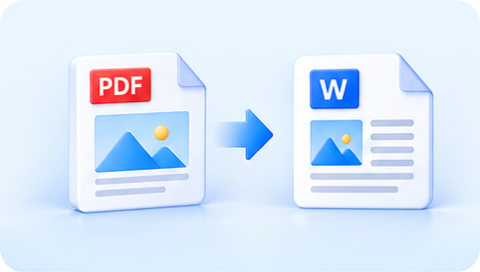
Documents with embedded images and text
Conversion Result: Both text and images carry over; minor image positioning tweaks possible.
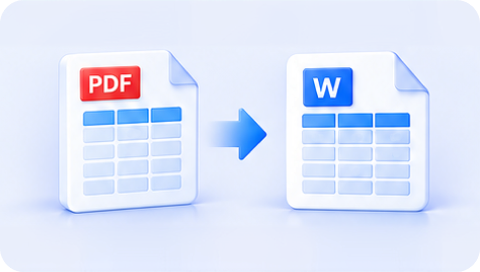
Financial reports, data sheets with complex tables
Conversion Result: Table structure is preserved; column widths may need adjustment.
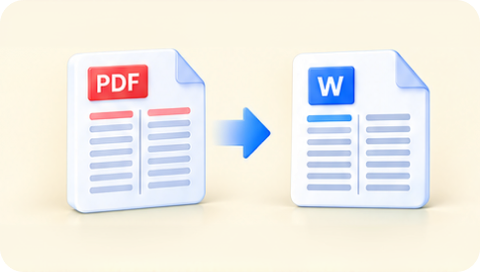
Newsletters, academic papers with column layouts
Conversion Result: Text transfers correctly but column flow may need reformatting.
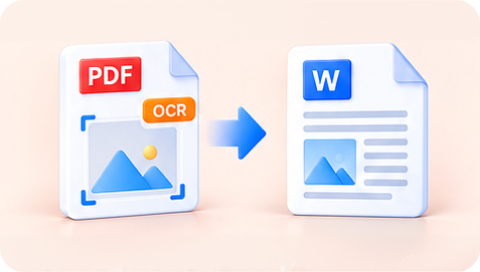
PDFs built from screenshots, photos, or exported images
Conversion Result: Recognized text becomes fully editable; any text the OCR can't read is preserved as an image in the document - content is never lost.
Scanned documents where text is actually an image
Conversion Result: Result depends on scan clarity - may need proofreading.
PDF and DOCX are built differently. PDF is designed to preserve how a page looks, while DOCX is designed for editing—so some content has to be reorganized when moving between the two formats.
PDF fixes content in place to preserve the finished page, while Word allows text and other elements to move and reflow as you edit.
A PDF can preserve the appearance of a table, column, or paragraph without storing the same editable structure that Word uses to build it.
PDF and Word handle fonts, margins, spacing, tables, and positioned elements differently, so Word may arrange them differently once the content becomes editable.
Scanned PDFs store text as part of an image rather than regular text, so it must first be recognized before it can become editable in DOCX.
OCR adds a recognition step when a PDF contains scanned rather than selectable text. The quality of that recognition can directly affect how readable, editable, and well-structured the resulting DOCX becomes.
OCR determines which scanned characters can be turned into text you can select and edit in Word.
Clear printed text is easier to recognize, while blurry scans, small characters, or unusual fonts can lead to recognition differences.
Recognizing the words is only part of the job. Paragraphs, columns, tables, and reading order may also need to be reconstructed in DOCX.
OCR focuses primarily on recognizing content, so spacing, alignment, fonts, and other visual details may not match the scanned page exactly.
From resumes and reports to contracts and study materials, converting PDF to DOCX gives you a practical way to update, reuse, and work with content across everyday tasks.
Need to update a resume but only have the PDF version? Convert it to DOCX to revise work experience, skills, contact details, or tailor your resume for a new job application.
Bring proposals, letters, meeting materials, and internal documents back into an editable workflow when content needs to be revised, repurposed, or prepared for a new version.
Turn a finished PDF report back into a working document when figures, findings, dates, or sections need updating for a new month, quarter, project, or review.
Reuse a PDF form or template when the editable original is no longer available. Update recurring fields, wording, or sections instead of recreating the document from scratch.
Make existing contract text easier to revise when names, dates, terms, clauses, or other details need updating before the next round of review or negotiation.
Convert papers, lecture notes, and reference materials to DOCX when you need to annotate content, reorganize sections, extract useful information, or build on existing material.
Need a different output for your document? Try other conversion tools to prepare files for sharing, archiving, editing, or use across different apps and workflows.


Turn PDF pages into JPG images when you need to share individual pages, insert them into presentations, or upload content where PDFs aren't accepted.

Save PDF pages as PNG images for screenshots, diagrams, graphics, or document content that you want to reuse in image-based workflows.

Turn PDF documents into EPUB files for reading on compatible eReaders and reading apps, with a format better suited to digital books and longer content.


Combine or convert HEIC photos into PDF when you need an easier format for sharing, submitting, printing, or keeping multiple images together as a document.

Create a PDF from your Word document when editing is finished and you need a more consistent format for sharing, submitting, printing, or archiving.

Convert Word documents to ODT when you need to open, edit, or share them in OpenDocument-compatible software such as LibreOffice or OpenOffice.
You can upload PDF files up to 1 GB each. MultConvert also allows up to 20 file conversions per day, making it suitable for both everyday documents and larger PDF files.
Bring your PDF back into the editing workflow—Convert to DOCX in just a few clicks.