100%Free-
No credit card, no trial, and no paid export screen.
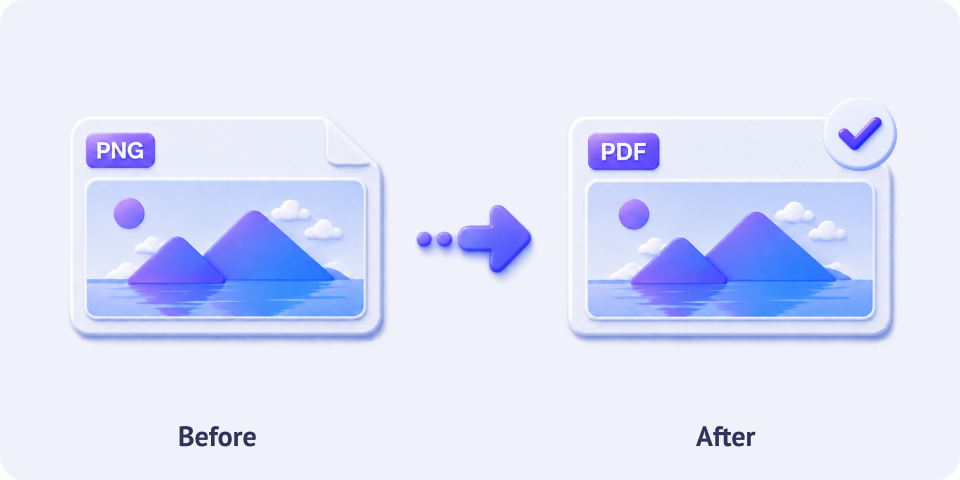
Streamline your image workflows by turning PNGs into polished PDF documents. Fetch images from the local or cloud and convert them into the PDFs easily.
No credit card, no trial, and no paid export screen.
Start converting instantly without creating an account first.
Your PDFs stay clean, simple, and ready to use.
Use it directly in your browser. No downloads, no setup.
Convert multiple PNG images together and save time.
Files are transferred over an encrypted connection for safer upload.
Import PNG images from Dropbox, Google Drive, OneDrive cloud service.
All temporary files are automatically removed from our servers 10 hours after conversion.
PDFs retain full sharpness and resolution; every detail stays clear and readable.
Intelligently scaled to fit the PDF page size, no cropping, no manual adjustment needed.
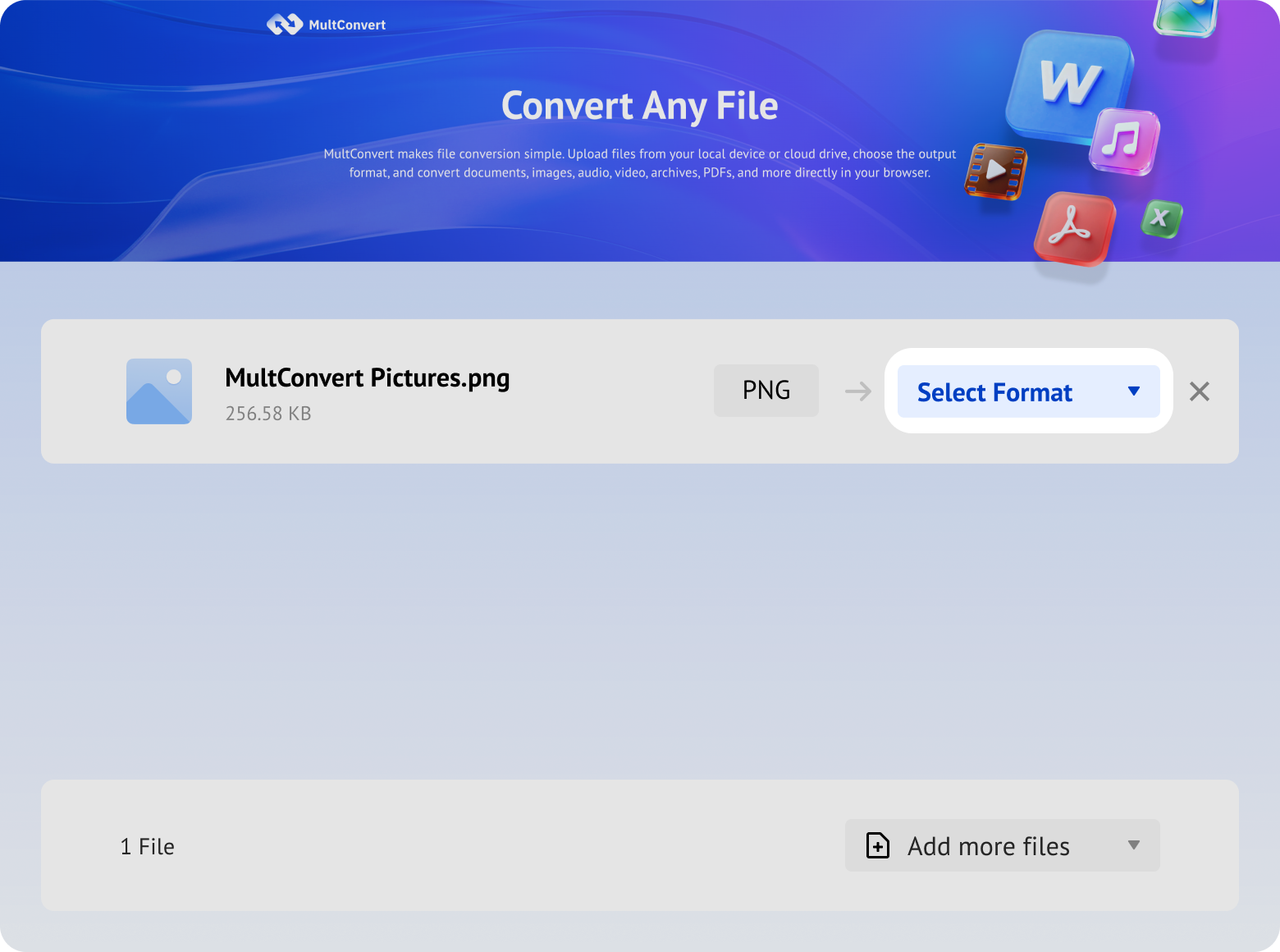
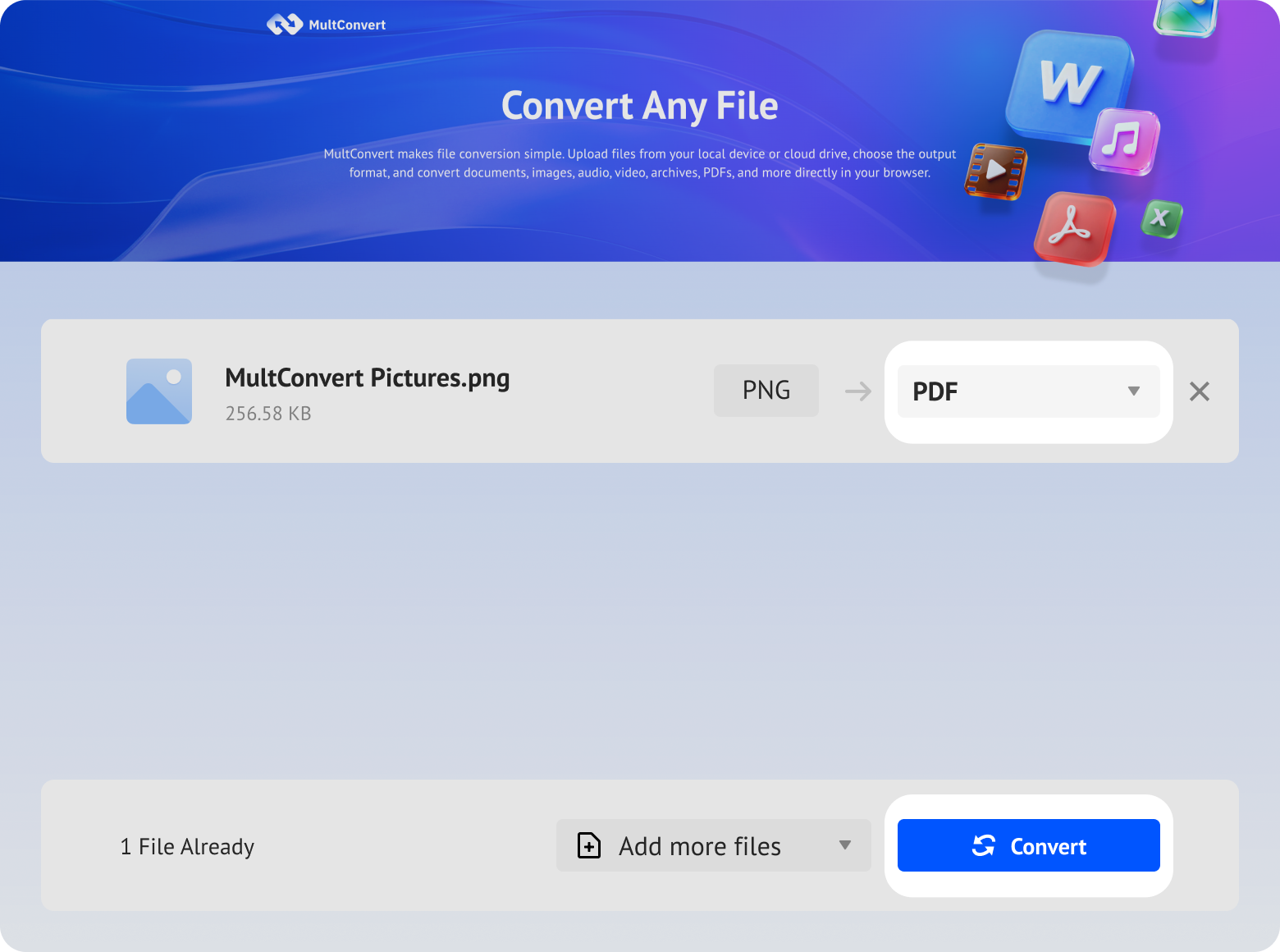
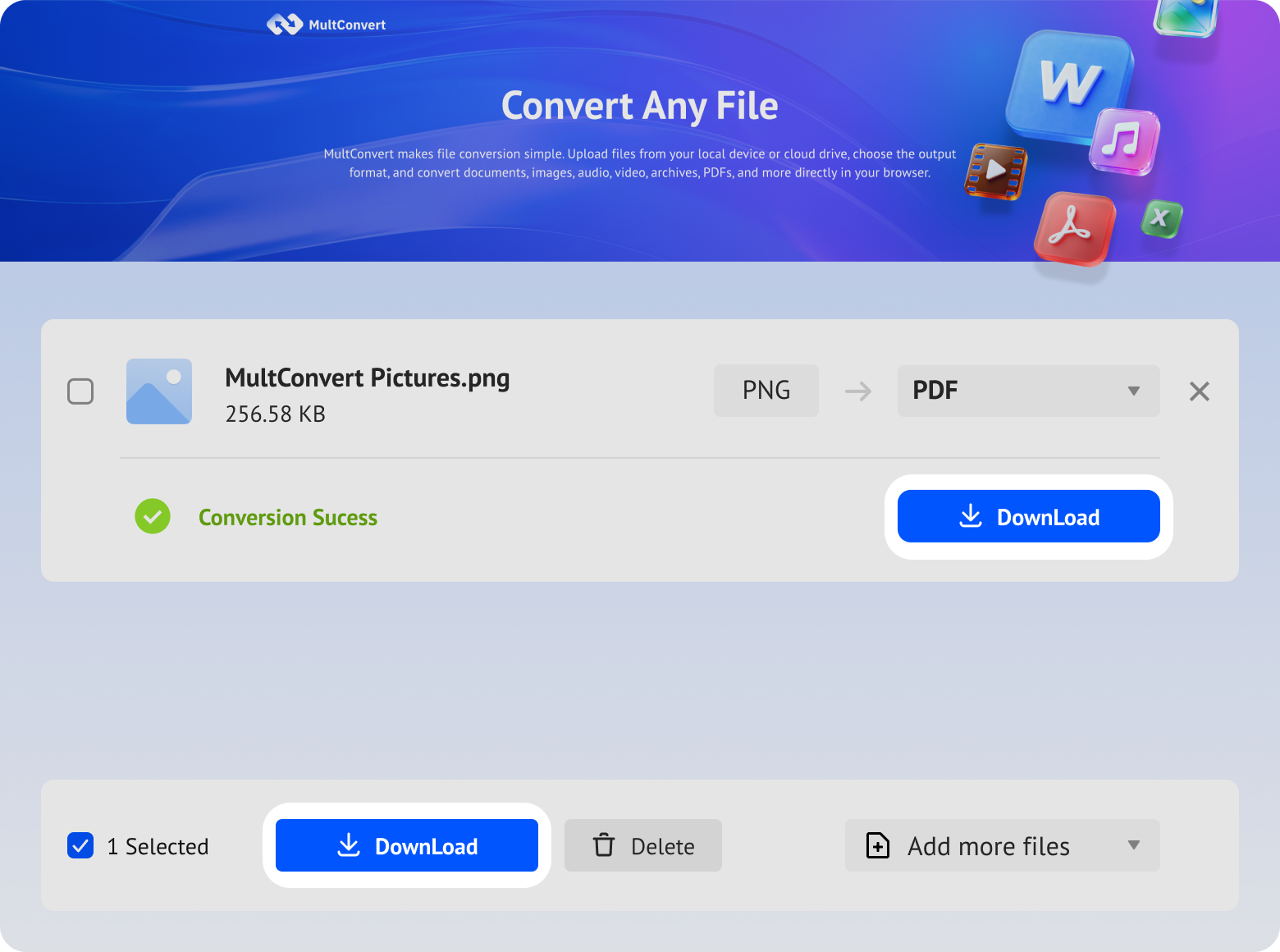
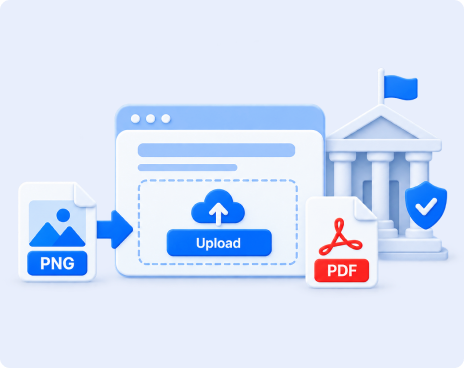
No matter your PNG files are saved on your computer, removable storage, or in the cloud, you can directly upload them into MultConvert and turn them into PDFs online.
Pick PNG images stored on your computer's hard drive and convert them directly.
Select PNGs from an internal or external SSD and send them straight to conversion.
Have PNGs on a USB drive? Connect it, choose your files, and start converting.
Turn screenshots, graphics, or other PNG files stored on an SD card into PDFs.
Import PNG files from Google Drive and convert them without downloading them to your device first.
Bring PNG images from Box directly into your conversion workflow.
Choose PNGs in Dropbox and turn them into PDFs without download-and-reupload process.
Import your PNG files from OneDrive and convert them to PDF directly in MultConvert.
Screenshots, scanned documents, and other PNG files may contain information you don't want exposed. MultConvert protects your files throughout the PNG-to-PDF conversion process.
Your PNG uploads and PDF downloads are protected with HTTPS/TLS encryption during transfer.
Your uploaded PNG files and converted PDFs aren't manually viewed or accessed by our team.
File processing follows privacy practices designed to align with GDPR data protection principles.
5 PNG Types | Different Sizes & Content | Results Compared Side by Side
Sharp text & UI
AFTER Conversion
Text-heavy document
AFTER Conversion
Transparent background & sharp edges
AFTER Conversion
Long image & text + graphics
AFTER Conversion
Landscape photo with color & fine details
AFTER Conversion
Not every PNG has the same size or shape. Here's what happens when wide, small, or differently proportioned images are converted to PDF with MultConvert.
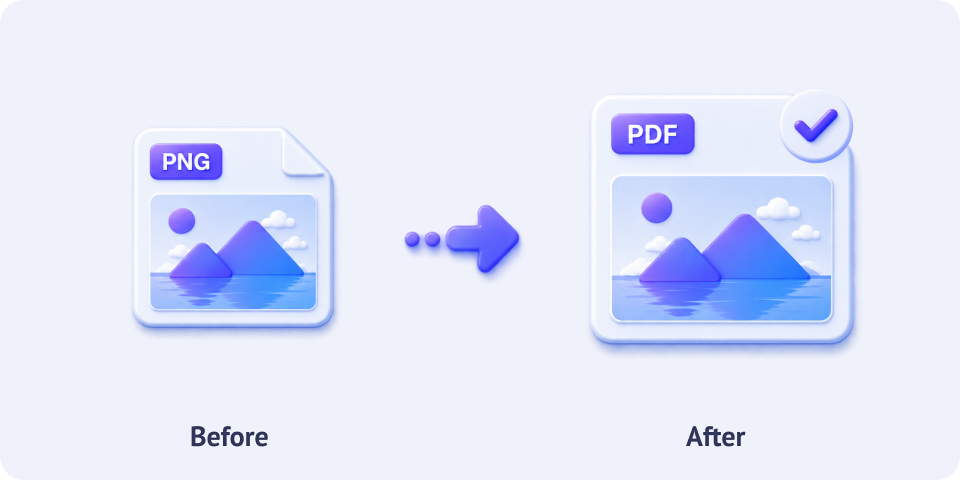
A landscape PNG keeps its wide orientation after conversion instead of being forced into a portrait page. The image fits the PDF without visible stretching or cropping.
A smaller PNG keeps its original proportions when converted. It isn't distorted just to fill a standard PDF page, helping the image maintain its natural appearance.
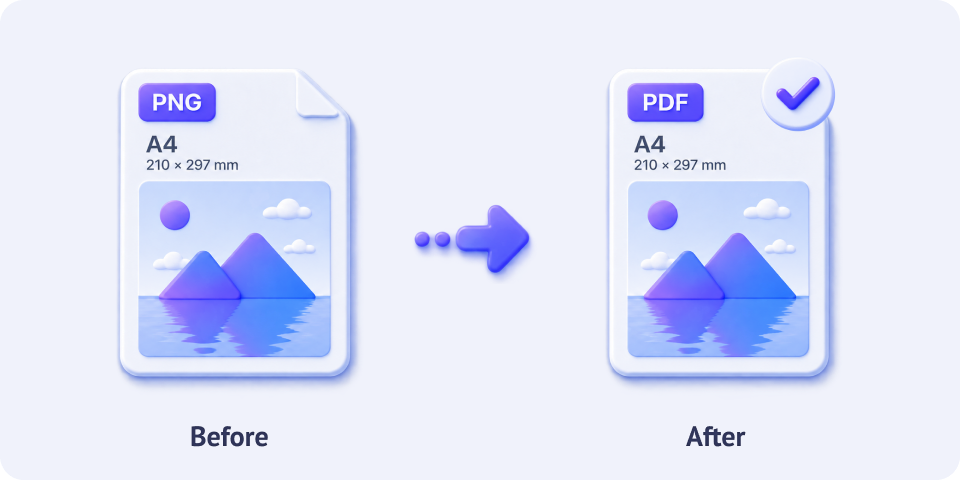
An A4-proportioned PNG keeps its portrait layout when converted to PDF. The image fits the page without visible distortion or cropping, maintaining the original A4 proportions.
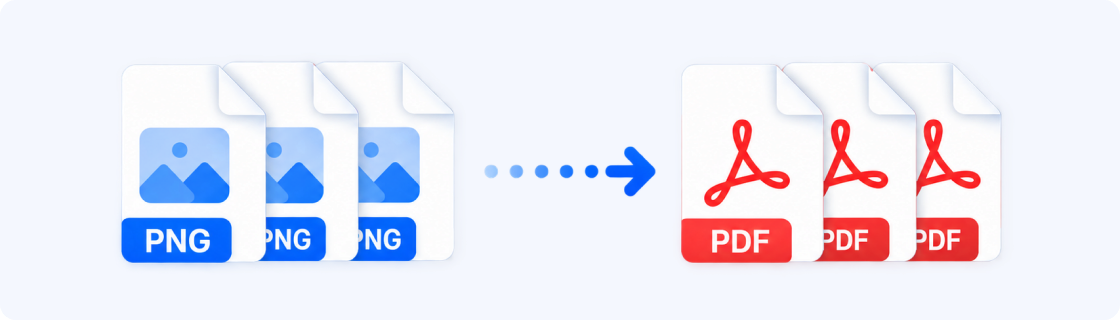
Upload one PNG or multiple PNGs at once. MultConvert processes them in order and exports each image as its own PDF, so your files stay organized, clear, and easy to manage.
Turn one image into one clean PDF in a few seconds. Ideal for quick conversions and simple one-to-one tasks.
Upload several PNGs together and convert them in one batch. Each image becomes its own PDF file, keeping everything separate and easy to sort.
MultConvert currently supports batch conversion into separate PDF files. Multi-page PDF merging is temporarily not supported.
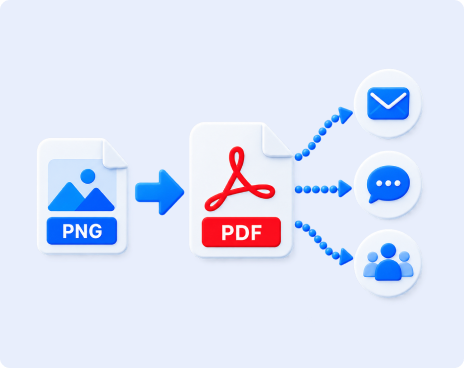
PNG is great for individual images, but many everyday tasks are built around documents. Converting PNG to PDF makes screenshots, scans, photos, and graphics easier to submit, organize, share, and print.
Convert webpage captures, chat records, receipts, or app screenshots into PDF documents that are easier to send, save, and reference later.
Many schools, workplaces, government portals, and online forms request documents in PDF format. Convert PNG files before uploading them to meet common submission requirements.
Turn scanned contracts, forms, receipts, notes, or other PNG documents into PDFs that fit naturally into document-based workflows.
Place PNG images into a PDF page for more predictable viewing and printing, especially when working with scanned pages, graphics, or other document-style images.
Instead of sending a PNG as a standalone image, convert it to PDF when you want invoices, receipts, designs, or other visual content to be treated as a document.
Convert PNG records, screenshots, scans, and other files to PDF when you want to keep them alongside reports, contracts, and other document-based archives.
Looking for an offline way to handle your conversion without uploading files to random websites? These built-in OS tools let you turn any PNG into a PDF in just a few clicks.
Double-click the PNG file to open it with Windows Photos.
Press "Ctrl + P" (or click the three dots icon at the top and select Print).
Set your destination printer to Microsoft Print to PDF.
Configure margins, orientation, and paper size to match your PNG, then click "Print".
Select a output folder, name your PDF document, and click "Save".
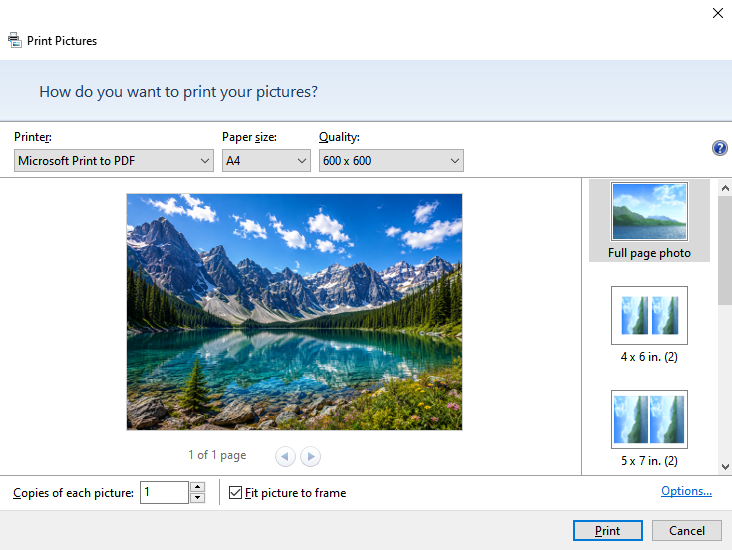
Built-in print tools often force-fit images by cropping the edges. For complete image preservation and flawless PDFs, try MultConvert instead.
Easily switch between formats with our suite of specialized converters. Whether you need to turn PNGs into editable files or merge other image formats into a single PDF, we've got you covered.
Not in the sense that the PDF itself changes the pixels inside the image. The source PNG quality is still the source PNG quality. What changes is the container: the file becomes a page-based document that is easier to send, print, and archive. If the PNG is already low resolution, the PDF will still show that limitation, so the best starting point is always the sharpest source you have.
Drag and drop your PNG image or fetch it from your cloud drive to start your conversion immediately.