100%Free-
No credit card, no trial, and no paid export screen.
Turn JPG images into PNG files when editing or cleaner handling of screenshots and graphics matters more than photo-style compression.
No credit card, no trial, and no paid export screen. Convert JPG images to PNG format online with lossless quality, batch support, and encrypted uploads.
No credit card, no trial, and no paid export screen.
Start converting instantly without creating an account first.
Your PNG output stays clean, sharp, and export-ready.
Convert JPG to PNG directly in browser, no downloads or setup.
Convert multiple JPG images at once and save time.
Files are transferred over an encrypted connection for safer upload.
Import PNG images from popular cloud drives like Dropbox, Google Drive, OneDrive and Box.
All temporary files are automatically removed from our servers 10 hours after conversion.
Convert JPGs to PNG without adding extra compression, so details stay sharp and clean.
Your JPG is converted in its original dimensions, with no cropping.
No software. No account. No watermark. No payment step after conversion. Pick your format, upload, and go.
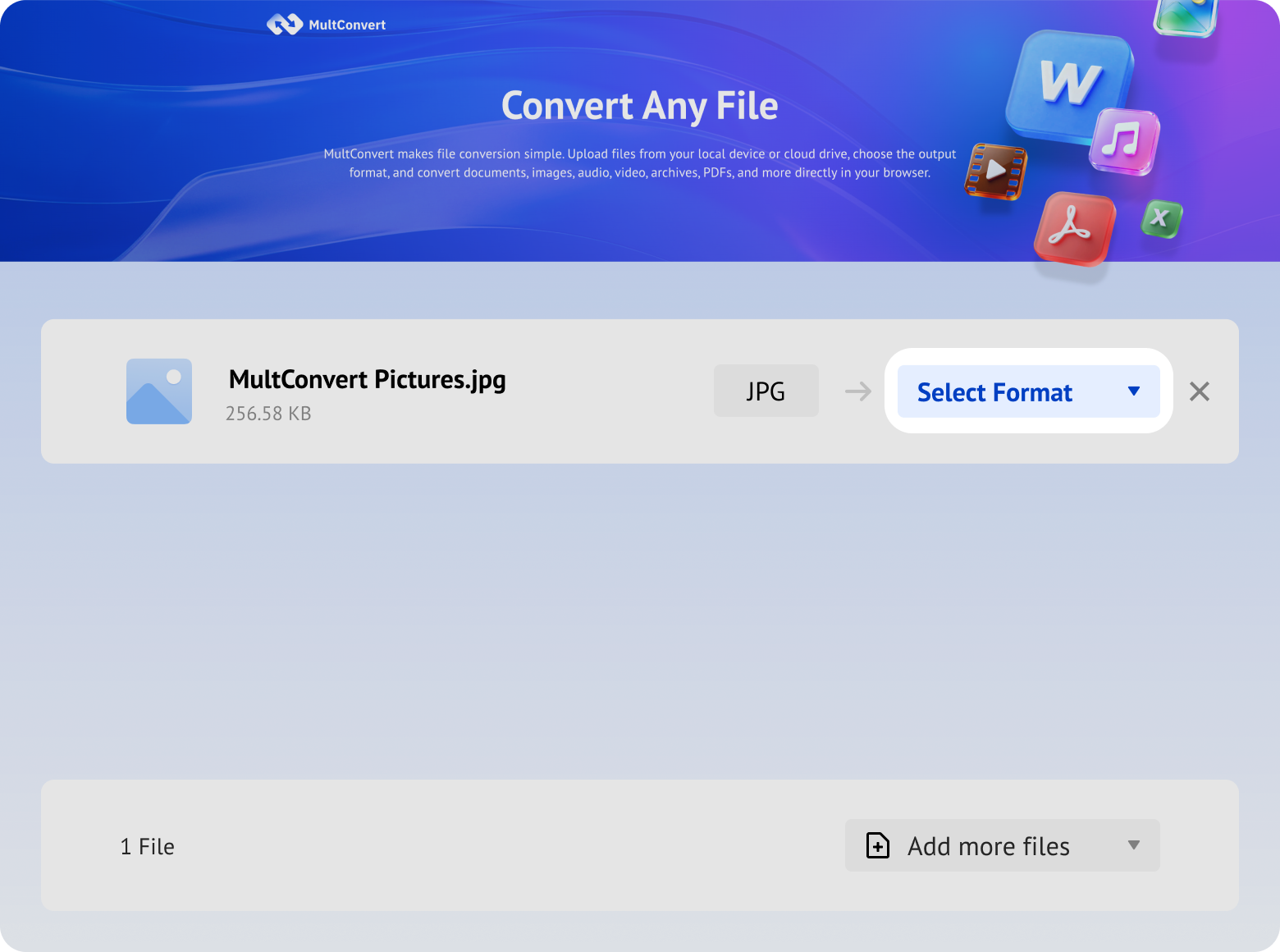
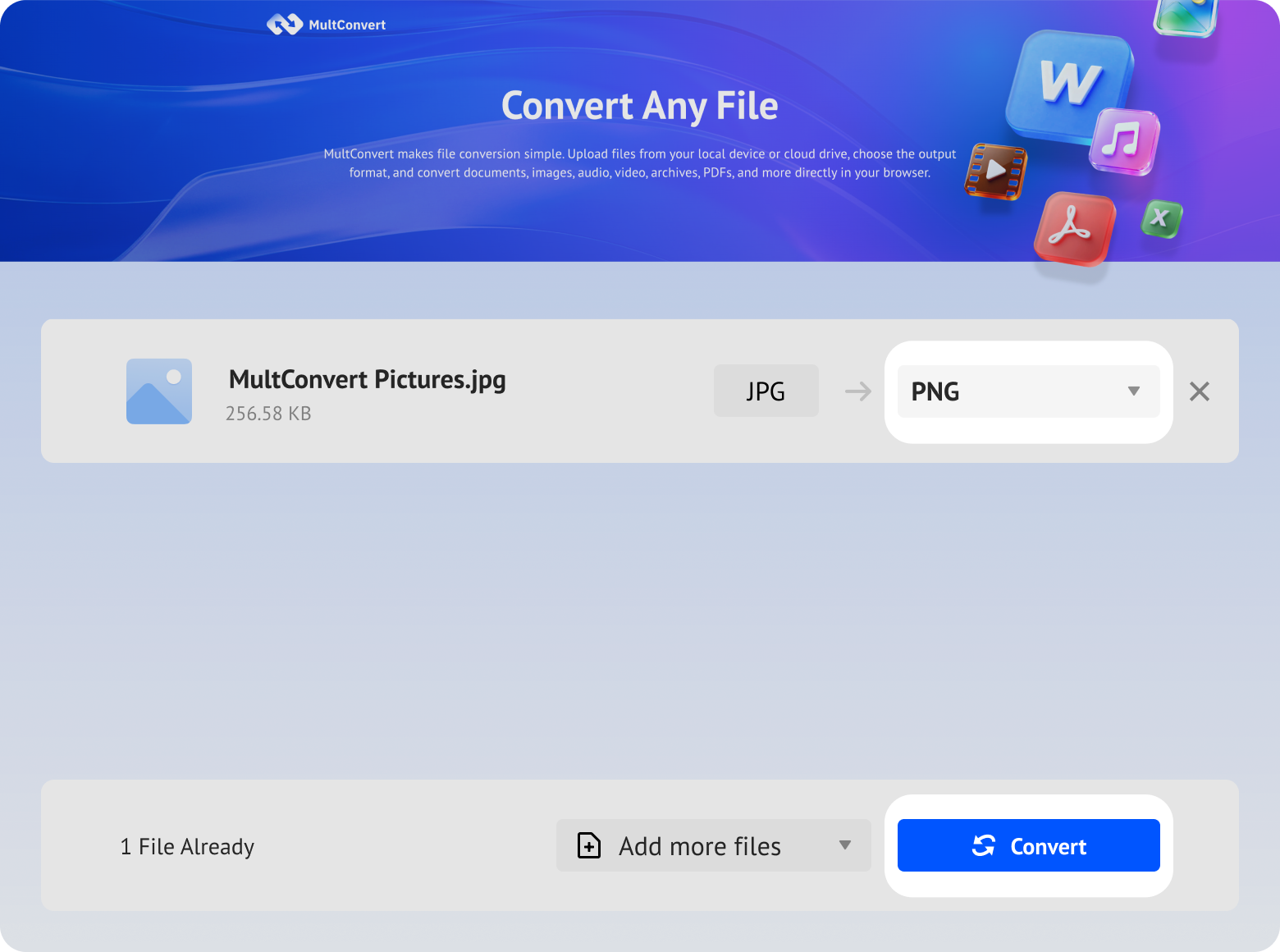
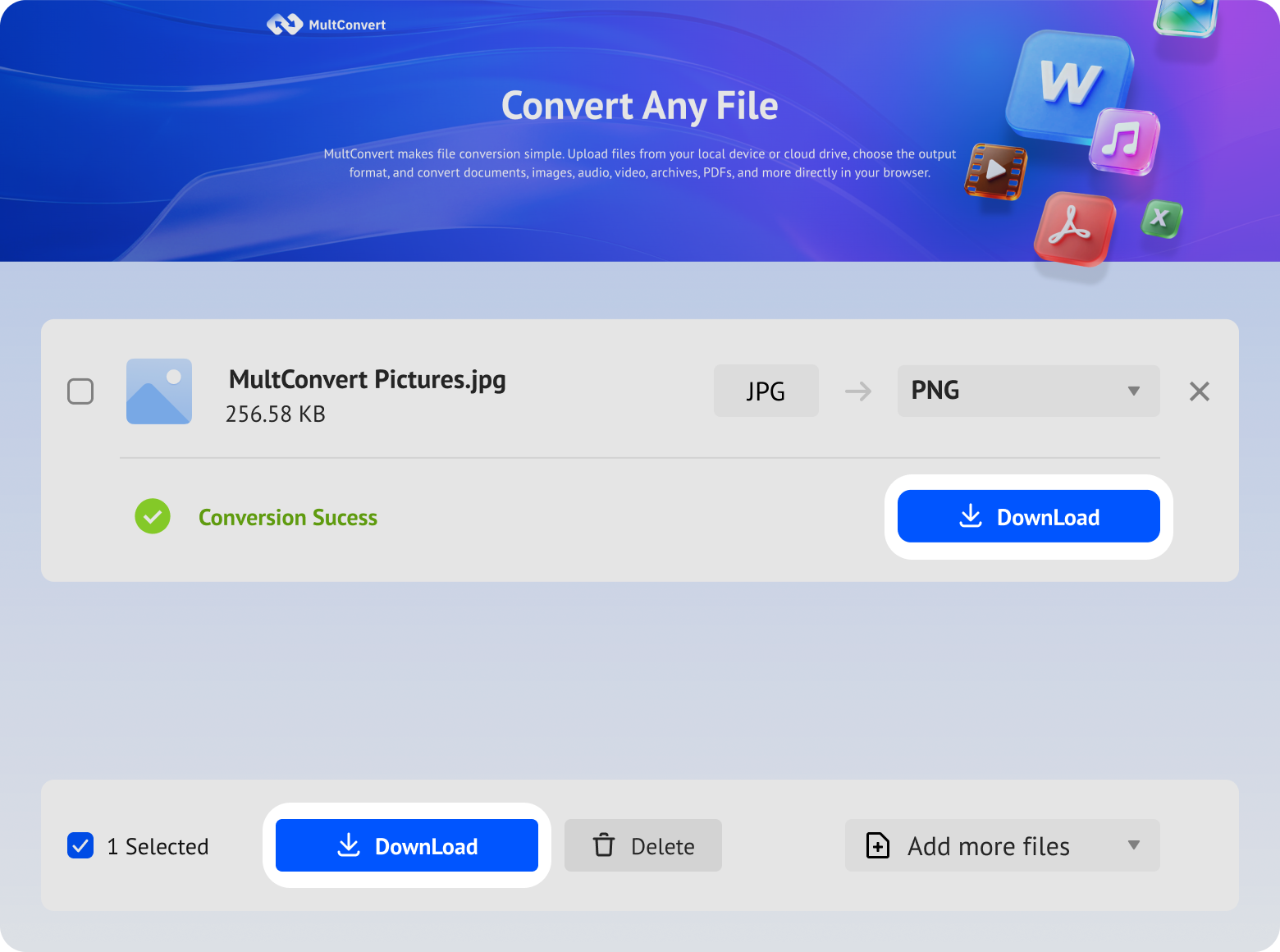
MultConvert reaches your photos directly from local hardware, camera cards, or mainstream cloud platforms, no manual transfers needed.
Browse your local hard drive for JPG files and convert them to high-quality PNGs, all without leaving your browser.
Need speed? Solid-state drives deliver near-instant file loading, so even large-resolution JPGs appear in your queue within seconds.
Just plug in your thumb drive. Pull JPG photos straight from the device and batch-convert them to PNGs — no copying to desktop required.
Camera card full of shots? Slot it in and pick exactly which images to convert — ideal for turning DSLR JPGs into edit-ready PNGs.
Your Google Drive photo folders become a direct source. Link your account, select JPGs, and export as PNG with zero local storage consumed.
Working with Box for team assets? Authenticate once to pull image batches straight from your vault, then generate clean PNGs in a single workflow.
Synced your photos to Dropbox? One click imports them into MultConvert, where each JPG gets transformed into a sharp, artifact-free PNG.
Microsoft's cloud holds your image library? Drag files from OneDrive into the conversion pipeline and receive PNGs with transparency fully preserved.
Uploading personal photos, family pictures, or sensitive screenshots for conversion? Worried about whether they'll be retained, leaked, or used for AI model training? Here's exactly how MultConvert handles your files.
MultConvert connects to your cloud storage through OAuth, so you authorize access without typing in a single credential and we never see, handle, or store your passwords.
From upload to download, not a single employee ever lays eyes on your files. The entire pipeline runs on automation — your images are processed by systems, not people.
We build our workflows around GDPR's core principles and your images are treated as protected personal information, not disposable data.
From the moment you click "Convert," every byte travels through an encrypted HTTPS/TLS tunnel. Even if intercepted in transit, your images remain unreadable.
JPG is a photo-friendly format, while PNG is the steadier choice when the image needs transparency, sharper UI handling, or a lossless-style container for design work.
Best for: photos, websites, email attachments, and social media uploads where smaller files are preferred.
Best for: web graphics, UI assets, diagrams, presentations, and images that require sharp edges or transparency.
JPG is ideal for photos, but PNG is a better choice when you need sharper details, cleaner edges, or transparent backgrounds for design and reuse.
Use PNG for logos in presentations, websites, and mockups. It keeps edges crisp and works better on different backgrounds.
Convert screenshots to PNG when they need to be annotated, cropped, or reused in guides, tutorials, or support content.
PNG is ideal for overlays, stickers, and other graphic elements that need to sit naturally on top of different layouts.
Use PNG for charts, diagrams, and infographics when you want cleaner lines, sharper text, and better readability.
PNG works well for interface screenshots, wireframes, and mockups because it preserves fine visual details more consistently.
If an image contains labels, captions, or embedded text, PNG usually keeps the content clearer and easier to read.
Choose PNG when you need transparent backgrounds for compositing images into webpages, banners, or product visuals.
Simple graphics like icons, symbols, and line illustrations often look better in PNG because the format keeps outlines crisp.
When an image will be edited, reused, or repurposed later, PNG is a stronger choice for maintaining visual clarity.
Convert JPG into other popular image formats for better compatibility, editing flexibility, or sharing across different devices and platforms.





JPG files can be converted to PNG in several ways beyond online tools. From built-in apps to desktop software, these methods offer different options for users who prefer offline conversion or more control over the process.
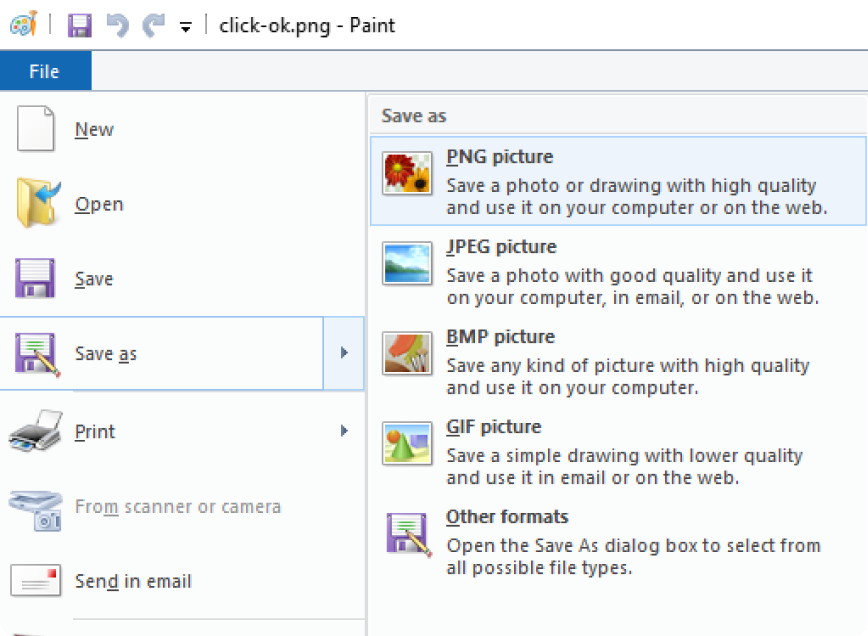
Windows Paint can open JPG files and save them as PNG directly.
Locate your JPG image in File Explorer, right-click it, and select "Open with" and then "Paint".
Once the image loads, click File in the upper-left corner of the window.
Hover over "Save as" in the drop-down menu, then click "PNG" picture.
Choose your target destination folder, enter a file name, and click Save.
We utilized 4 representative JPG sample sets as test objects to comprehensively analyze conversion quality, system stability, performance and limits, and metadata retention.
5 everyday JPGs, 1-5 MB, 1080p-4K
| Targeted Test Dimensions | Key Metrics | Results |
|---|---|---|
| Image Quality | PSNR / SSIM | Zero Distortion, no aliasing; 100% success rate |
| Color Fidelity | Visual color shift comparison (skin tones, sky) | No Color Shifts |
| Basic Conversion Success Rate | Conversion success rate | 100% Success |
3 giant images, 50 MB+ / 8K+
| Targeted Test Dimensions | Key Metrics | Results |
|---|---|---|
| Resource Usage (RAM & CPU) | Processing time per image (seconds) | No OOM Crashes, no timeouts |
| Execution Time | RAM Peak Usage | Within Range |
| Memory Leak & Timeout Risks | Crash rate / Timeout error rate | Zero Timeouts |
20 mixed-size JPGs
| Targeted Test Dimensions | Key Metrics | Results |
|---|---|---|
| Batch Throughput | Total & average processing time per image | Smooth & Fast |
| System Stability | Concurrent throughput (FPS / MB/s) | Zero Freezing |
| Concurrency & Queue Management | Batch interruption rate & auto-retry success rate | Seamless ZIP |
Includes EXIF tags / non-sRGB color spaces
| Targeted Test Dimensions | Key Metrics | Results |
|---|---|---|
| Metadata Preservation | EXIF completeness (timestamp, GPS, ICC profile) | EXIF Preserved |
| Color Space Compatibility | Wide Gamut rendering accuracy (Display P3 / Adobe RGB) | Visual Fidelity |
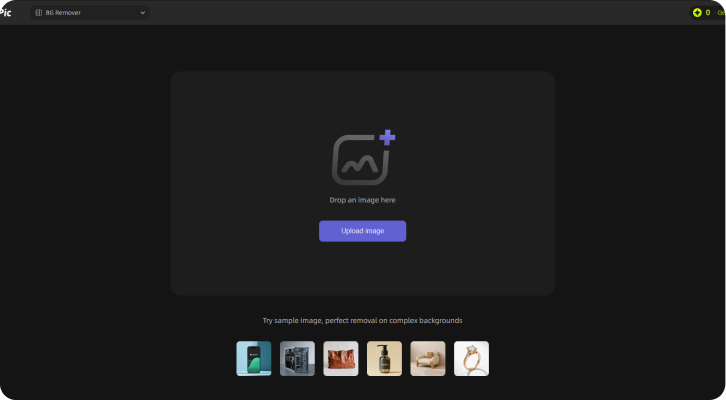
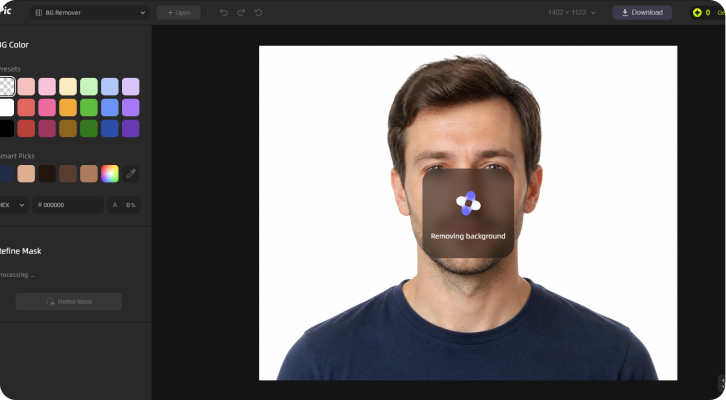
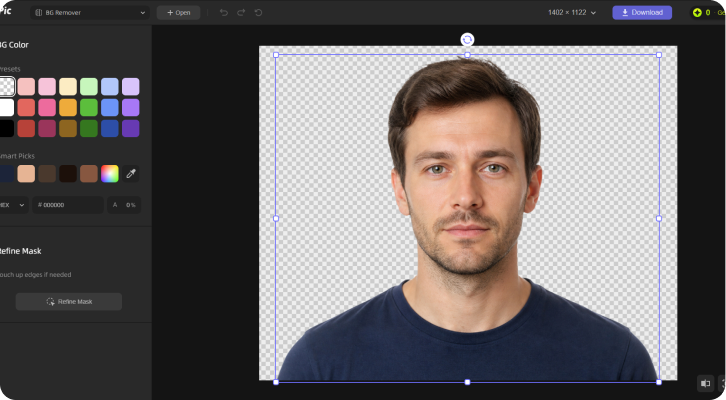
To get a transparent PNG, try UltraPic Background Remover, which can remove backgrounds and export transparent PNGs automatically.
Standard JPG to PNG conversion only changes the file format.
Click Upload Image or drag and drop your JPG file. For the cleanest cutout, choose an image with a well-defined subject.
UltraPic will instantly process the image and remove the background, leaving you with a clean, transparent cutout.
Click Download to save your transparent PNG, instantly ready for web design, e-commerce products, or social media graphics.
Not by itself. PNG supports transparency, but the conversion cannot invent a transparent background if the source JPG was already a flat image. The useful part of the conversion is that the file can now live in a container that supports transparency and cleaner editing behavior. If the image needs to be cut out from its background, that step has to happen in an editor or a tool that removes the background before or during conversion.
Upload your JPG images, choose PNG as the output format, and download your converted files in seconds-all online, with no software to install.


 Zero Distortion, no aliasing; 100% success rate
 Standard JPG to PNG conversion only changes the file format.