MultConvert homeMultConvert

Convert Your Video Files Instantly

MP4, MOV, AVI, WEBM, MKV and more — convert any video format for free, right in your browser.Lightning-fast processing, no quality loss.

Upload

Select your file here to get started

or drop your file here.

100% Private
Lightning Fast
No Sign-up
No Install

How to Convert Video Files Online

3 Steps, 0 Hassle. No sign-up, no software. Just pick, convert, and download.

Step 01

Upload Your Video File

Click to select files, or just drag and drop a group of videos to start bulk processing instantly. If your files are in the cloud, link your Google Drive, OneDrive, or Dropbox in one click—MultConvert will stream them directly via API, saving your time and bandwidth.

Step 02

Choose Output Video Format

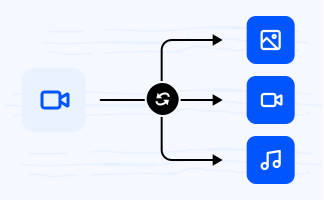
Once your videos are loaded, there is no need to configure them one by one—simply set your target format, like MP4, GIF, or MOV, for any single video in the list, and it will automatically apply to all other files instantly.

Step 03

Download Your Converted Video

Once you click convert, our servers process your entire batch simultaneously; when the conversion is done, you can either download each file individually via high-speed direct links, or simply click once to bundle the whole batch into a clean, uncompressed ZIP archive.

Explore Popular Online Video Converters

One-click solution to instantly convert videos between popular formats such as MP4 to MOV, AVI to MP4, MKV to MP4, and WebM to MP4.

MP4GIF

Turn MP4 videos into animated GIFs that can be shared without a video player. Perfect for social media posts, tutorials, reactions, and quick visual demonstrations.

MOVMP4

Convert MOV to MP4 for broader compatibility across Windows, Android, web browsers, and media players. MP4 files are easier to share and supported by virtually every platform.

MKVMP4

Convert MKV to MP4 to ensure smooth playback on phones, tablets, smart TVs, and editing software. MP4 offers wider support while maintaining excellent video quality.

WEBMMP4

Transform WebM videos into MP4 format for easier editing, sharing, and offline playback. MP4 is the preferred format for most devices and applications.

MP4WEBM

Convert MP4 to WebM to reduce file size and improve website loading speed. WebM is optimized for online streaming and supported by modern browsers.

MP4MOV

Change MP4 to MOV when working with Apple devices or professional video editing tools. MOV integrates seamlessly with QuickTime and many macOS-based workflows.

MOVGIF

Convert MOV clips into GIFs that autoplay on websites, blogs, and messaging apps. It's a simple way to share short moments without requiring users to play a video.

AVIMP4

Convert AVI to MP4 to save storage space and improve compatibility with modern devices. MP4 files are easier to upload, stream, and share online.

GIFMP4

Convert GIF files into MP4 videos for smaller file sizes, smoother playback, and better sharing across social media and devices.

Why Choose MultConvert for Video Conversion?

Cloud File Conversion

Import files from your cloud drive and convert them online without downloading them to your local device first. Supports 30+ Clouds.

Safe & Secure

Your Security Comes First. MultConvert protects your files with 256-bit SSL encryption and automatically deletes them after conversion is complete.

Batch Conversion

Convert multiple files at once to save time and improve efficiency, especially when working with large numbers of documents, images, audio, or video files.

Frequently Asked Questions

Will converting my video reduce the quality?

Not necessarily. If you are simply switching containers (such as from MOV to MP4) without changing the underlying video settings, it can be done with zero re-encoding loss. Even when full re-encoding is required, high-quality converters will preserve your original resolution, bitrate, and frame rate, keeping any visual difference completely imperceptible to the human eye.

Why is my converted video file larger than the original?

Video file size is primarily determined by its bitrate (the amount of data processed per second) and the efficiency of the codec (the compression technology) used. If your new format uses an older or less efficient codec (like converting WebM to AVI), it requires significantly more data to maintain the same visual quality. Furthermore, if the conversion tool defaults to a higher bitrate than your original video, it will artificially inflate the file size without actually adding any new clarity.

Will the audio go out of sync after conversion?

No, absolutely not. The conversion process strictly preserves the precise timing and timestamps of both the video and audio tracks. Because the underlying streams are processed together, the audio-to-video alignment remains perfectly intact, ensuring your converted video plays exactly as the original did—with zero lag, drift, or delay.

What's the difference between MP4, MOV, AVI, and WEBM?

MP4 (Universal): The gold standard. Offers excellent quality with small file sizes and plays perfectly on virtually any device, player, or platform.

MOV (Apple's Format): Native to macOS and iOS. It delivers high-quality video ideal for editing, but results in larger file sizes and limited compatibility on Windows or Android.

WebM (Web Optimized): Backed by Google and engineered for the web. It provides ultra-small file sizes, making it perfect for website backgrounds and fast online streaming.

AVI (Legacy): An outdated Windows format. It uses older compression, resulting in massive, bulky files that are hard to share or stream today.

How long does it take to convert a large video?

Most standard conversions finish in under a minute—for example, converting a 44MB MP4 to MOV takes around 55 seconds. However, if you are changing heavy settings like video resolution, frame rate, or codecs, the process will require full re-encoding and take a bit more time depending on the file size.

Can I convert iPhone HEVC videos to play on other devices?

Yes, absolutely. iPhones record in HEVC (usually saved as a .mov file), which provides great quality but often fails to play natively on older Windows PCs, legacy media players, or certain Android devices. Converting these videos to standard MP4 (H.264) ensures they will play seamlessly on virtually any device, operating system, or social media platform.

Ready to Convert Video Online?

Upload any video file and see the magic happen — free, private, instant.