100%Free-
No credit card, no trial, and no paid export screen.
Turn iPhone HEIC photos into standard JPG images for Windows, Android, websites, email, printing, and document uploads. Keep your photos looking clear while making them easier to open and share across different devices.
Turn HEIC photos into universally compatible JPGs in just a few seconds. Upload, convert, and download with no signup required.
No credit card, no trial, and no paid export screen.
Start converting instantly without creating an account first.
Your JPGs stay clean, simple, and ready to use.
Use it directly in your browser. No downloads, no setup.
Keep the same image dimensions as the source photo.
Preserve the original colors and visual appearance.
Your image stays complete without unwanted trimming.
Import HEIC photos directly from Google Drive, Dropbox, or OneDrive.
Convert multi-page PDFs or multiple files in one go, then download everything together.
Uploaded HEIC files are automatically deleted from our servers after conversion.
Convert HEIC photos to JPG so they open properly in Windows, upload cleanly to websites, and work with older apps.
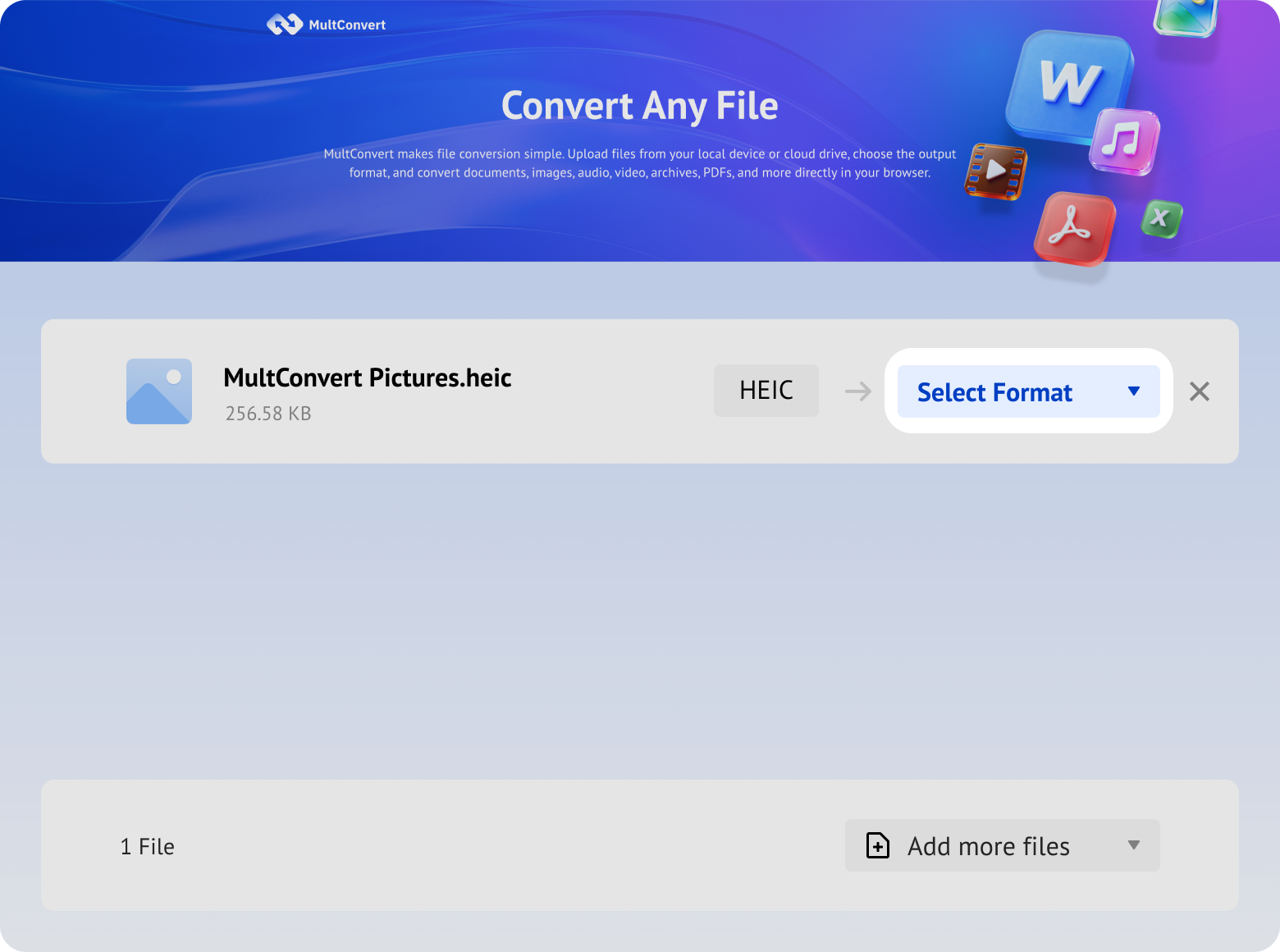
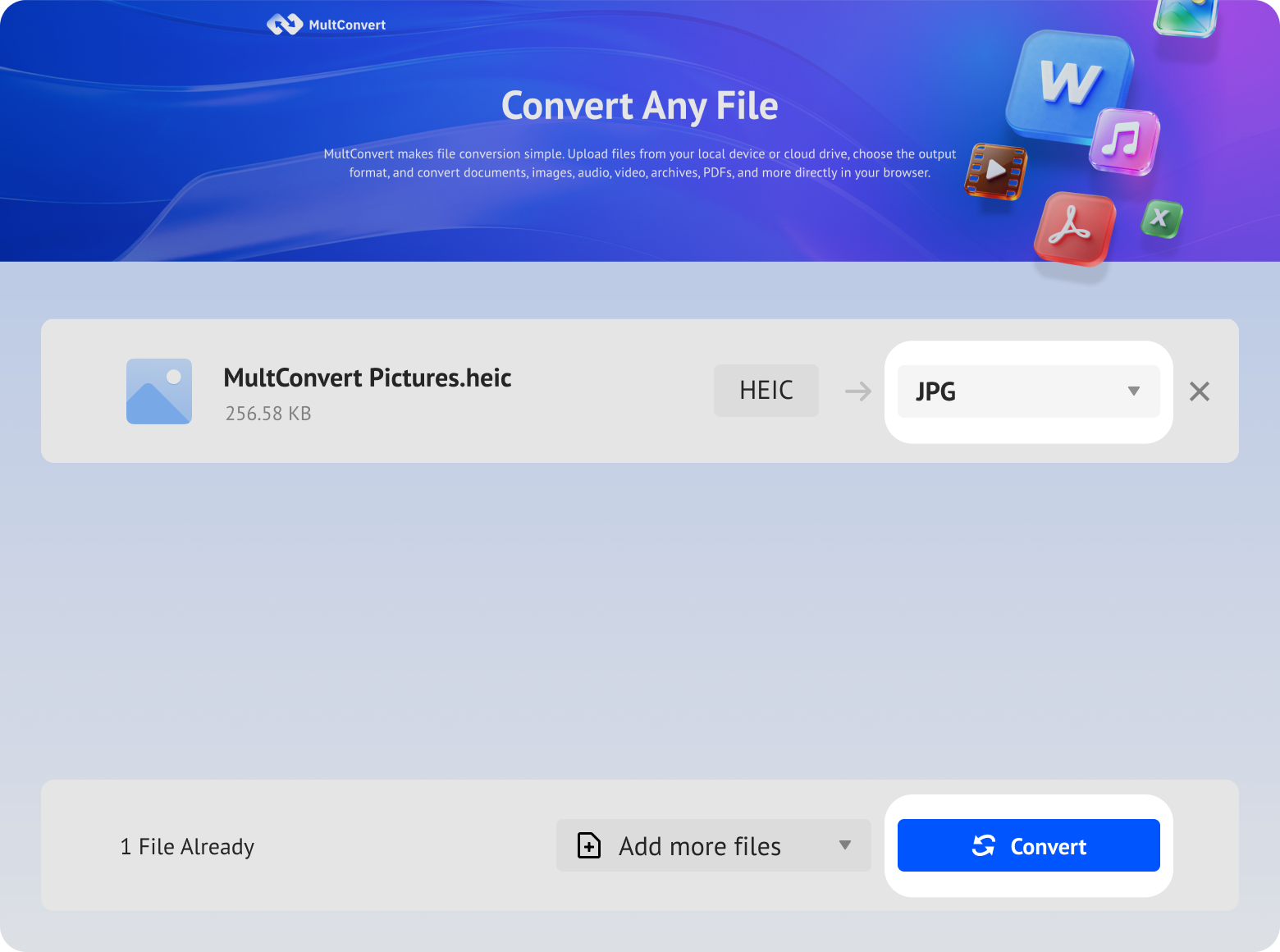
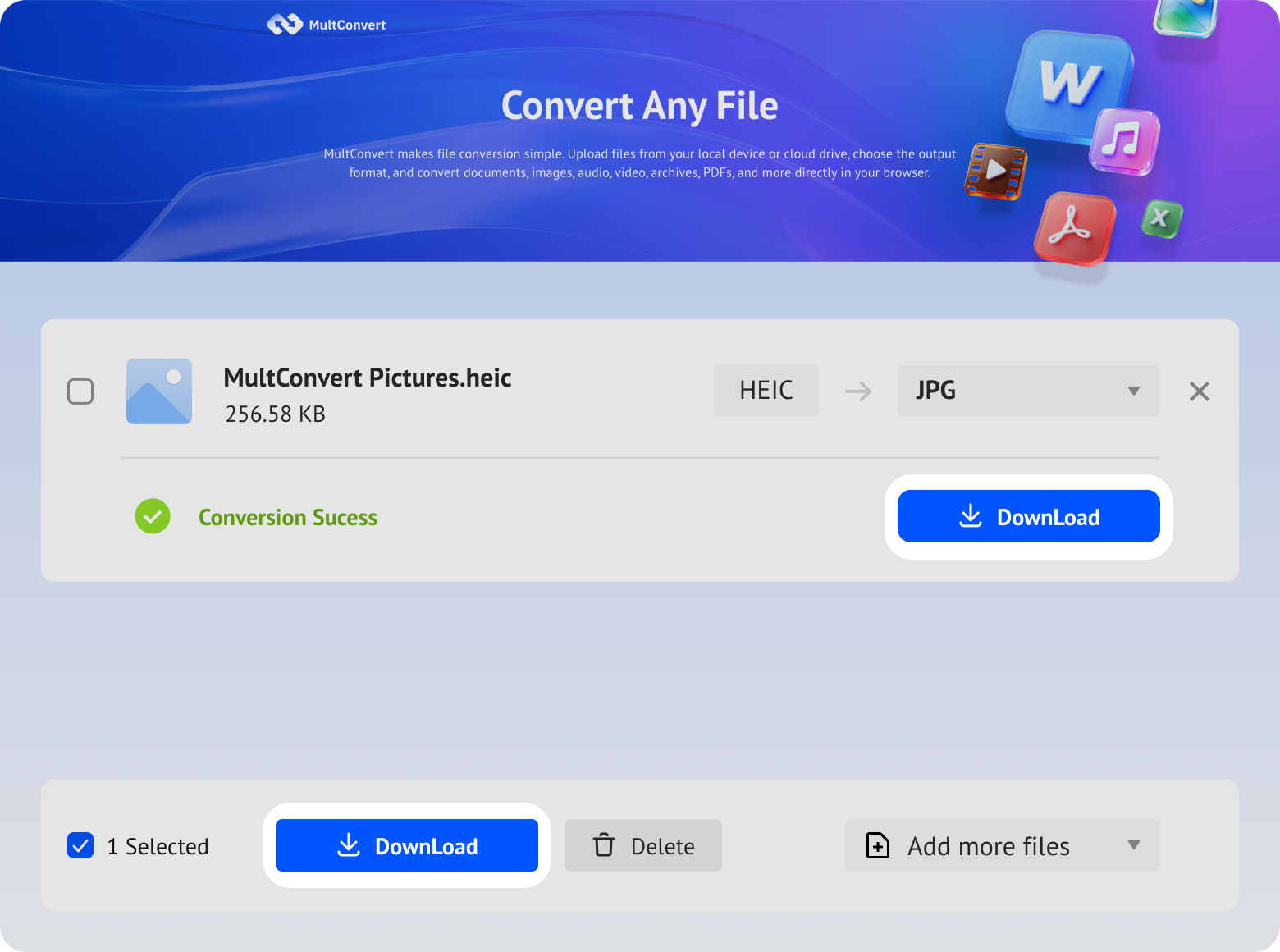
Upload HEIC files from local storage, external drives, or cloud storage and turn them into JPGs instantly.
Files saved on a hard drive are ready to convert directly from your device.
Work with files stored on an SSD without moving them first.
Plug in a USB flash drive and convert your files on the spot.
Convert camera files straight from an SD card when you need them.
Access files from Google Drive and start converting without an extra download step.
Pull files from Box and move straight into conversion.
Convert files stored in Dropbox without downloading them first.
Use OneDrive files directly for a faster conversion flow.
We process your files only long enough to create the JPG version, then remove temporary data after conversion is complete. A safer choice for family photos, travel shots, and images that may include faces, dates, or location data.
Every HEIC photo is protected with HTTPS/TLS while they are uploaded and downloaded.
Files are used only for conversion and are not kept longer than needed.
Your files are processed automatically and are not manually viewed or accessed by our team.
Built with modern privacy practices in mind, including data handling principles aligned with GDPR expectations.
Understand exactly how your image data is structured and processed for maximum cross-platform compatibility.
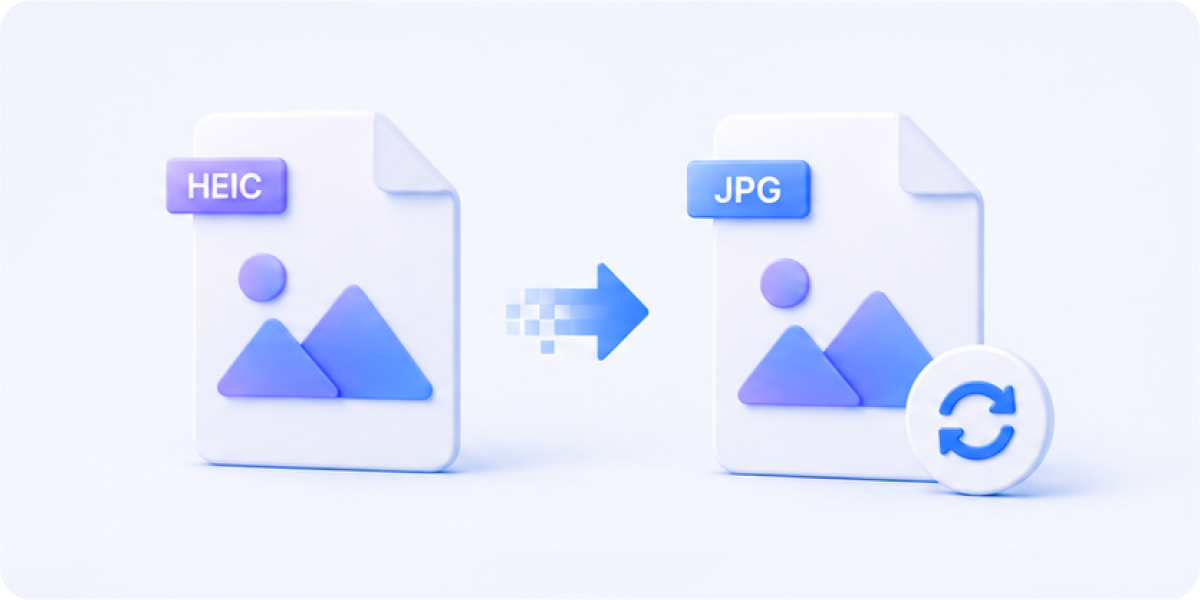
JPG makes your photos easier to open, share, and upload across devices. The image stays the same, but the file format changes for better compatibility.

File format changes from HEIC to JPG
File size may increase a little (due to universal standard layout)
Compatibility becomes much broader across Windows & Android
Compression behavior is different from HEIC
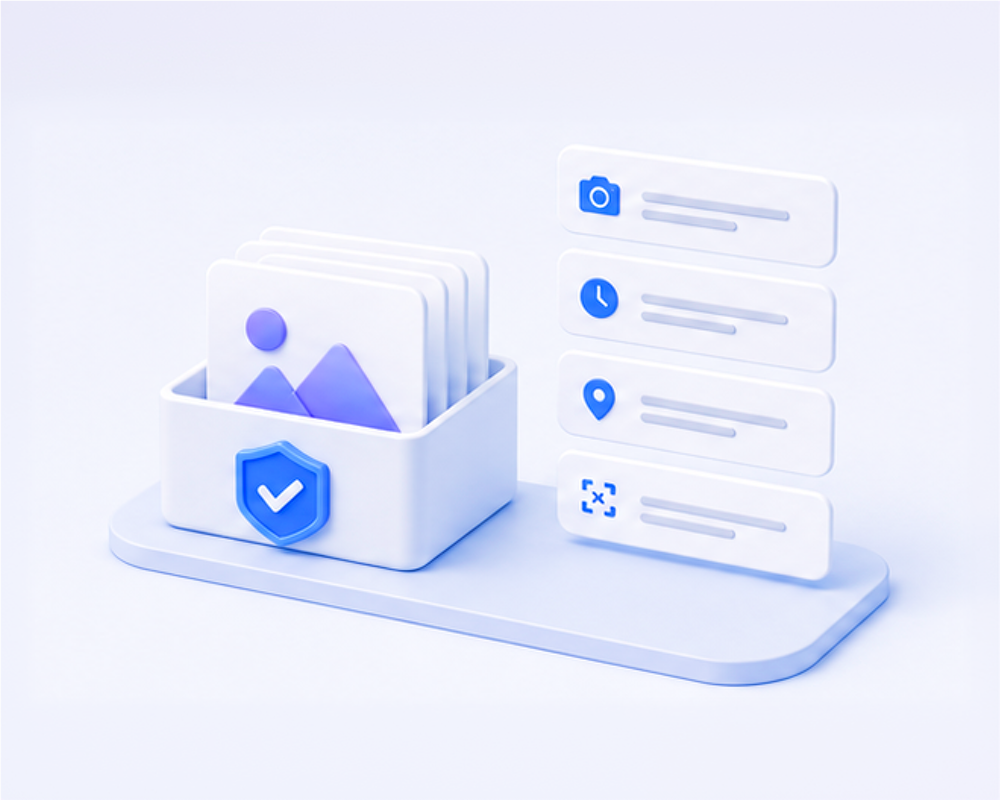
MultConvert keeps the important photo details you may want later, so your JPG files still carry useful metadata for sorting, reviewing, and archiving.

Camera Model
Keep the device name attached to the photo, such as iPhone 13 Pro Max.

Exposure Time
Store the shutter speed used to capture the shot.

ISO Speed
Retain the light sensitivity value.

F-stop
Keep the lens aperture value.

Focal Length
Save the physical lens configuration.

Date and Time
Original creation stamp.

Orientation
Retain landscape/portrait tags.

GPS Location
Save geotag coordinates.

Image Dimensions
Keep height & width pixels.

Resolution
Preserve DPI density mapping.
Why your iPhone creates .heic files in the first place, or why Windows often refuses to open them without an extra extension? It comes down to a clash between cutting-edge photo technology and decades of legacy software.

HEIC
Apple's space-saving format
When Apple adopted HEIC (High Efficiency Image Format) in iOS 11, the goal was simple: solve the smartphone storage crisis.
• 50% Storage Savings:
HEIC uses modern HEVC compression algorithms to store photos at roughly half the file size of a JPG without sacrificing visual quality or crisp details.
• More Than Just a Photo:
HEIC isn't just a single image; it's a container. It holds Live Photos, depth maps for Portrait Mode, burst shots, and rich EXIF metadata inside a single compact file.
Cons:
Limited compatibility outside Apple devices
Some apps and websites still do not support it well
May require conversion before sharing or uploading

JPEG
The Universal Image Format Standard
Created in 1992, JPG is the "lingua franca" of the digital world—understood by virtually every screen, browser, and printer on earth.
• Universal Compatibility:
Every operating system, email client, web portal, and photo printer made in the last 30 years natively understands JPG.
• Why Windows Doesn't Support HEIC:
Windows relies on native standards like JPG and PNG. To keep the OS lightweight and avoid paying licensing fees for proprietary codecs (HEVC/HEIC), Microsoft leaves HEIC support as an optional extension.
Cons:
Larger file size than HEIC
Less efficient compression
Fewer advanced photo features
HEIC is great for saving space on iPhones, but JPG is still the safer choice when compatibility matters. Use JPG when you need to upload, print, open, or share photos without format issues.

View Photos on Windows
Not every Windows device supports HEIC out of the box, so JPG is the easier choice for opening and viewing photos.

Government Uploads
Many visa, immigration, and government portals only accept JPG (often limited to under 2 MB) for passport photos and ID uploads.

Printing Photos
Most photo labs and print services still work best with JPG, making it the more reliable format for printing.

Share Anywhere
JPG is easier to send through email, messaging apps, websites, and older software without worrying about unsupported file formats.
When in doubt, JPG just works

Windows

Android

Chrome

Edge

Gmail

Outlook

Microsoft Office

Photo Printers

Government Upload

School Portal
Based on 120 test photos from iPhone models running iOS 16.7, iOS 17.6, and iOS 18.5, we checked whether the JPG output stayed clean, complete, and reliable after conversion.
| Check Item | Test Method | Result | What It Means |
|---|---|---|---|
| Visual Quality | Side-by-side comparison of HEIC and JPG | No obvious blur or color shift | JPG output stays clean and natural |
| Resolution Consistency | Compare image dimensions before and after conversion | 3024 x 4032 preserved | Keep the original image size |
| EXIF Retention | Verify camera model, exposure, ISO, f-stop, and focal length | 7/7 key fields preserved | Keep the details that matter |
| GPS Retention | Check latitude, longitude, and altitude metadata | Location metadata preserved | Keep location metadata for archiving |
| Orientation Handling | Open converted JPG in a viewer and check rotation | Displayed correctly | No manual rotation needed |
| File Size Impact | Compare HEIC file size with converted JPG | Smaller file size with no noticeable quality loss | Smaller files are easier to store, upload, and share |
| Color Fidelity | Compare the original and converted image colors | Colors stayed natural | Keep the original look and feel |
| Compression Artifacts | Inspect for blocking, banding, or visible noise | No visible artifacts detected | JPG stays clean and clear |
| Download Integrity | Download the final JPG and verify file completeness | Files downloaded intact | Download your JPG files safely and reliably |
Need JPG right away or want to avoid HEIC issues later? iPhone includes built-in ways to handle JPG photos without adding extra apps.
Copy any HEIC photo in the Photos app and paste it into a folder in the Files app. iOS automatically processes the file and saves a fresh JPG copy on the spot.
Shoot and store photos in space-saving HEIC on your iPhone, but configure iOS to convert them to universal JPGs whenever you transfer them to a Mac or PC.
Don't wanna convert every HEIC photo to JPG? Change your iPhone's default camera format once and you're all set.
Open the "Settings" app on your iPhone.
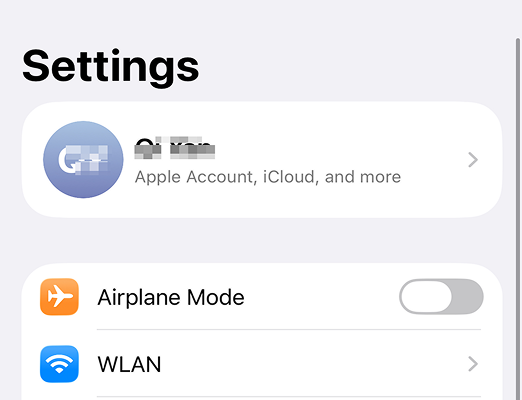
Tap "Camera" from the settings list.
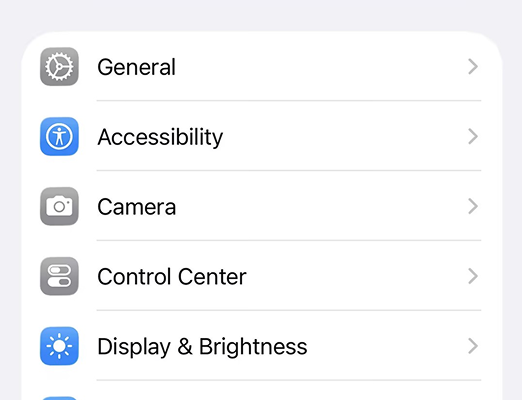
Open the "Formats" menu.
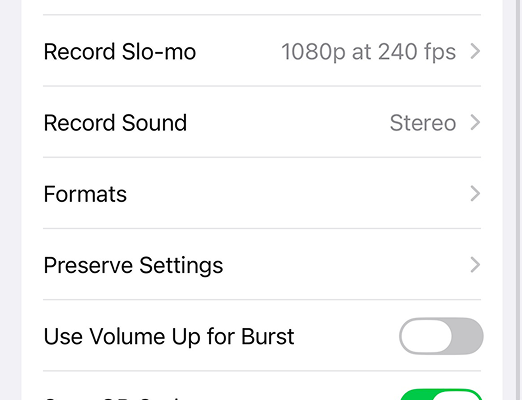
Select "Most Compatible" to save new photos in JPG.
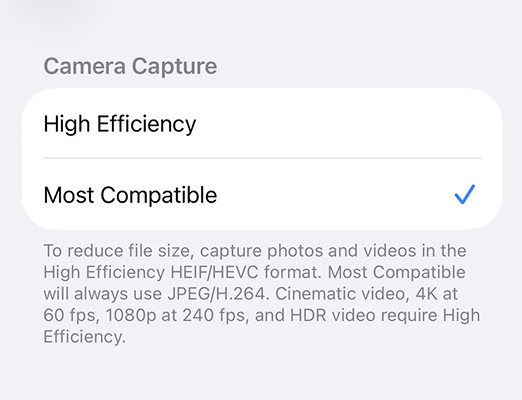
Looking for more format options? Try more simple converters to handle common image format conversion tasks with better compatibility and easier sharing.
Single photos convert almost instantly, usually within a few seconds. In our real-world test, batch converting 20 high-resolution HEIC photos totaling 45 MB took 2 minutes and 18 seconds from start to finish. Processing speed may vary depending on your internet connection and file sizes, but batch conversions are designed to run smoothly without slowing down your browser.
Convert your HEIC photo into a standard JPG in seconds and make it ready for uploads, printing, sharing, and everyday compatibility.







 No obvious blur or color shift