100%Free-
No credit card, no trial, and no paid export screen.
Convert WebP to PNG online in seconds. Upload from local storage, external drives, SD cards, USB flash drives, or cloud storage and get clean PNGs ready to use.
Get clean, compatible PNG files from WebP images in seconds. Upload, convert, and download with no signup required.
No credit card, no trial, and no paid export screen.
Start converting instantly without creating an account first.
Your PNGs stay clean, simple, and ready to use.
Use it directly in your browser. No downloads, no setup.
PNG keeps transparent areas intact for logos and overlays.
Your converted files stay sharp and easy to reuse.
Convert multiple WebP files together and save time.
Files are transferred over an encrypted connection for safer upload.
Import files from Dropbox, Google Drive, OneDrive and up to 40 cloud drives.
Uploaded files are automatically removed from our servers after conversion.
No software. No account. No watermark. No payment step after conversion. Upload your WebP files, choose PNG as the output, and download clean images that keep transparency, stay clear, and work across more tools and platforms.
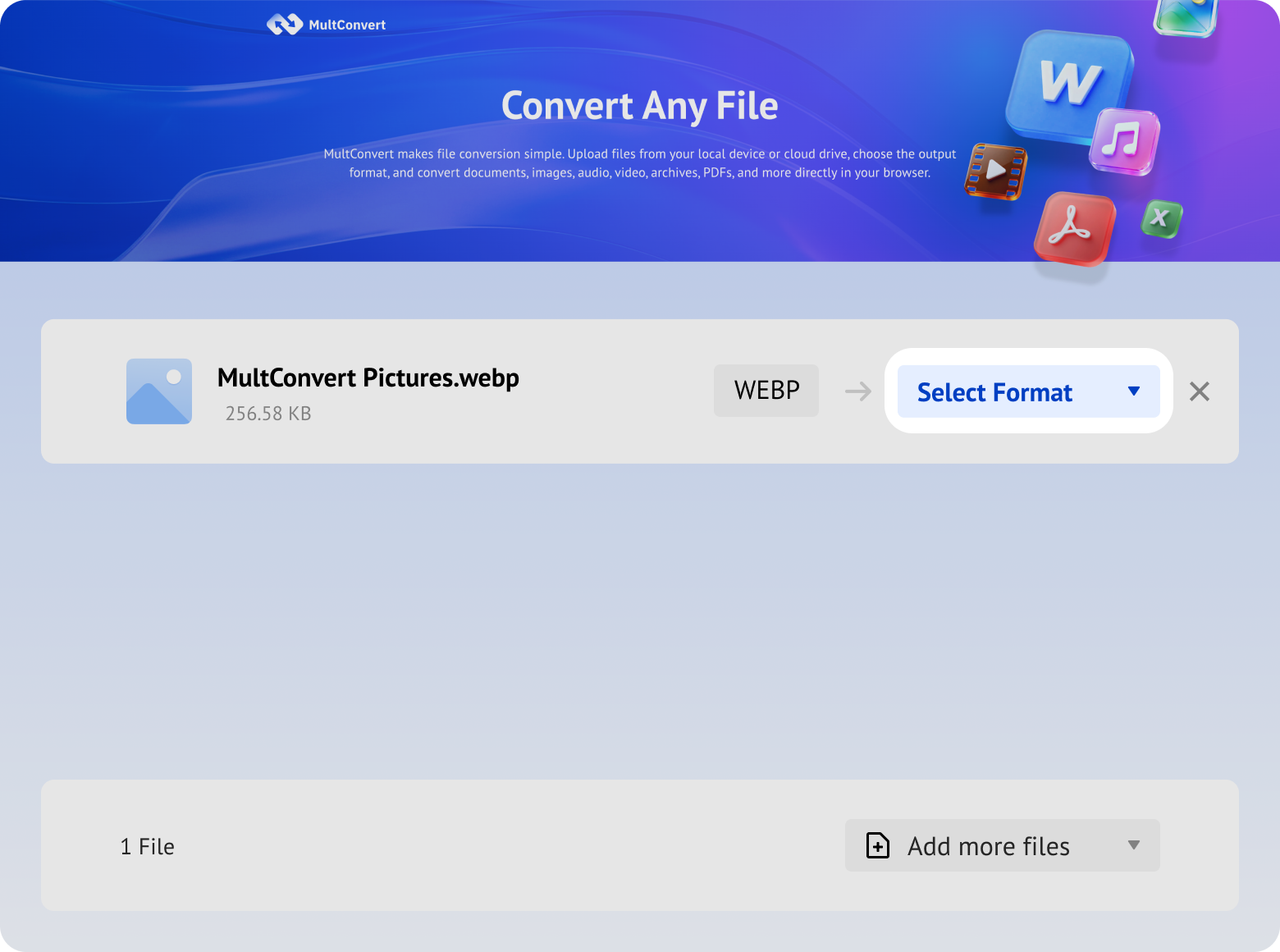
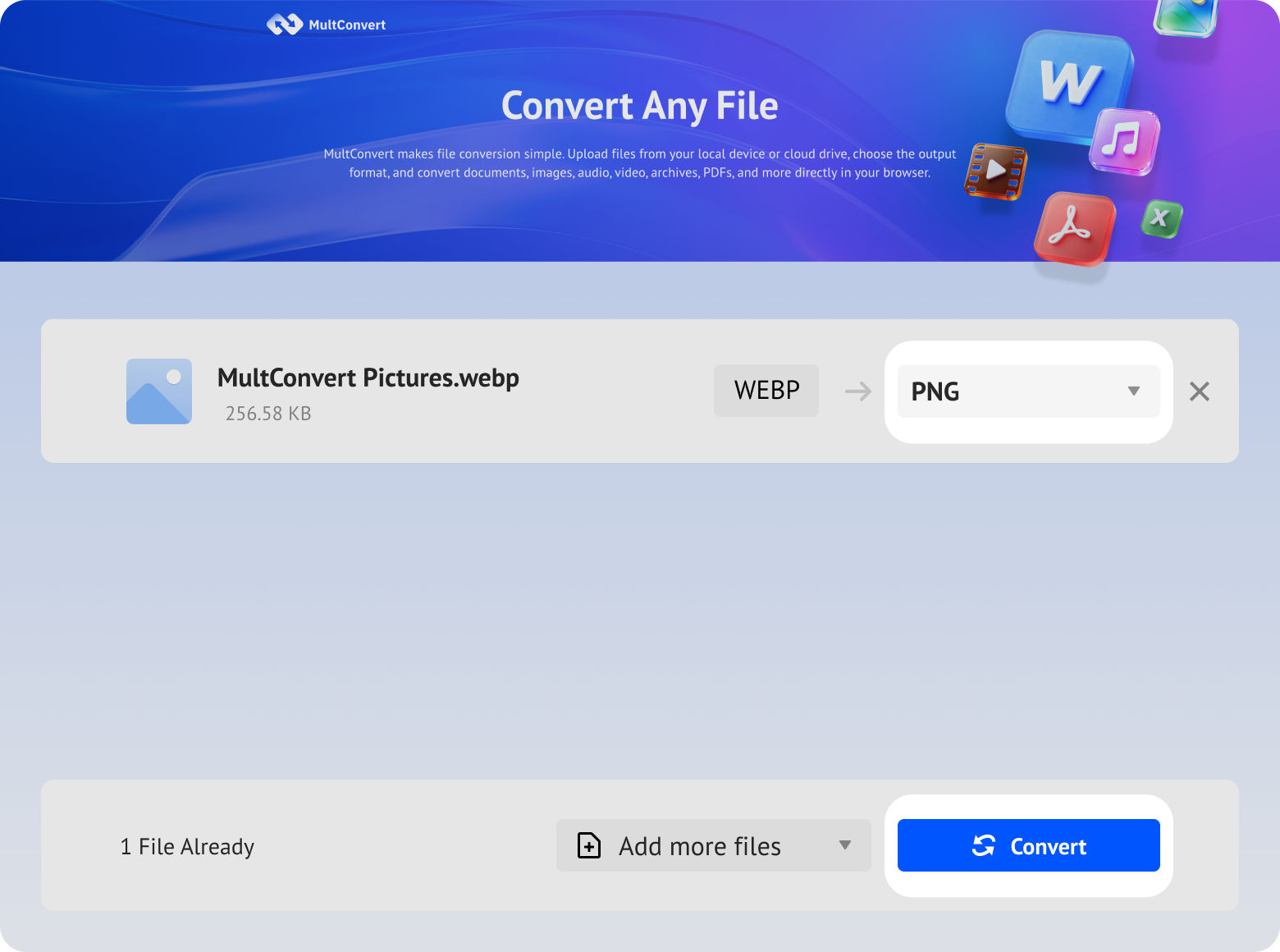
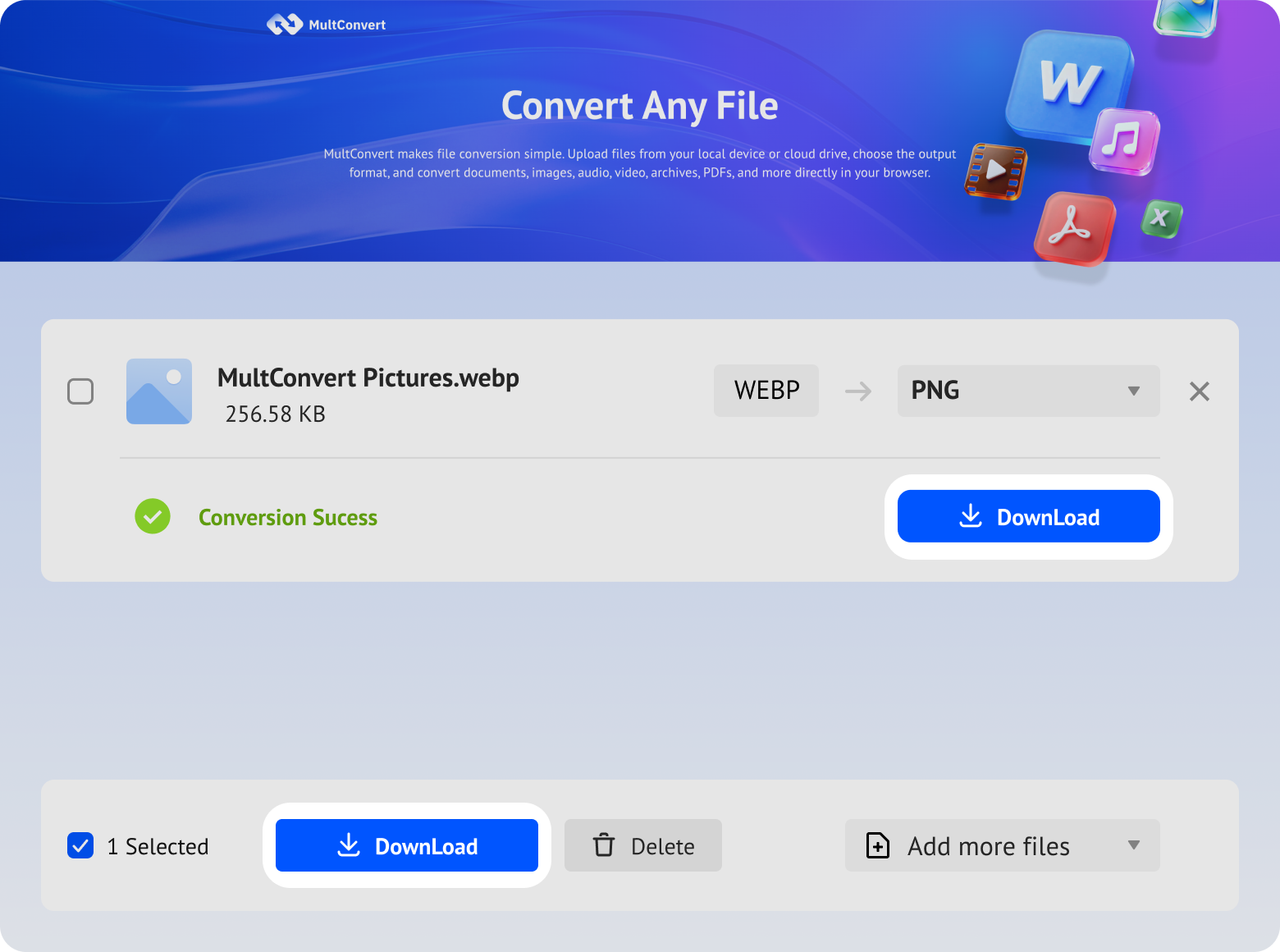
Upload WebP files from your computer, external drives, or cloud storage and convert them to PNG in just a few clicks.
Convert WebP files saved on a hard drive directly from your device.
Work with WebP files stored on an SSD without moving them first.
Plug in a USB flash drive and convert WebP images right away.
Convert photos from an SD card quickly when you need PNG copies.
Access WebP files in Google Drive and convert them without an extra download step.
Pull WebP files from Box and move straight into conversion.
Convert WebP files stored in Dropbox without downloading them first.
Use WebP files from OneDrive for a faster, more convenient conversion flow.
Your files are protected during upload and download, processed automatically, and removed after conversion. We do not read, share, or store your files.
Every file is protected with HTTPS/TLS encryption while it's uploaded and downloaded.
Temporary files are automatically removed after processing to help protect your privacy.
Your files are processed automatically and aren't manually viewed or accessed by our team.
Built with modern privacy practices in mind, including data handling principles aligned with GDPR expectations.
PNG is often the better choice when your image needs to stay clear, editable, and easy to reuse across different tools and workflows. It works especially well for logos, screenshots, UI assets, and images that need reliable transparency or broader compatibility.
PNG keeps sharp edges and fine details intact, which makes it a strong fit for logos, screenshots, and other images that need to look clean and precise.
PNG is widely supported in design tools and editing workflows. It gives you a dependable file format for assets that may need to be adjusted, reused, or combined later.

PNG handles transparent backgrounds well, which makes it ideal for overlays, icons, and images that need to blend into different layouts without a visible background.
PNG is easier to open and reuse in legacy tools, older software, and workflows that do not always handle WebP smoothly. It is a safer choice when compatibility matters more than smaller file size.
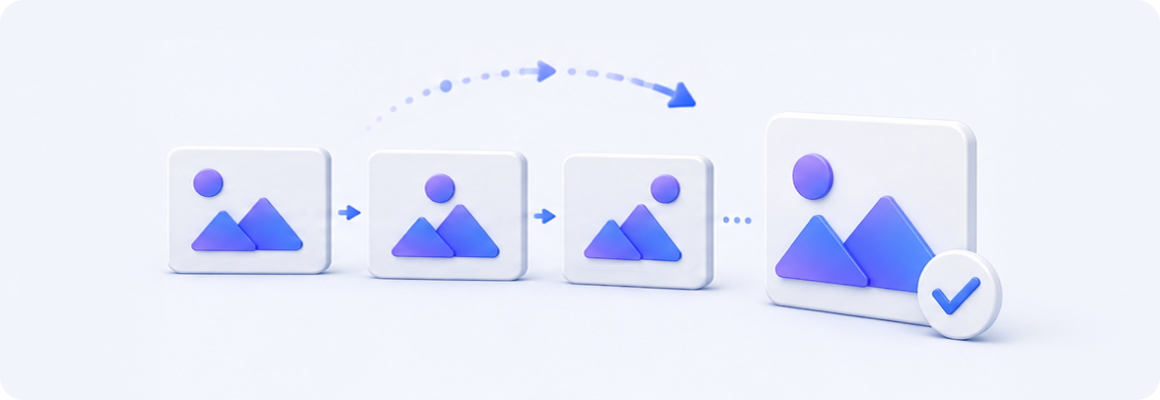
If your WebP is animated, the PNG result will be a still image. That is fine when you only need one frame, but if motion matters, keeping the original WebP is better.
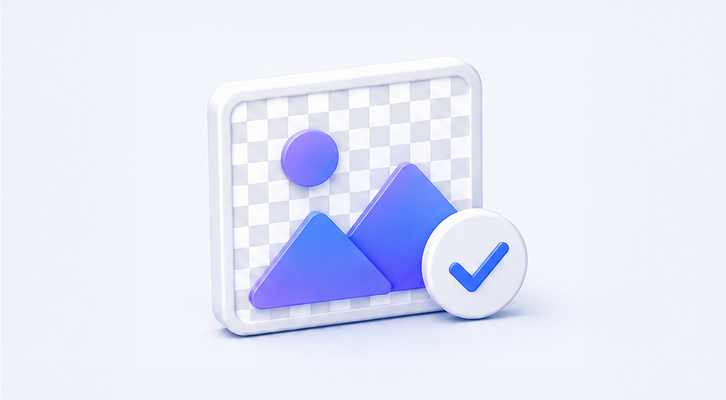
If the source WebP already includes transparency, the PNG output keeps it. That makes PNG a strong choice for logos, overlays, icons, and other assets that need a clean background.
PNG files are often larger than WebP, and that is the trade-off for better compatibility and easier reuse. If your goal is editing, handoff, or long-term storage, the larger size is usually an acceptable trade-off.
PNG does not add extra quality loss on its own, so the converted file stays visually clear and easy to read. It works especially well for screenshots, UI assets, and other images that need sharp edges.
You do not always need to convert WebP to PNG. If the image is already working well in its current form, keeping WebP can save space and make delivery faster.
If the image is mainly for a website, app, or other online use, WebP is often the better fit. It usually stays smaller than PNG, which helps reduce file size and improve loading speed. If you are not planning to edit the image or reuse it in a design workflow, there may be no reason to convert it.
If your main concern is keeping files light, WebP usually wins. That makes it useful for content pages, image galleries, and fast-loading web assets. In these cases, converting to PNG may only make the file larger without giving you much extra value.
If the WebP is animated, it is usually better to keep it as WebP. Converting it to PNG will turn it into a static image, which means the motion will be lost. If the animation is part of the content, keeping WebP is the safer choice.
| What to Check | Before Conversion (WebP) | After Conversion (PNG) | Test Summary |
|---|---|---|---|
| File Count & Processing Time | 20 files | 20 files (36s total duration) | High-Speed Efficiency: Averages 1.8s per file, enabling fast, large-batch processing. |
| Total File Size | 10.17 MB | 303 MB (~29.8x size increase) | Storage Expectation: Expected size expansion from lossless decompression to recover full uncompressed pixel data. |
| Compression & Image Quality | Lossy Compression | Pure Lossless (100% Quality) | Zero Quality Loss: Reconstructs full visual detail without adding secondary compression artifacts or blur. |
| Transparency Support (Alpha) | Supported | Fully Preserved | Design Asset Safety: Transparent backgrounds on logos, icons, and cutouts remain intact. |
| Software Compatibility | Good (Restricted in legacy PS/Office) | 100% Universal Compatibility | Workflow Frictionless: Eliminates format rejection and file import errors across all editing software. |
Prefer not to upload your files to third-party servers? Both Windows and macOS offer built-in tools that can convert WebP to PNG instantly without requiring an internet connection or extra software installation.
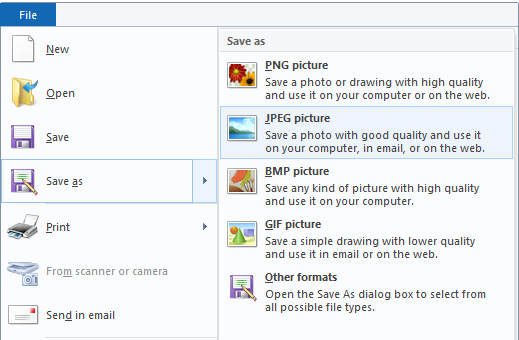
Open the File: Right-click your .webp image and select Open with > Paint.
Export as PNG: Click File in the top-left corner, hover over Save as, and select PNG picture.
Save: Choose your destination folder and click Save.
While Microsoft Paint and Preview are great for single files, manually converting images one by one can be time-consuming. If you have multiple WebP files, try MultConvert—our free, secure online converter that lets you batch convert whole folders of WebP images to PNG in seconds with a single click.
Yes, that is one of the main reasons to use this route. PNG supports transparency well, so a transparent logo, overlay, or UI asset can stay useful after conversion. Just remember that the output still depends on the source file having usable transparency in the first place. If the original WebP does not contain alpha data, PNG will not invent it. The result is a delivery and packaging change, not a graphical miracle.
Convert your WebP file into a clean PNG in seconds and keep it ready for transparency, editing, sharing, and compatibility.










 20 files (36s total duration)