NoCost-
Convert your files freely without hidden charges or usage fees.
Turn your MP4 videos into WebM files ready for websites, web apps, and other online projects, while keeping the conversion process simple and easy to complete.
Convert MP4 videos to WebM with a browser-based tool designed for simple, reliable processing—no software installation, account setup, or complicated settings required.
Convert your files freely without hidden charges or usage fees.
Start converting without creating an account or signing in.
Enjoy a clean conversion experience without distracting advertisements.
Convert MP4 files directly in your browser without installing software.
Convert multiple MP4 files to WebM in a single session.
Import MP4 media directly from your cloud storage accounts.
Your files are securely processed and automatically deleted after conversion.
Create WebM videos suited for browser playback and websites.
Balance visual quality with a more manageable output size.
Convert MP4 videos to WebM with VP9 video and Opus audio encoding.
Get your WebM file in just a few steps. Upload an MP4 video, start the conversion, and download the finished WebM file when processing is complete.
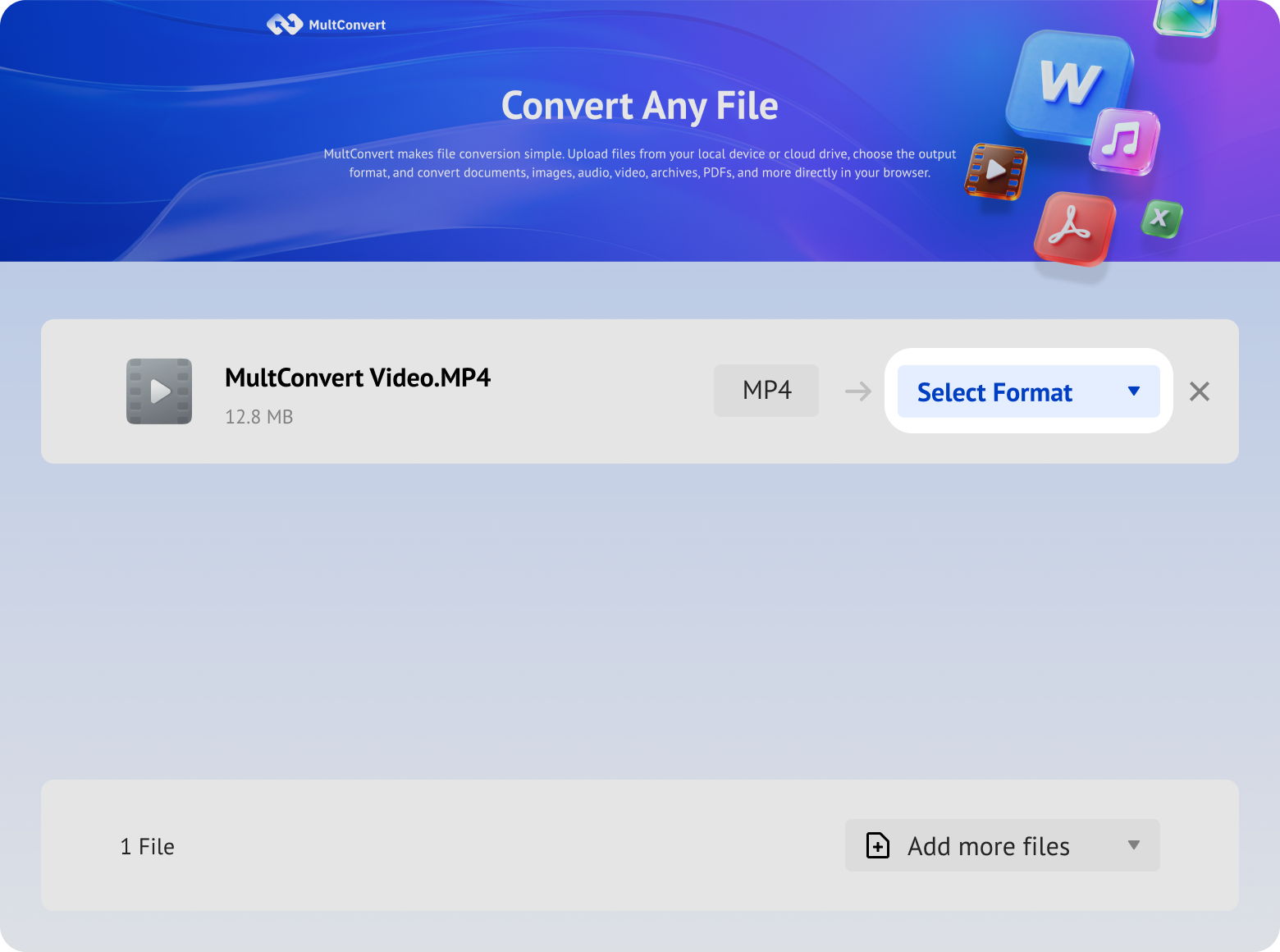
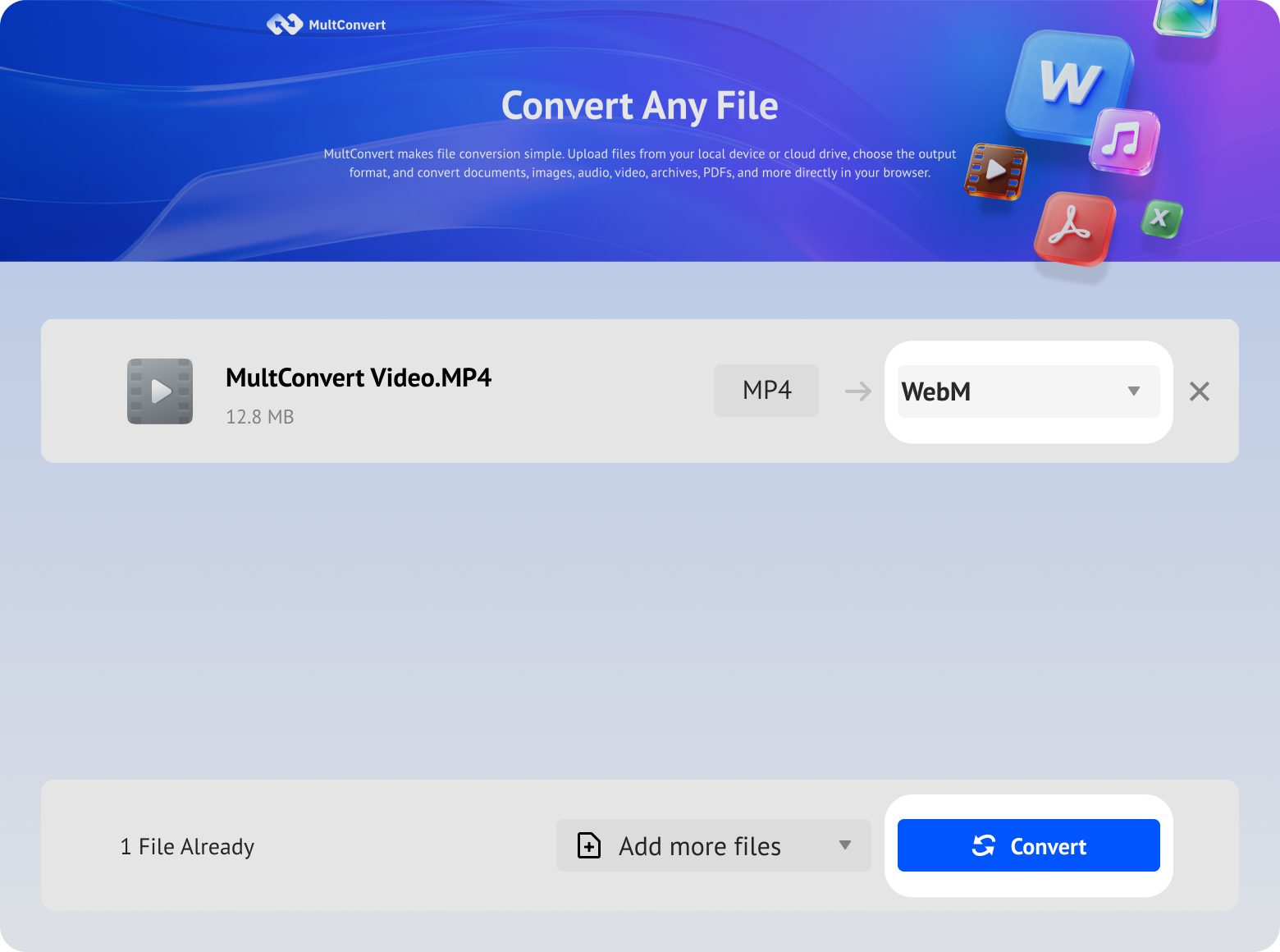
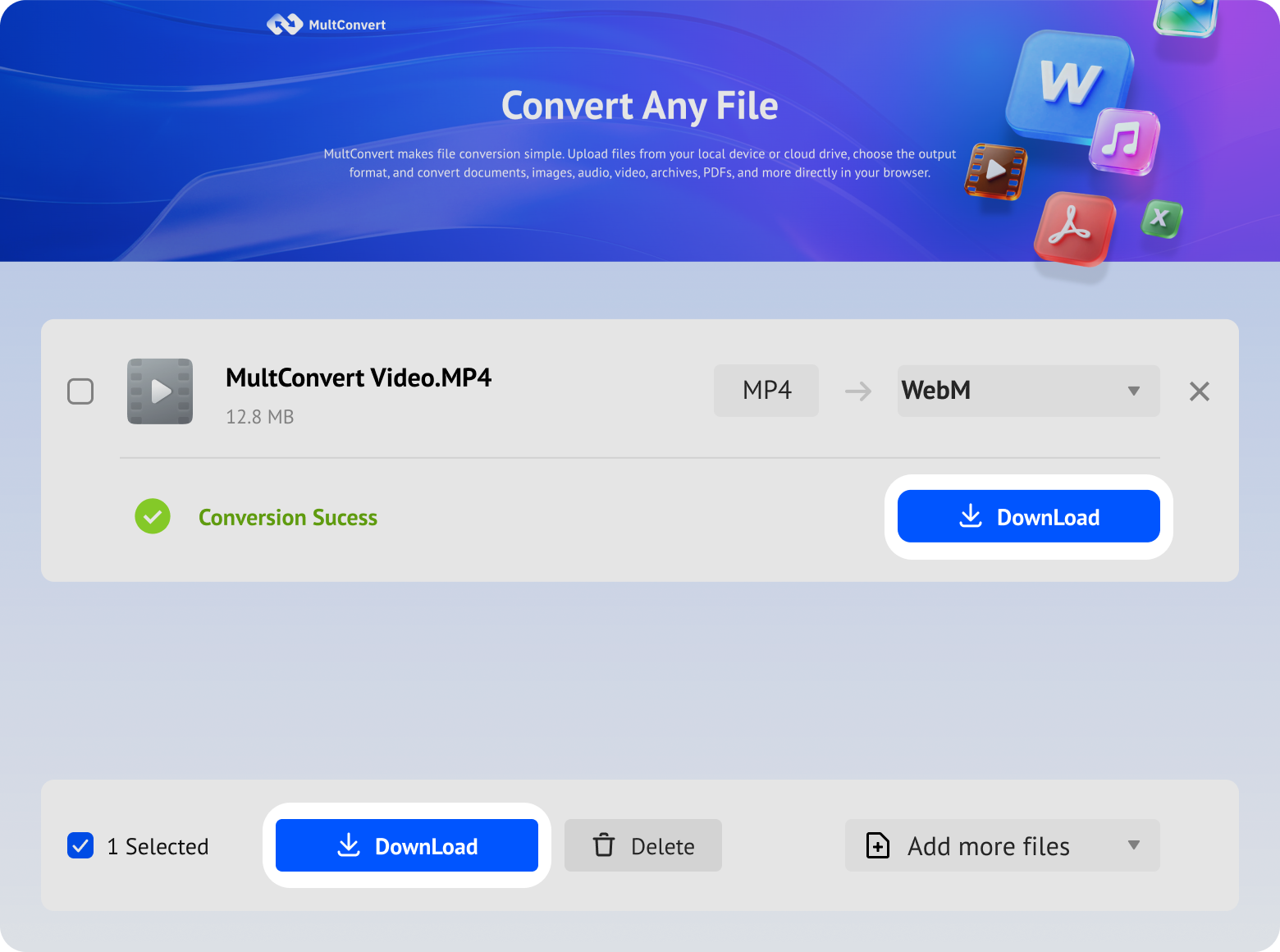
Upload MP4 files from local storage, external drives, or cloud storage and convert to WebM in just a few clicks.
Files saved on a hard drive are ready to convert directly from your device.
Work with files stored on an SSD without moving them first.
Plug in a USB flash drive and convert your files on the spot.
Convert camera files straight from an SD card when you need them.
Access files from Google Drive and start converting without an extra download step.
Pull files from Box and move straight into conversion.
Convert files stored in Dropbox without downloading them first.
Use OneDrive files directly for a faster conversion flow.
Your files are encrypted during upload and download, processed automatically, and removed after conversion. We never read, share, or store your media files longer than needed to complete the conversion.
Every file is protected with HTTPS/TLS encryption while it's uploaded and downloaded.
Temporary files are automatically removed 10 hours after processing to help protect your privacy.
Your files are processed automatically and aren't manually viewed or accessed by our team.
Built with modern privacy practices in mind, including data handling principles aligned with GDPR expectations.
Not every MP4 video needs to be converted to WebM. Learn when WebM is useful for websites, web apps, or specific platforms, and when keeping MP4 makes more sense based on compatibility, quality, and your intended use.
WebM plays natively in Chrome, Firefox, and Edge. Depending on the source and encoding, VP9 can reduce file size while maintaining acceptable visual quality for website playback.
Large autoplay loops can add significant page weight. A well-compressed WebM may reduce transferred data while keeping the background visually acceptable; retain an MP4 fallback.
Demos, onboarding clips and hover/scroll animations must respond instantly. Compact WebM files load with the page and play on demand without buffering — smaller and sharper than GIF, with an MP4 fallback.
Keep MP4 for offline playback, phone galleries, messaging apps, and video editing. H.264 MP4 remains more predictable across apps, devices, and production workflows.
Keep MP4| Comparison | MP4 | WebM |
|---|---|---|
| Main Focus | Broad playback, sharing, and editing | Browser-based video delivery |
| Typical Codec | H.264/H.265 video with AAC audio | VP8/VP9/AV1 video with Vorbis/Opus audio |
| Browser Support | H.264 plays in every modern browser; H.265 support depends on browser and hardware | Supported by Chrome, Firefox, Edge, and recent Safari |
| Device & App Support | Consistently supported across devices and applications | Support varies outside browsers |
| File Size at Same Quality | H.264/H.265; generally larger at equivalent quality | VP9/AV1 usually compress more efficiently |
| Transparency | Standard H.264 MP4 does not support alpha | Supports alpha when the source and encoder preserve it |
| Video Editing | Accepted by nearly all common video editors | Supported by fewer editors; a plugin or conversion may be needed |
Notes: Use WebM for videos delivered in the browser; keep MP4 when you need one file that plays and edits everywhere.
MultConvert encodes your WebM with VP9 video and Opus audio.
Converting MP4 to WebM can change more than the file extension. Depending on the source and encoding process, you may notice differences in the file size, video quality, audio, or other media properties.
MultConvert re-encodes the MP4’s video as VP9 and, when audio is present, converts it to Opus for the WebM output.
WebM is not always smaller than MP4. The final size depends on the source bitrate, resolution, frame rate, video complexity, and encoding settings.
MP4 to WebM conversion typically involves lossy-to-lossy re-encoding, which can discard some visual details and introduce quality loss.
WebM works in modern browsers, but support may be less consistent across some devices, media players, and video editing programs.
Metadata, subtitles, chapters, cover images, or other embedded elements may not be carried over to the converted WebM file.
We tested real MP4-to-WebM conversions and compared the results to show how file size, media properties, quality, compatibility, and embedded data may change after conversion.
1280 x 720 . 4min
7% smallerQuality & Readability: Small text, icons, and interface edges remained clear and readable after conversion.
1920 x 1080 . 59sec
21% smallerQuality & Sync: Skin tones and facial details remained clear, while speech stayed synchronized throughout playback.
768 x 432 . 20sec
9% smallerQuality & Motion: Fast-moving scenes remained smooth, with no obvious blocking or severe motion blur during normal playback.
1080 x 1920 . 15sec
36% smallerQuality & Orientation: Text overlays remained readable, and the portrait layout displayed correctly without cropping or rotation issues.
Note: WebM support varies by Safari version. Safari 14.1+ supports WebM playback, while VP9 video with Opus audio requires Safari 15 or later. Safari also currently has limitations with transparent VP8/VP9 WebM videos, so transparency may not display correctly.
A converted WebM file is not automatically ready for every website. Before using it, take a few simple checks to make sure it looks right, plays properly, and works as expected on your website.
Play the WebM from beginning to end. Confirm that the video opens normally, the audio is present and synchronized, and seeking does not cause errors.
View the video at the size it will use on your website. Check text, faces, gradients, motion, orientation, and cropping on both desktop and mobile screens.
Upload the WebM to a test page and check loading, controls, audio, looping, and autoplay behavior. Background videos should also work with muted, loop, and playsinline.
<video controls preload="metadata" poster="poster.jpg">
  <source src="video.webm" type="video/webm">
  <source src="video.mp4" type="video/mp4">
  Your browser does not support HTML5 video.
</video>After the WebM passes your quality and browser checks, use it as the first video source and keep the original MP4 as a fallback. The browser will automatically select the first format it supports, helping your video play across more browsers and devices.
MultConvert outputs WebM with VP9 video and Opus audio. It plays in most current browsers, although Safari and some mobile browsers require newer versions.
| Browser | Desktop | Mobile & Tablet |
|---|---|---|
| Chrome | Supported | Supported |
| Firefox | Supported | Supported |
| SafariVP9 video + Opus audio | Safari 15+ on macOS | iOS/iPadOS 17.4+ |
| Edge | Supported | Android supported; iOS 17.4+ |
| Opera | Supported | Supported |
| Samsung Internet | — | Supported |
| Other Android browsersUC Browser, Baidu Browser | — | Recent versions |
Find the right next step for your video, whether you need another format, broader compatibility, a smaller file, or a different media type.
Convert MP4 footage to MOV for QuickTime playback, Apple-centered editing workflows, or clients and applications that specifically request a .mov file.
Extract audio from an MP4 as WAV for detailed editing, transcription, podcast production, or preserving sound without adding further lossy compression.
Start convert for freeTurn video audio into a compact MP3 for listening to lectures, interviews, podcasts, or music on phones, car stereos, and portable players.
Start convert for freeChange MOV videos to MP4 for easier sharing, website uploads, social posting, and playback on devices or applications that prefer the widely supported format.
Change MKV videos to MP4 when a TV, phone, editor, presentation app, or upload platform cannot reliably open the original MKV container.
Create a short, silent, looping GIF from an MP4 for reactions, product previews, tutorials, social posts, or animations that play without video controls.
Start convert for freeYes. MultConvert works in your browser without software installation or account registration. You can convert up to 20 files per day, with a maximum size of 1 GB per file.
Upload your video and let MultConvert handle the conversion—no signup, software installation, or complicated setup required.