100%Free
Zero cost, no hidden fees, and generous conversion quota.
Easily convert QuickTime MOV videos to MP4 online. Process local files in batch or convert directly from cloud storage with zero quality loss.
Zero cost, no hidden fees, and generous conversion quota.
Convert instantly without creating an account or email.
Works entirely in your browser—no downloads or extensions needed.
Get clean, high-quality videos with zero added logos.
Convert MOV to MP4 in just seconds, offering a smooth, browser-based experience.
Shrink uncompressed, storage-heavy MOV videos into high-efficiency MP4s without sacrificing a single pixel.
Upload multiple iPhone 4K clips or QuickTime at once. No repetitive clicking.
Convert seamlessly on iOS, Android, Mac, and Windows directly via web browser.
Convert up to 20 files daily, with a generous 1 GB per file limit.
Import MOV files directly from Google Drive, OneDrive, Box or Dropbox, transcode them on our servers.
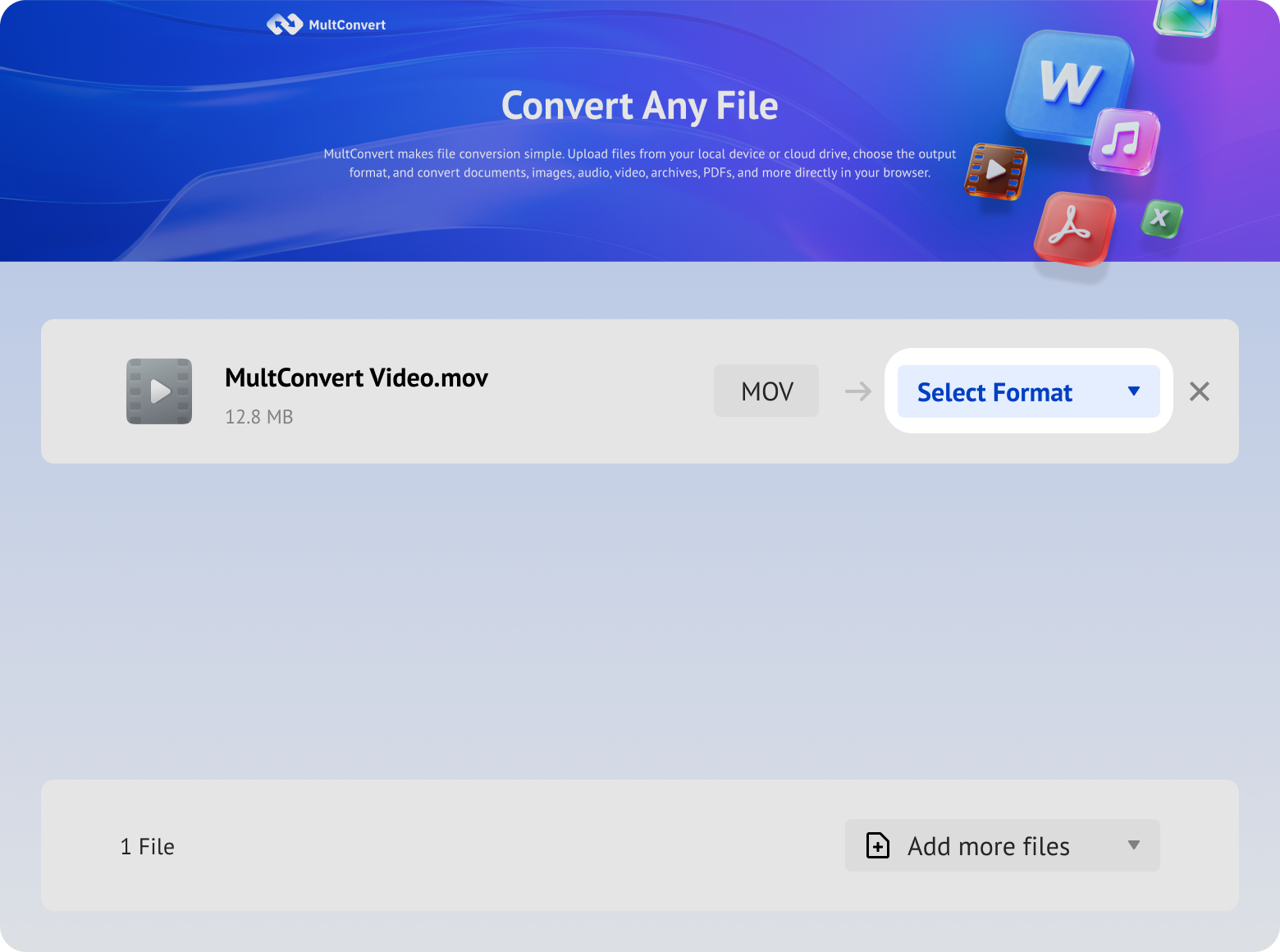
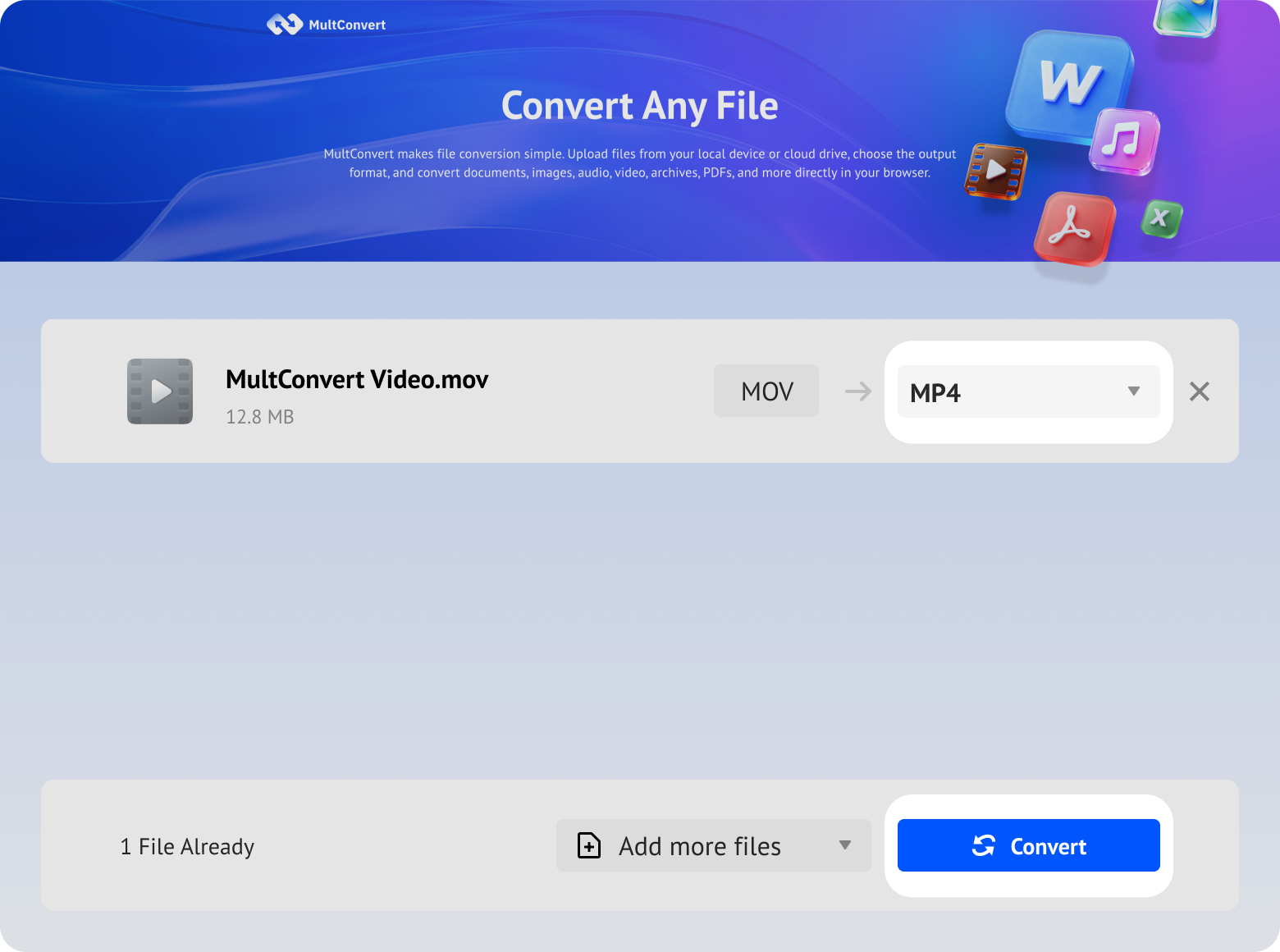
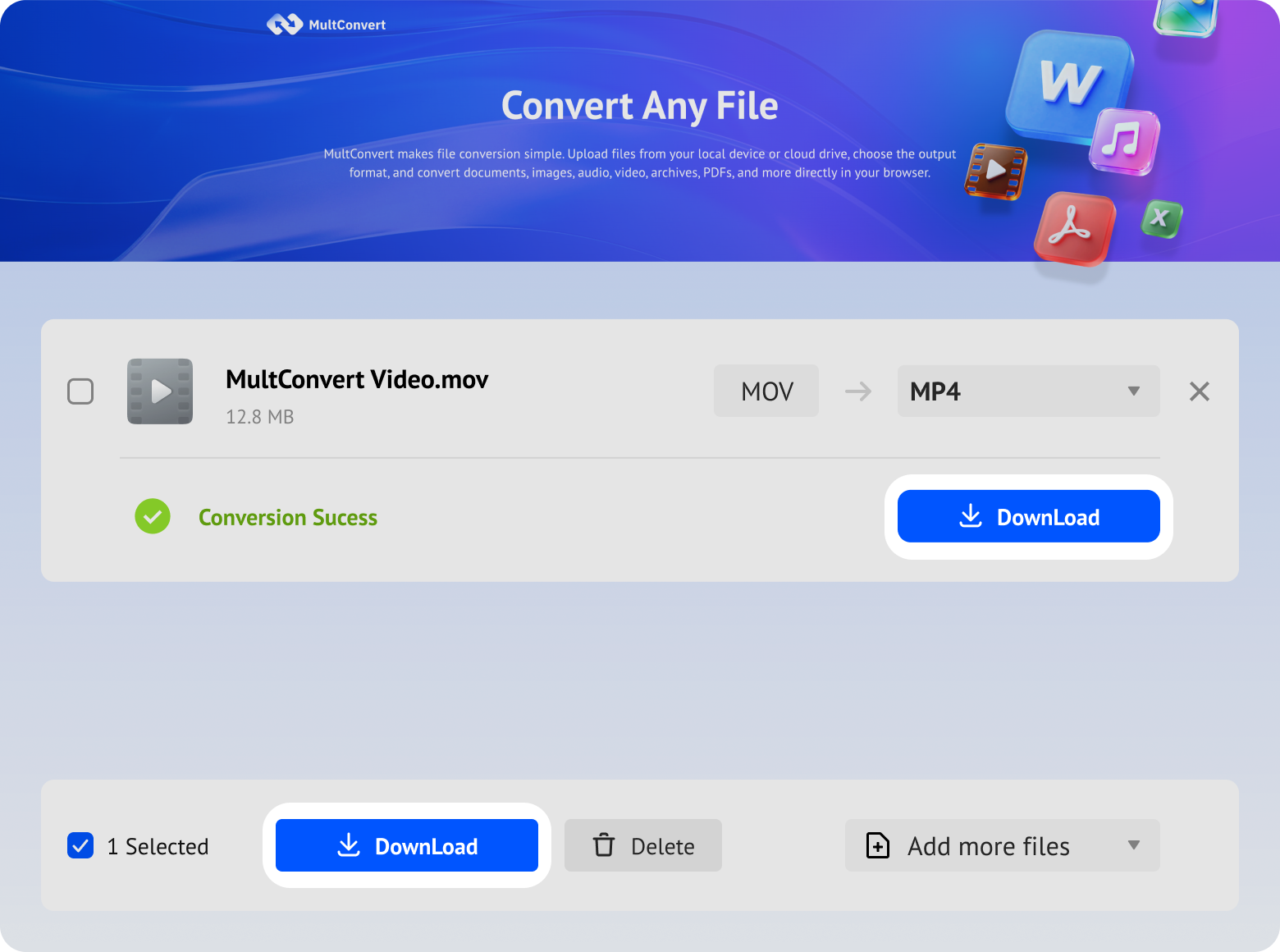
Convert MOV videos stored on your computer’s hard drive into MP4 for easier playback and sharing.
Quickly access and convert large or high-resolution MOV videos stored on a high-speed SSD.
Select MOV videos from a USB flash drive and convert them into more compatible MP4 files.
Convert MOV footage captured by cameras, drones, or other devices directly from an SD card.
Import MOV videos from Google Drive and convert them to MP4 without manually downloading them first.
Access MOV videos stored in Box and convert them into MP4 directly without going through local device.
Select MOV files from Dropbox and convert them to MP4 through your browser.
Import MOV videos from OneDrive and create MP4 files that work across more devices and platforms.
Your videos are protected while they upload, convert, and download—and removed from our servers on a fixed schedule.
All uploads and downloads are protected with HTTPS/TLS encryption to help prevent unauthorized access during transfer.
Uploaded MOV videos and converted MP4 files are automatically deleted from our servers after 10 hours.
MultConvert follows GDPR requirements and applicable data privacy standards to protect your videos and personal information.
Both formats can store high-quality video, but they suit different workflows.
iPhone footage, QuickTime, Final Cut Pro, and ProRes workflows
Some MOV codecs may not play smoothly on Windows, Android, or older software.
Websites, social platforms, email, cloud sharing, and cross-device viewing
MP4 with H.264 and AAC works with most devices, browsers, and editors.
No. File size mainly depends on those settings: codec, bitrate, resolution, frame rate, video length.
MOV videos recorded with HEVC may show a black screen, have no audio, or require an additional codec. Converting them to MP4 with H.264 and AAC creates files that work on more devices without extra software.
Some learning platforms, recruitment portals, CMS tools, and customer-support systems reject MOV files or fail during processing. MP4 is more commonly accepted, especially when encoded with H.264.
High-resolution MOV footage can be inconvenient to email, upload to cloud storage, or send through messaging apps. Re-encoding it as an MP4 with a suitable bitrate can make the video smaller while keeping acceptable visual quality.
Older editors and some lightweight editing tools may import MOV footage incorrectly, particularly HEVC, ProRes, or variable-frame-rate recordings. Converting to a compatible MP4 can prevent missing audio, choppy previews, and failed exports.
An MOV file may play on one computer but fail after the presentation is transferred or the webpage is opened in another browser. MP4 with H.264/AAC provides more predictable playback across common environments.
MOV and MP4 are containers. The codecs inside determine how the file should be converted.
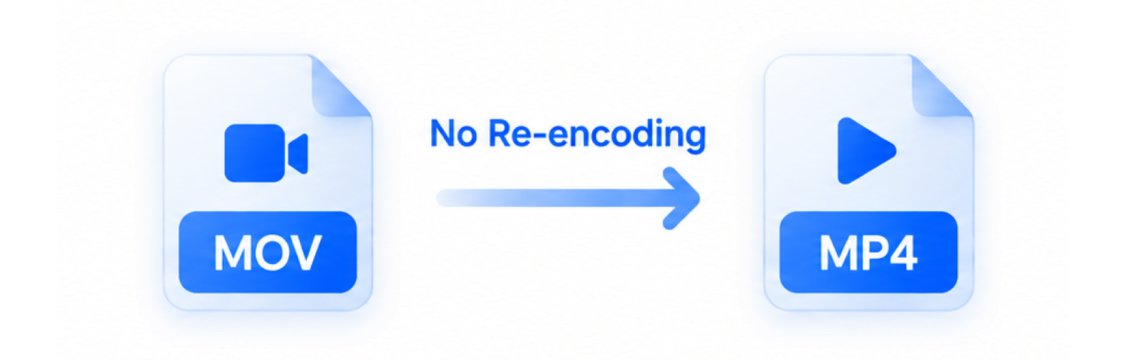
Use stream copy or remuxing to place the existing streams in an MP4 container.
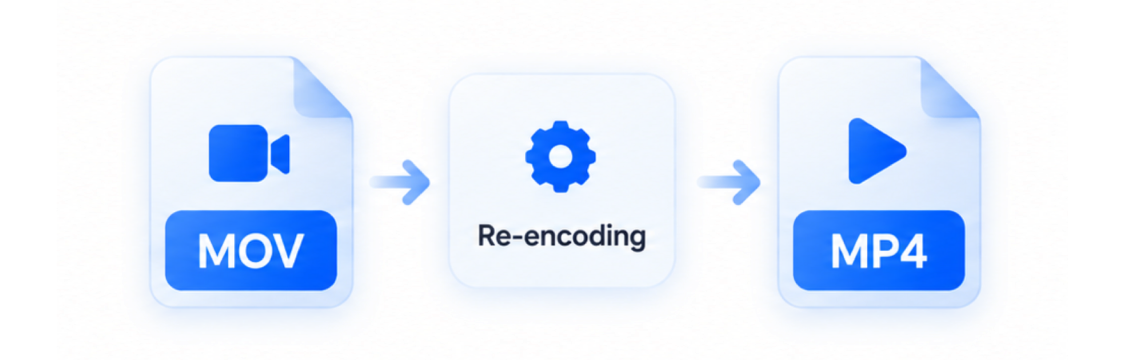
The video or audio may need to be encoded again for the target device or platform.
Keep the existing video and audio streams.
Otherwise, convert the video to H.264.
Create an MP4 copy for sharing.
Use H.264 video and AAC audio.
Tip: Changing .mov extension to .mp4 does not change the container or codecs.
If a MOV file already contains HEVC video and AAC audio, you may be able to place the existing streams inside an MP4 container without re-encoding them.
Fast Without Sacrificing Video or Audio Quality
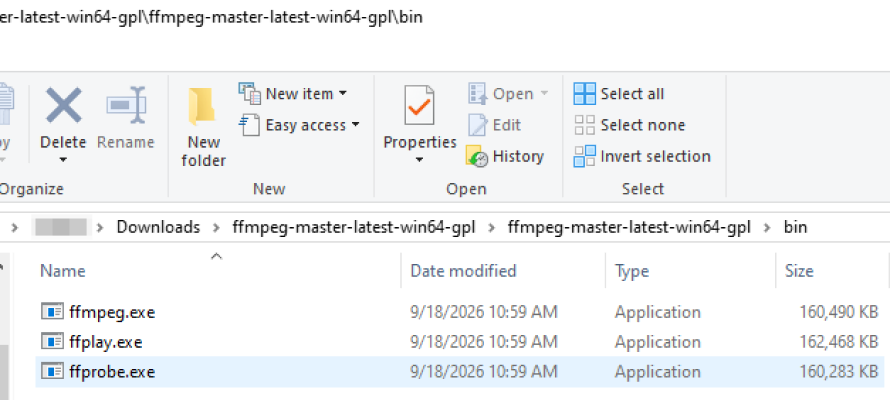
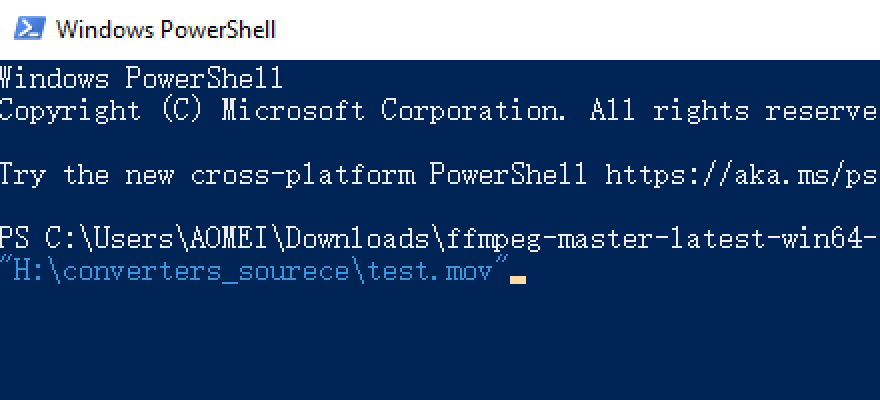
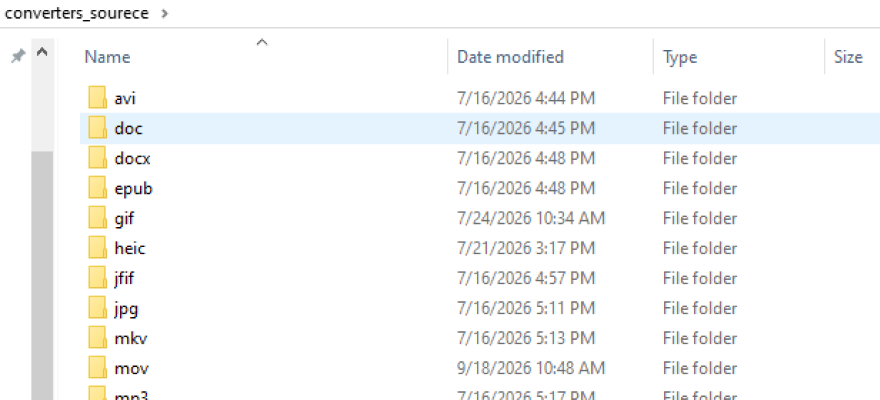
Download the tool from the official FFmpeg page, extract the ZIP file, and open its bin folder. Enter powershell in the File Explorer address bar to open PowerShell in that folder.
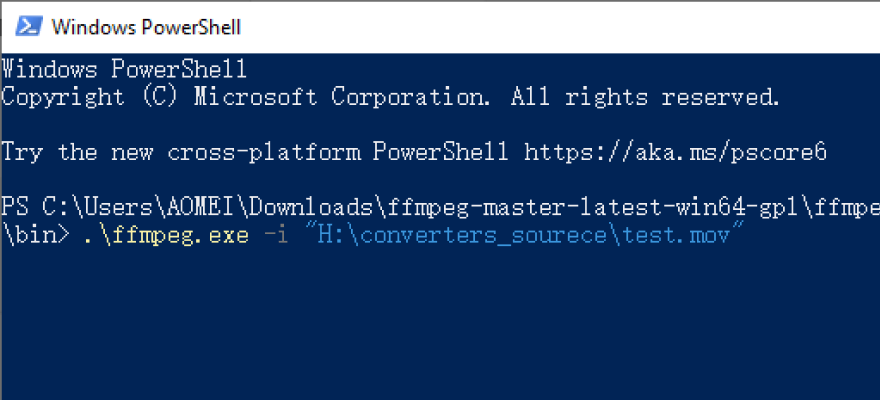
In the PowerShell window, run:
.\ffmpeg.exe -i "input.mov"Replace "input.mov" with the actual path to your MOV file.
Run:
.\ffmpeg.exe -i "input.mov" -map 0:v:0 -map 0:a? -c copy -movflags +faststart "output.mp4"Open output.mp4 in the folder where the original mov file stays, and confirm video plays normally, sound is present and synchronized.
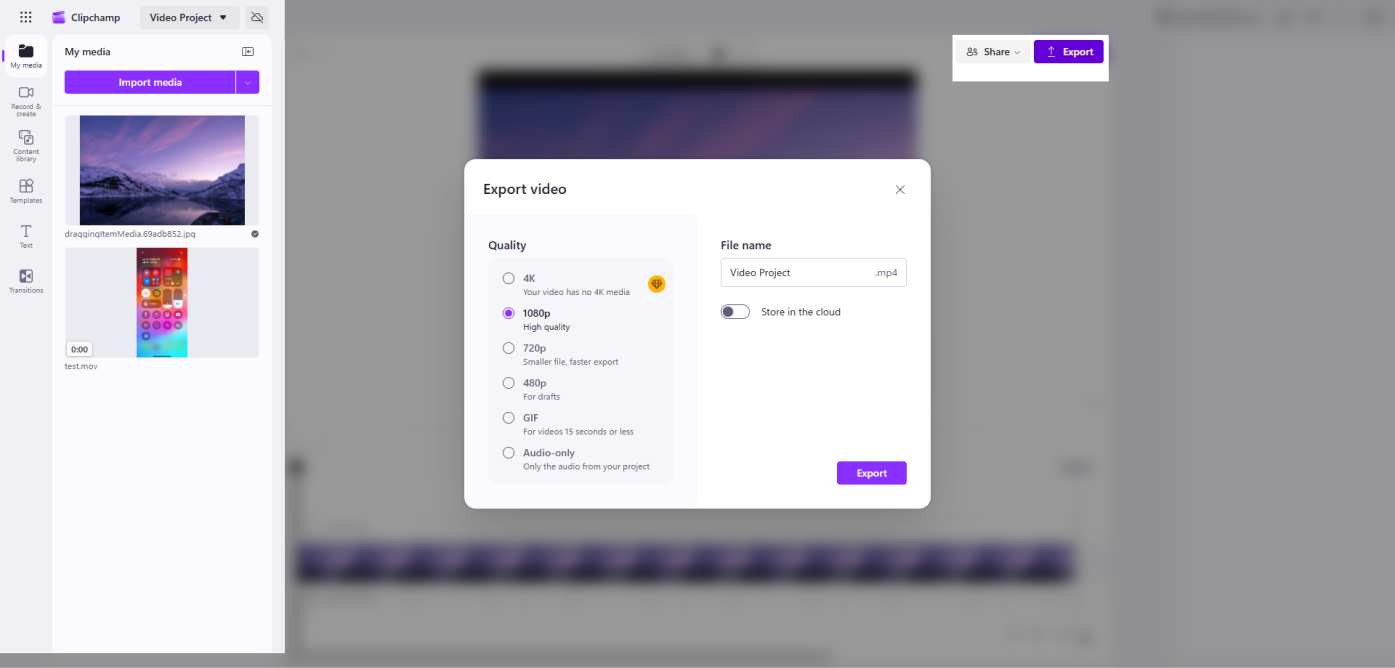
Microsoft Clipchamp can import MOV files and export them as MP4.
Open Clipchamp and create a new video project.
Import the MOV file and drag it to the timeline.
Click "Export" in the upper-right corner.
Choose a resolution and wait for the MP4 export.
| Test Scenario | Original MOV | Converted MP4 | Conversion Time | FFmpeg Analyze | Summary |
|---|---|---|---|---|---|
| iPhone-style HEVC | 7.12 MiB12.00 secondsHEVC + AAC1080 × 1920 · 30 fps · SDR | 7.19 MiB12.01 secondsH.264 + AAC1080 × 1920 · 30 fps · SDR | 1 sec | HEVC transcoded to H.264.VMAF: 93.34; SSIM: 0.9908.No added black bars.Audio bitrate: 124.8 → 69.8 kbps. | High visual similarity with a more widely supported video codec. Not lossless. |
| Standard H.264 | 8.43 MiB12.00 secondsH.264 High + AAC1920 × 1080 · 30 fps · SDR | 8.43 MiB12.00 secondsCodecs, resolution, and frame rate unchanged | 1.5 sec | Identical video and audio stream hashes.No re-encoding or quality loss. | Losslessly remuxed to MP4. |
| 4K H.264 | 45.96 MiB8.00 secondsH.264 + AAC3840 × 2160 · 30 fps · SDR | 45.96 MiB8.00 secondsCodecs, 4K resolution, and frame rate unchanged | 4.5 sec | Identical video and audio stream hashes.No re-encoding.All 240 frames preserved. | Losslessly remuxed with 4K resolution preserved. |
| Variable-frame-rate screen-style video | 8.93 MiB11.95 secondsH.264 High + AAC1920 × 1080 · 36.87 fps average · SDR | 8.93 MiB11.95 secondsCodecs and average frame rate unchanged | 2.5 sec | Identical video and audio stream hashes.Video timestamps unchanged.All 440 frames and variable frame timing preserved. | Losslessly remuxed with variable frame rate preserved. |
Not every MOV video needs to be converted. Keep the original format when it already works for your intended use.
If the MOV opens correctly on your computer, phone, media player, or presentation software, conversion adds no practical benefit.
Keep MOV when working with ProRes, PCM audio, or other production-friendly codecs. Converting too early may increase processing time or reduce editing quality.
Preserve the original MOV as your master file. If you need easier sharing, create a separate MP4 copy instead of replacing the source.
Turn video tracks into universal MP3s for easy offline listening anywhere.
Make your videos natively compatible with Mac, Final Cut, and Apple devices.
Create meme-ready GIFs effortlessly with smooth motion and small file sizes.
Convert to uncompressed, studio-grade WAV audio for professional editing.
Get lightweight MP3 files ideal for podcasts, ringtones, and music players.
Start Converting for FreeModernize your legacy AVI files for seamless playback on modern phones and web.
Yes. MultConvert supports individual MOV files up to 1 GB. Large videos may take longer to upload and process, especially on a slow or unstable connection, so keep the browser tab open until the conversion finishes. If a file exceeds 1 GB, consider trimming it, compressing it first, or using a desktop converter that processes the video locally without an upload limit.
Upload and convert MOV videos to MP4 in just a few clicks. Create high-quality files that are easier to play, edit, and share across devices.


 MOV


 MP4