100%Free-
Zero cost, no hidden fees, and generous conversion quota.
Seamlessly convert Apple HEIC photos to transparent, universal PNG format, no quality loss.
Zero cost, no hidden fees, and generous conversion quota.
Convert instantly without creating an account or email.
Works entirely in your browser—no downloads or extensions needed.
Get clean, high-quality images with zero added logos.
Convert HEIC to PNG in just seconds with a smooth, browser-based experience.
Keep transparent backgrounds and depth map details intact when converting HEIC graphics to PNG.
Upload multiple iPhone portrait photos or Live Photo frames at once. Save time with seamless, one-click bulk processing.
Instantly convert HEIC photos from iPhone or Mac on Windows, Android, or iOS directly via your web browser.
Convert up to 20 HEIC photos daily, with generous file size limits designed for high-res 4K iPhone shots.
Import HEIC photos directly from Google Drive, OneDrive, Box, or Dropbox, and convert them safely on our cloud servers.
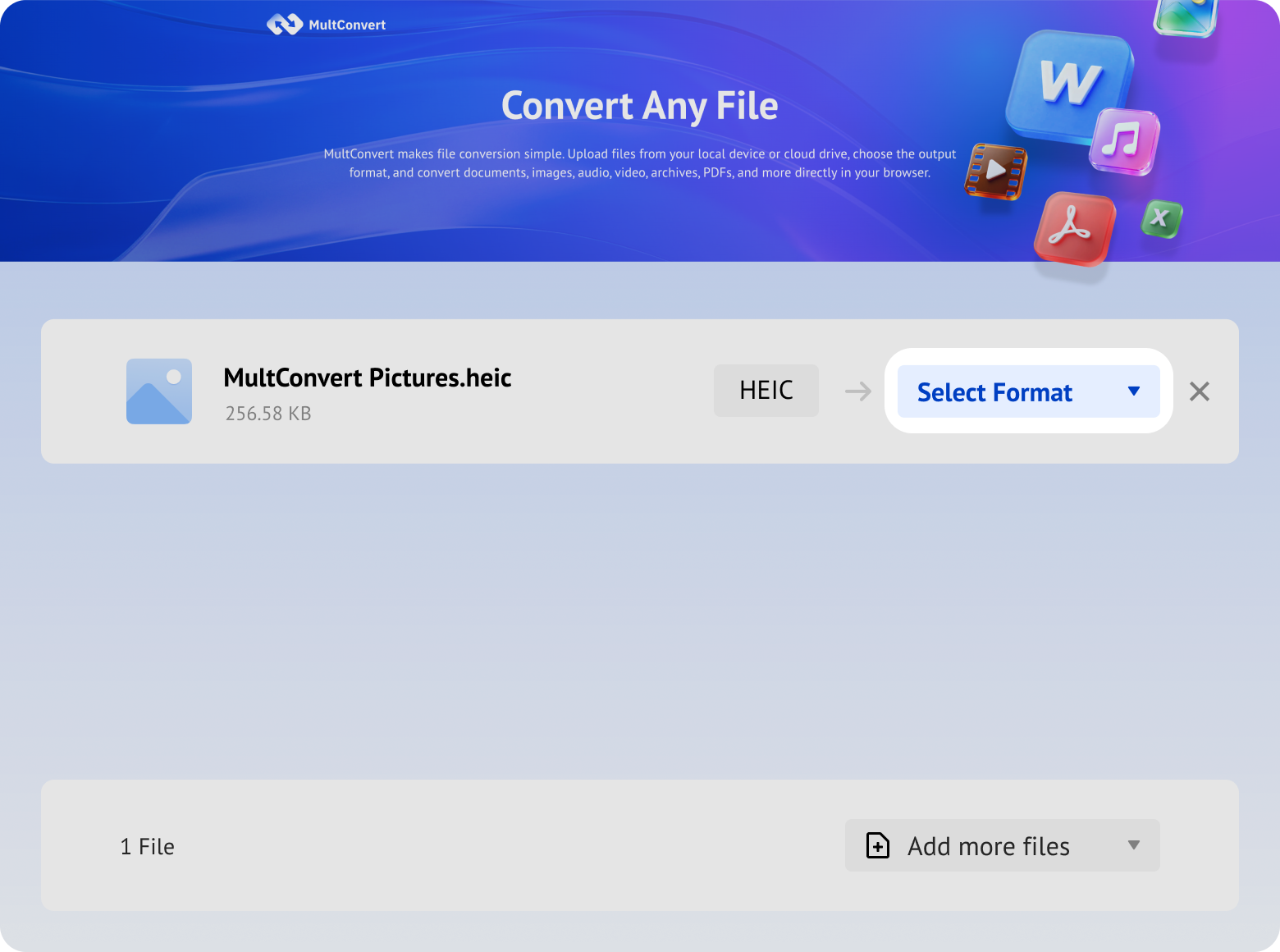
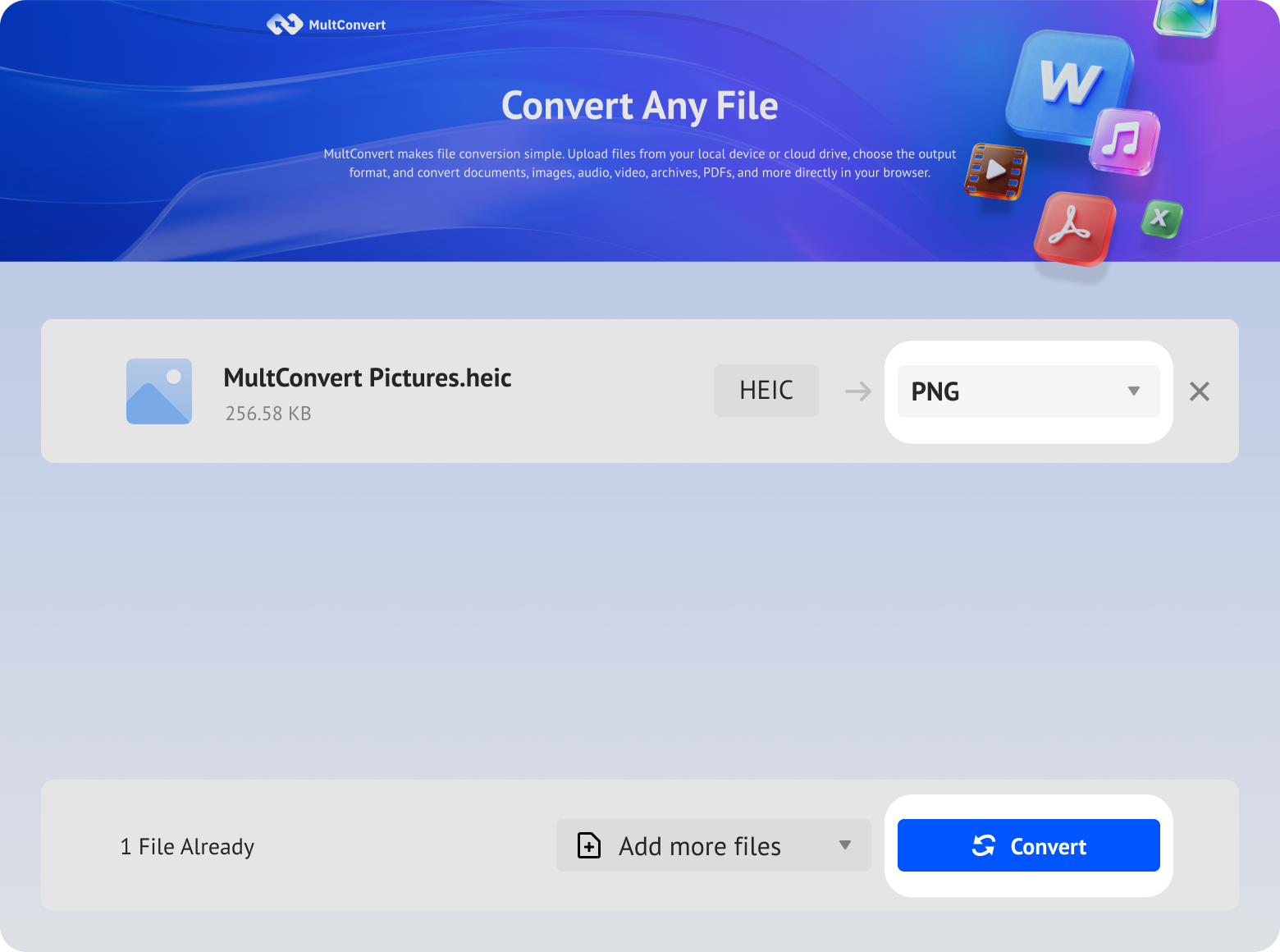
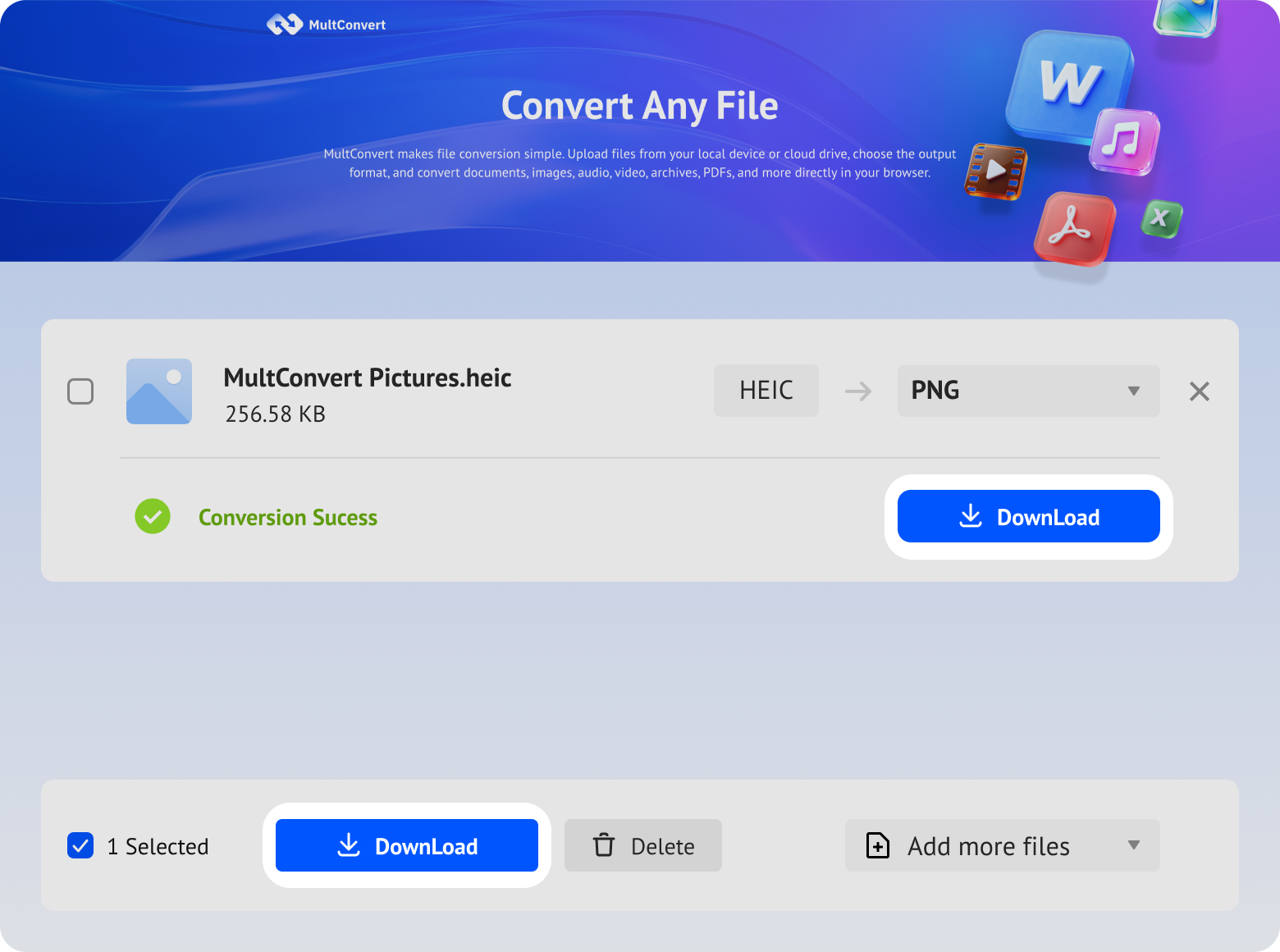
Convert HEIC photos stored on your computer's hard drive into PNG for effortless editing, printing, and sharing.
Quickly access and convert high-resolution HEIC image folders on your high-speed SSD with zero lag.
Select HEIC images directly from a USB flash drive and turn them into universally accessible PNG files.
Convert HEIC photo collections captured by your camera or transferred via SD card into web-ready PNG graphics.
Import HEIC photos directly from Google Drive and convert them to PNG without downloading them to your device first.
Access HEIC image assets stored in Box and convert them into lossless PNG format right in your cloud workflow.
Select HEIC files from your Dropbox accounts and convert them to transparent, high-quality PNGs through your browser.
Import HEIC photos from OneDrive and instantly create PNG images that work seamlessly across all platforms and Windows devices.
All image uploads and downloads are protected with bank-grade HTTPS/TLS encryption to keep your private photos secure during transfer.
Uploaded HEIC photos and converted PNG files are automatically deleted from our servers after 10 hours.
MultConvert strictly complies with GDPR and global data privacy standards to ensure your personal media and image metadata remain completely protected.
| Feature | HEIC | PNG | Summary |
|---|---|---|---|
| Core Advantage | High compression, saves ~50% space | Lossless quality & universal compatibility | HEIC saves space; PNG ensures maximum quality & compatibility. |
| File Size | Compact (Smaller) | Larger (2x–4x increase) | Converting to PNG unpacks pixels, resulting in larger file sizes. |
| Compatibility | Apple ecosystem (iOS 11+, macOS) | Universal (100% devices & browsers) | PNG works on all platforms without compatibility errors. |
| Transparency | Dependent on source encoder | Native Alpha Channel support | PNG losslessly preserves full transparency layers for design use. |
| Color & HDR | 10-bit / 16-bit wide color (P3) | 8-bit to 16-bit sRGB / Adobe RGB | MultConvert retains full color fidelity and depth during conversion. |
Problem: Your PC can't view iPhone photos and throws a "Codec Required" or "File Not Supported" error.
PNG Fix: PNG opens instantly on any Windows PC, Android device, or browser with no extra plugins.
Problem: ID, passport, or receipt uploads fail because the portal rejects .heic files.
PNG Fix: PNG is accepted by 100% of websites and CMS platforms, so uploads go through every time.
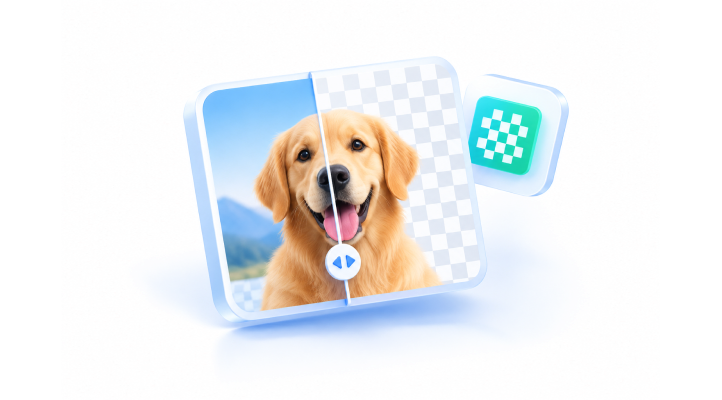
Problem: Cutouts or logos save with an ugly solid black or white box behind them.
PNG Fix: PNG's full Alpha Channel support keeps clean transparent backgrounds for layers, overlays, and stickers.
Problem: Photoshop, Canva, Figma, or PowerPoint show gray placeholders for HEIC files.
PNG Fix: PNG is the gold standard for design, dragging straight into any editing tool with perfect color fidelity.
Problem: Local print shops and photo-book services can't read HEIC files.
PNG Fix: High-density, lossless PNG reads directly, so printed photos stay sharp and vibrant.
Best for quality & editing

Trade-off: Larger file size.
Choose PNG if you want sharper quality, editing flexibility, or a transparent background.
Best for smaller files

Trade-off: No transparency + some compression.
Choose JPG if you want lighter files for fast upload, storage, and sharing.
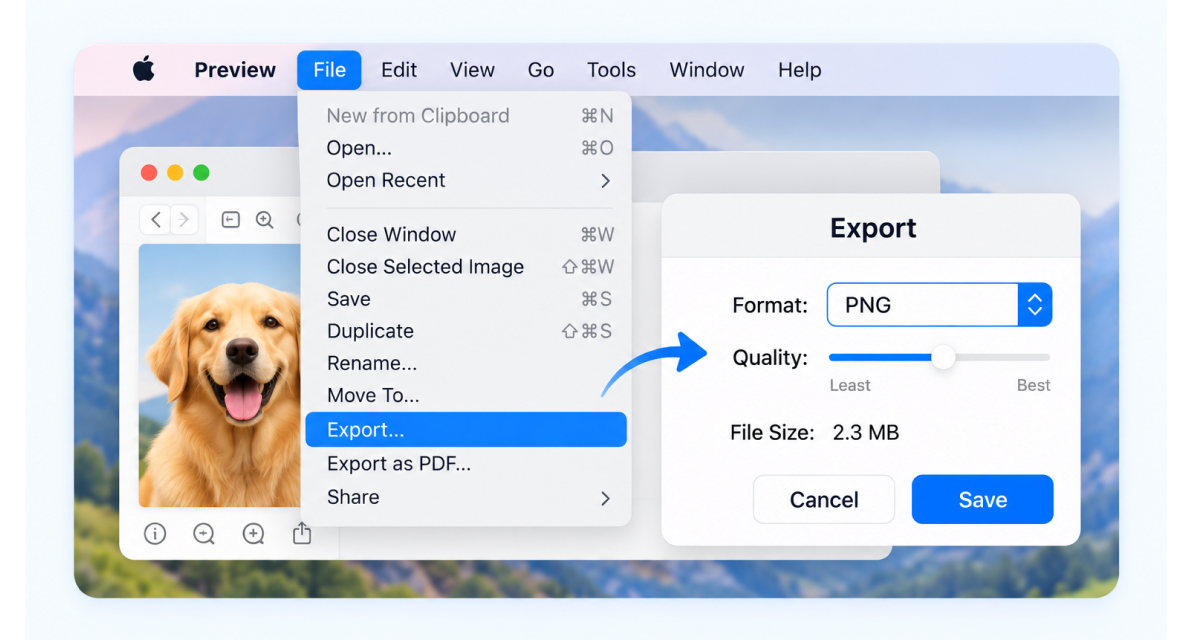
Open the HEIC photo in Preview.
Go to the menu bar and select "File > Export".
Choose PNG from the Format dropdown menu and click "Save".
Use MultConvert directly in your browser for an instant, hassle-free conversion.
| Metadata | HEIC Original | PNG Output | Result |
|---|---|---|---|
| Date Taken | 2026-08-18 14:32 | 2026-08-18 14:32 | Preserved |
| Date Modified | 2026-07-07 17:19 | 2026-09-21 09:15 | New File Date |
| GPS Location | 30°38′23.13″ / 104°1′46.92″ | 30°38′23.13″ N, 104°1′46.92″ E | Preserved |
| Camera Model | iPhone 16 Pro | iPhone 16 Pro | Preserved |
| Orientation | Portrait | Portrait | Preserved |
| Dimensions | 4032 × 3024 | 4032 × 3024 | Preserved |
| Bit Depth | 32-bit | 24-bit | Changed |
| ISO Speed | 640 | 640 | Preserved |
| Exposure Time | 1/25 sec. | 1/120 sec | Preserved |
Note: The above metadata was extracted and compared using a professional online metadata analysis tool (not Windows File Properties).
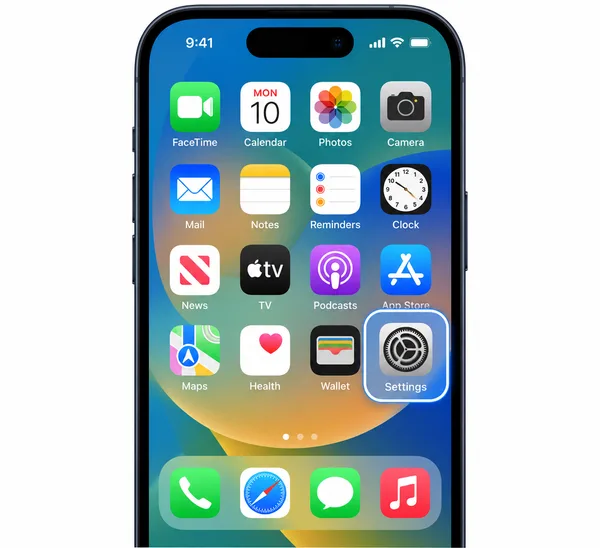
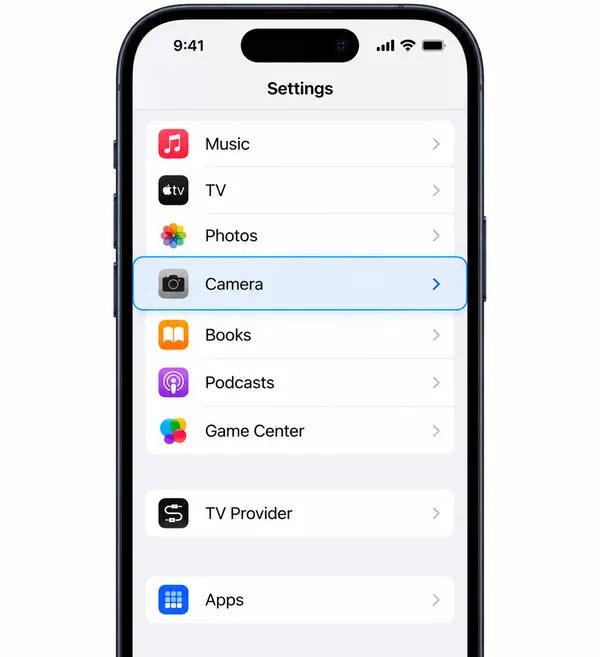
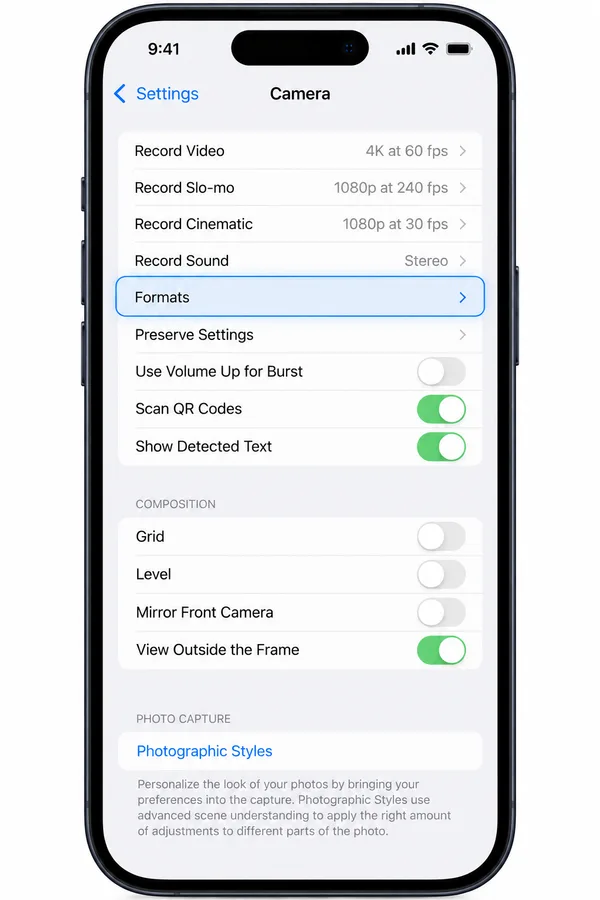
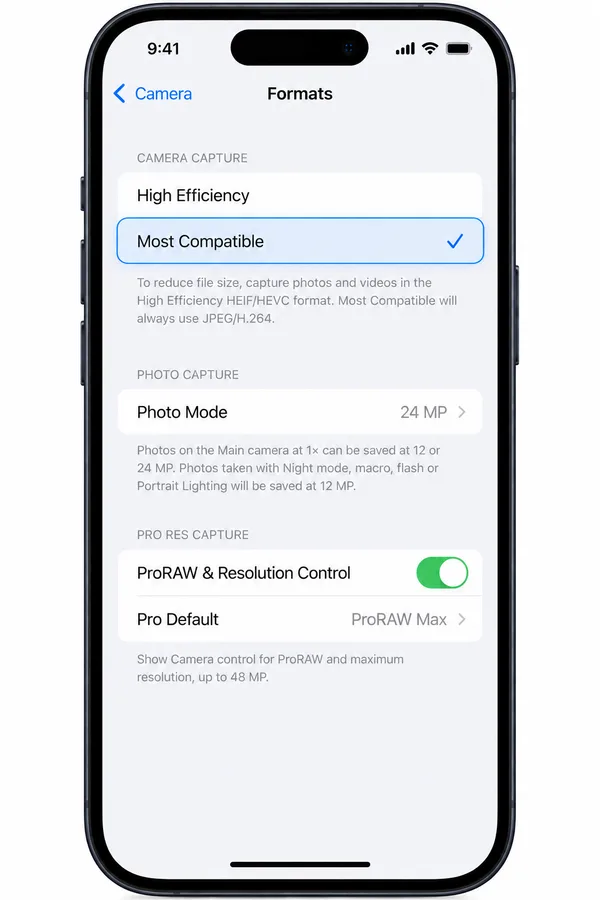
If you prefer your future iPhone photos to be saved as JPEG instead of HEIC, change the camera format in Settings.
Unlock your iPhone and open the Settings app from the Home Screen.
Scroll down in Settings and tap Camera to open the camera-related options.
On the Camera settings page, tap Formats at the top of the menu.
Under Camera Capture, choose Most Compatible. New photos will then be saved in JPEG format.
This setting only affects new photos. JPEG files are usually larger than HEIC files.
Instantly convert iPhone HEIC photos to universal JPG format. View, share, and upload seamlessly on any device.
Start Converting for FreeTurn compressed WebP web graphics into high-fidelity PNG images with full transparency retention. Perfect for design projects, crisp editing, and offline viewing.
Start Converting for FreeTransform web-formatted WebP files into standard JPG images instantly. Make your downloaded online photos compatible with all desktop applications and image viewers.
Start Converting for FreeShrink your large PNG file sizes into compact JPG photos for quick sharing and saving storage. Enjoy faster web uploads and smooth email attachments with optimized image quality.
Start Converting for FreeConvert your everyday JPG photos into lossless PNG format to prevent quality degradation during edits. Preserve sharp details, rich colors, and clean graphic overlays.
Start Converting for FreeFix annoying "Unsupported JFIF Format" errors by converting them into standard JPG files. Open, edit, and print your downloaded images seamlessly on any platform.
Start Converting for FreeYou don't need to install any apps or third-party desktop tools. Simply open your Safari or Chrome browser on your Mac or iPhone, visit our free converter page, upload your HEIC photos, and download the converted PNG files directly to your device.
Start converting your HEIC images to PNG online for free. Fast, safe, and lossless—no software installation required.




 Preserved
 New File Date
 Changed