NoCost-
Convert GIF to JPG completely free, with no hidden charges.
Turn GIFs into JPG images in just a few clicks. Upload your files and get ready-to-use JPGs online—no signup, no software installation, and no complicated steps required.
Built to make GIF-to-JPG conversion simpler from start to finish, MultConvert brings together the speed, flexibility, and convenience you need to handle everyday image conversion without unnecessary barriers.
Convert GIF to JPG completely free, with no hidden charges.
Start converting instantly without creating an account.
Download clean JPG images without added logos or marks.
Convert GIFs directly without adding browser plugins or extensions.
Your files are securely processed and automatically deleted.
Convert multiple GIF files to JPG in a single session.
Import GIF files directly from your cloud storage accounts.
Fill transparent GIF areas for JPG-compatible image output.
Keep color transitions natural in the converted JPG.
Extract the first GIF frame as a single static JPG.
No complicated settings or image editing skills are needed. The entire GIF-to-JPG conversion takes just a few simple steps, from adding your GIF files to getting the finished JPG images.
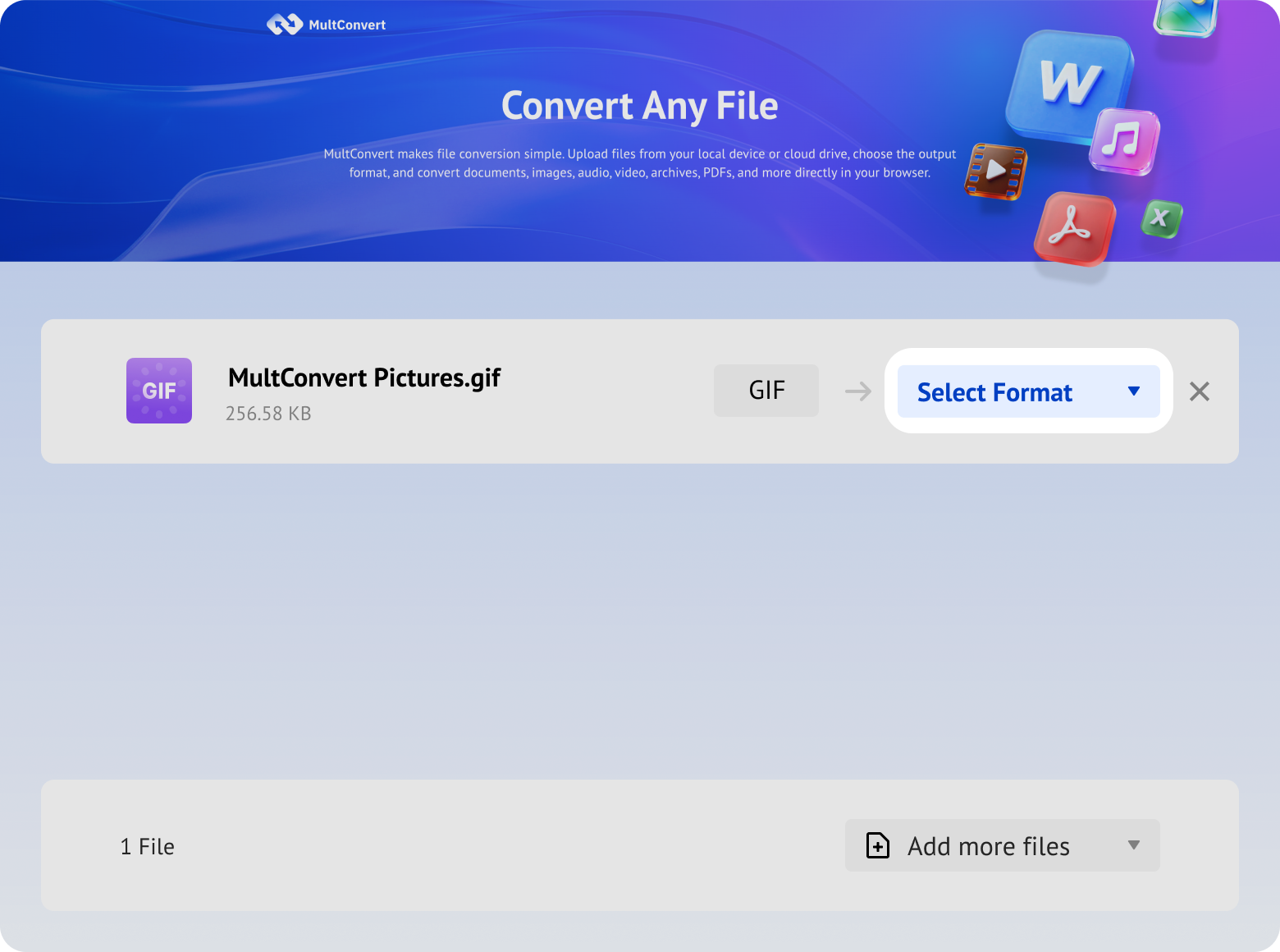
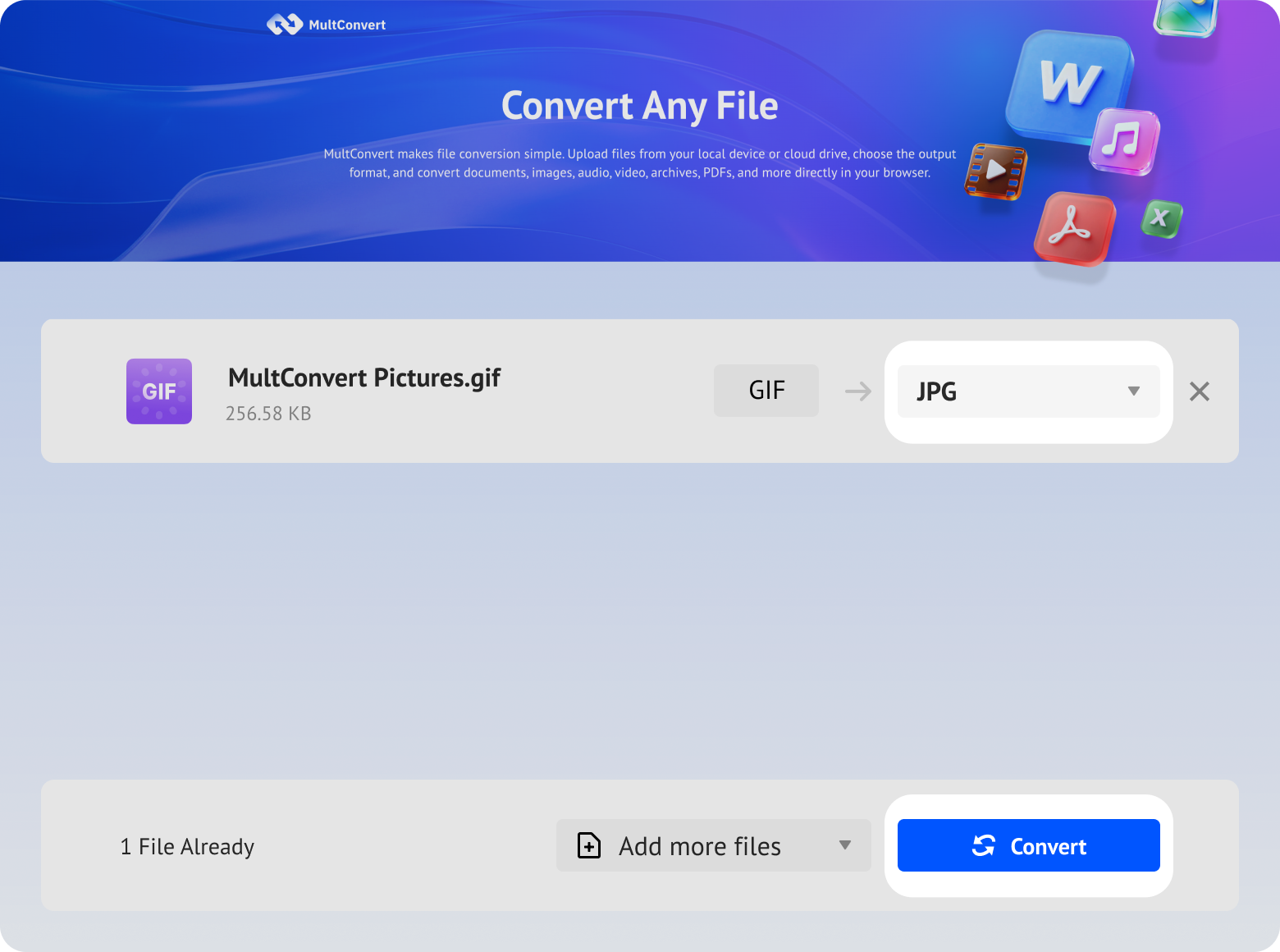
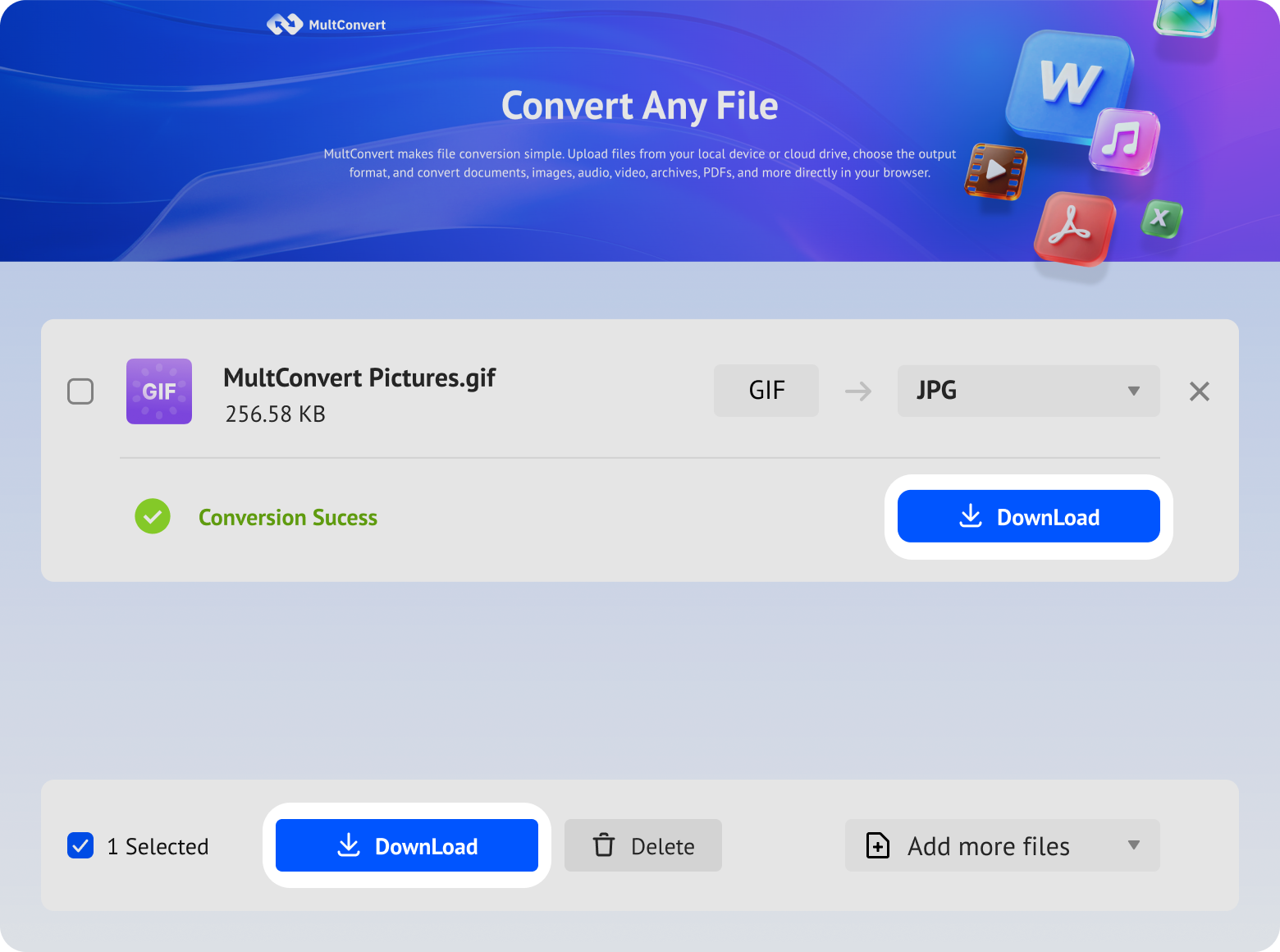
Upload GIF files from local storage, external drives, or cloud storage and convert to JPG in just a few clicks.
Files saved on a hard drive are ready to convert directly from your device.
Work with files stored on an SSD without moving them first.
Plug in a USB flash drive and convert your files on the spot.
Convert camera files straight from an SD card when you need them.
Access files from Google Drive and start converting without an extra download step.
Pull files from Box and move straight into conversion.
Convert files stored in Dropbox without downloading them first.
Use OneDrive files directly for a faster conversion flow.
Your files are encrypted during upload and download, processed automatically, and removed after conversion. We never read, share, or store your images longer than needed to complete the conversion.
Every file is protected with HTTPS/TLS encryption while it's uploaded and downloaded.
Temporary files are automatically removed 10 hours after processing to help protect your privacy.
Your files are processed automatically and aren't manually viewed or accessed by our team.
Built with modern privacy practices in mind, including data handling principles aligned with GDPR expectations.
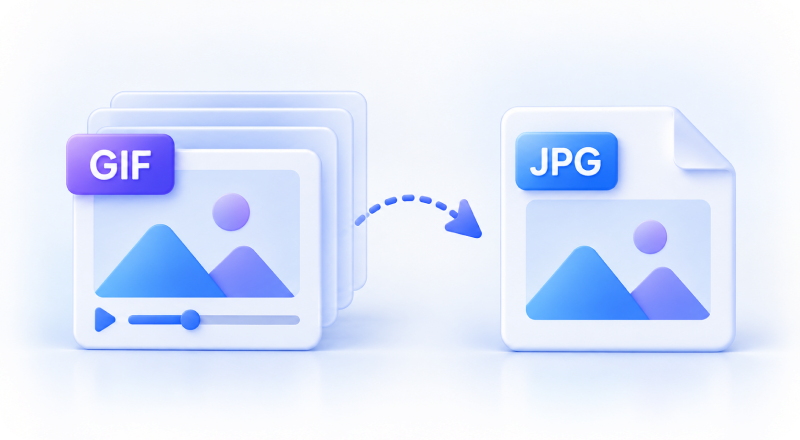
When you only need a still image, keeping the entire GIF animation can be unnecessary. Converting GIF to JPG removes the extra frames and gives you a simpler, lightweight static image that's easier to use and share.
Turn a looping animation into a still image when one frame is enough to deliver the visual information you need.
Work with a single static image instead of an animated file containing multiple frames, making the result easier to organize and manage.
Removing animation data can result in a lighter static image, especially when the original GIF contains many frames or a long animation.
Use a widely recognized static image format when GIF animation, transparency, or multi-frame content is unnecessary for the task.
Converting an animated GIF to JPG means turning multi-frame content into a single static image. Before converting, check which frame, transparency, motion, and visual details matter so the JPG still fits your needs.
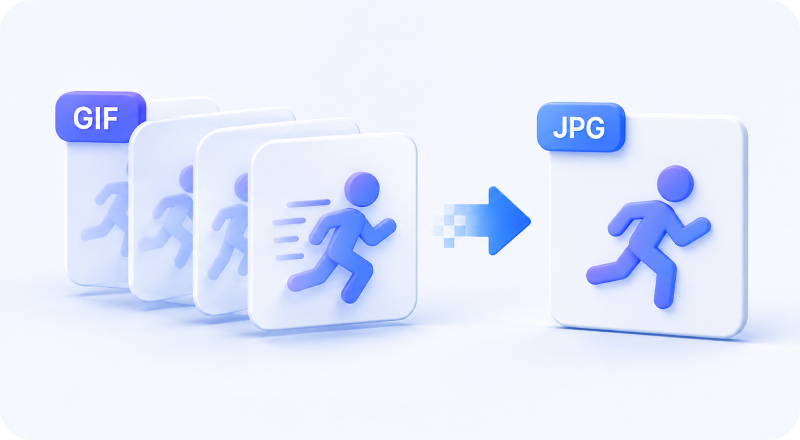
What to Know: MultConvert uses the first frame of an animated GIF to create the JPG.
Quick Check: Make sure the first frame contains the image you want to keep. If your GIF begins with a blank screen, fade-in, or transition, you may need to manually extract your target frame first.
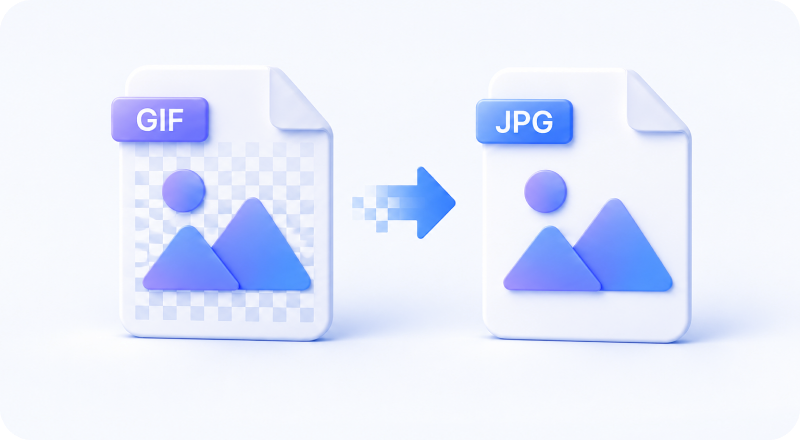
What to Know: JPG does not support transparent backgrounds.
Quick Check: When using MultConvert, transparent areas in your GIF are filled with white in the converted JPG. Make sure a white background works well with your image.
What to Know: JPG cannot preserve GIF animation.
Quick Check: Check whether motion carries important information. If the GIF demonstrates steps, an interface action, or a changing process, keeping the GIF or using a video format may make more sense.
What to Know: GIFs use an indexed color palette (max 256 colors), while JPG uses lossy compression optimized for 24-bit true color.
Quick Check: For photos and color-rich images, JPG can be a practical choice. For logos, text-heavy graphics, or sharp UI elements, PNG may produce cleaner static results.
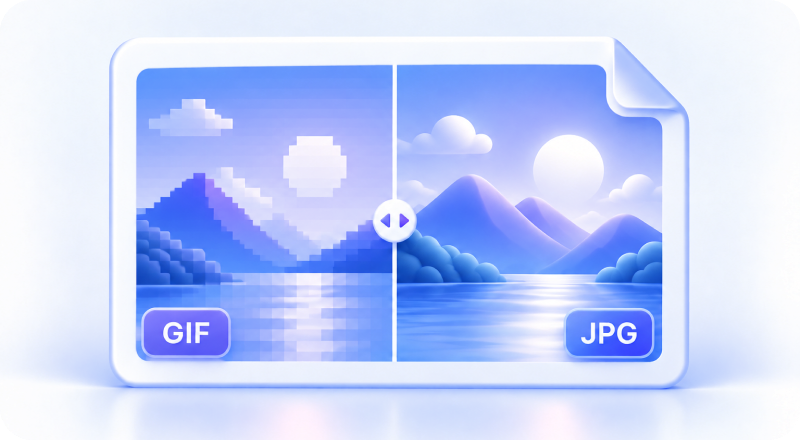
GIF and JPG handle images differently, so conversion changes more than just the file extension. Animation, frames, transparency, compression, colors, and file size can all be affected in different ways.
JPG cannot store animation, so the motion and additional GIF frames are no longer included in the converted image.
MultConvert takes the first frame of your GIF and turns it into a single static JPG rather than extracting every frame.
JPG does not support transparency. With MultConvert, transparent areas in the original GIF are filled with white in the resulting JPG.
Converting an animated GIF to a single JPG often reduces file size by removing the additional frames, though results can vary by file.
We tested animated, transparent, photo-based, and graphic GIFs with MultConvert using the default GIF-to-JPG settings. We compared the outputs for frame handling, transparency, dimensions, file size, color appearance, and visible image detail.
| Aspect | Original GIF | Converted JPG | Result |
|---|---|---|---|
| Animation | 48 frames | Static | Additional frames removed |
| Frame Used | Multiple frames | Frame 1 | First frame captured |
| Transparency | Transparent | White | Background filled |
| Dimensions | 800 × 600 | 800 × 600 | Preserved |
| File Size | 3.7 MB | 73 KB | 98% smaller |
| Color Appearance | Original | Visually similar | No obvious shift at normal viewing size |
| Edge Detail | Original | Visually similar | No obvious new artifacts were visible |
Animated GIFs are made up of multiple frames, and the first frame isn't always the most representative one. Some GIFs start with a blank screen, build content gradually through transitions, or show the key visual later in the animation. Since MultConvert creates the JPG from the first frame, the result reflects exactly what appears at the beginning of the GIF.
Preview the opening frame before converting to make sure it contains the image you want.
If your target image appears later in the animation, use a frame extractor to select and save that specific frame.
Pause the GIF at the right moment and take a screenshot, though the result may not retain the original image dimensions or quality.
Turn the GIF into MP4 and pause the video at the exact moment you want, capture that frame, and save it as a JPG.
A static JPG fits naturally into workflows where animation adds little value or simply isn't supported—from product uploads and online forms to documents, presentations, thumbnails, and everyday sharing.
Have a GIF product image but the marketplace or catalog asks for a static JPG? Convert it into a simple product image that's easier to upload and manage.
Turn a GIF into a still JPG when you need a visual for a report, assignment, PDF, or other document without bringing animation into the page.
Use a static JPG when a looping GIF would distract from your message or when you simply need a clean visual to support a presentation slide.
When an application form, profile page, or online portal accepts JPG but not animated GIFs, conversion gives you a static image ready for submission.
Transfer a GIF to a JPG for article covers, content previews, or thumbnails when you only need one representative image instead of the full animation.
Replace an unnecessary animated GIF with a static JPG when sharing a quick reference, preview, or visual through email, chat, or other everyday communication.
Different GIFs call for different outputs. Choose JPG for a simple static image, PNG when transparency or sharp details matter, WebP for modern web use, or MP4 when the motion itself is worth keeping.
APNG preserves animation, transparency, and crisp details, making it ideal for animated icons, stickers, interface elements, and short web graphics.
Choose PNG when transparent backgrounds, text, logos, or crisp graphic elements need to remain clear in a static image.
A practical choice for web use when efficient compression matters, with support for transparency and broader image capabilities than JPG.
If the animation itself carries important information, turn the GIF into MP4 instead of reducing it to a single frame. It's better suited to playback, longer animations, and video-based workflows.
Some quality change is possible because JPG uses lossy compression. In most everyday images, the difference may be difficult to notice at normal viewing size, though text, sharp edges, or fine details can show slight compression artifacts.
Turn your GIFs into ready-to-use JPG images today—upload your files and start converting with MultConvert for free.







 Converter: MultConvert GIF to JPG
 Visual Check: 100% and 200% zoom
 Test Date: August 2026